


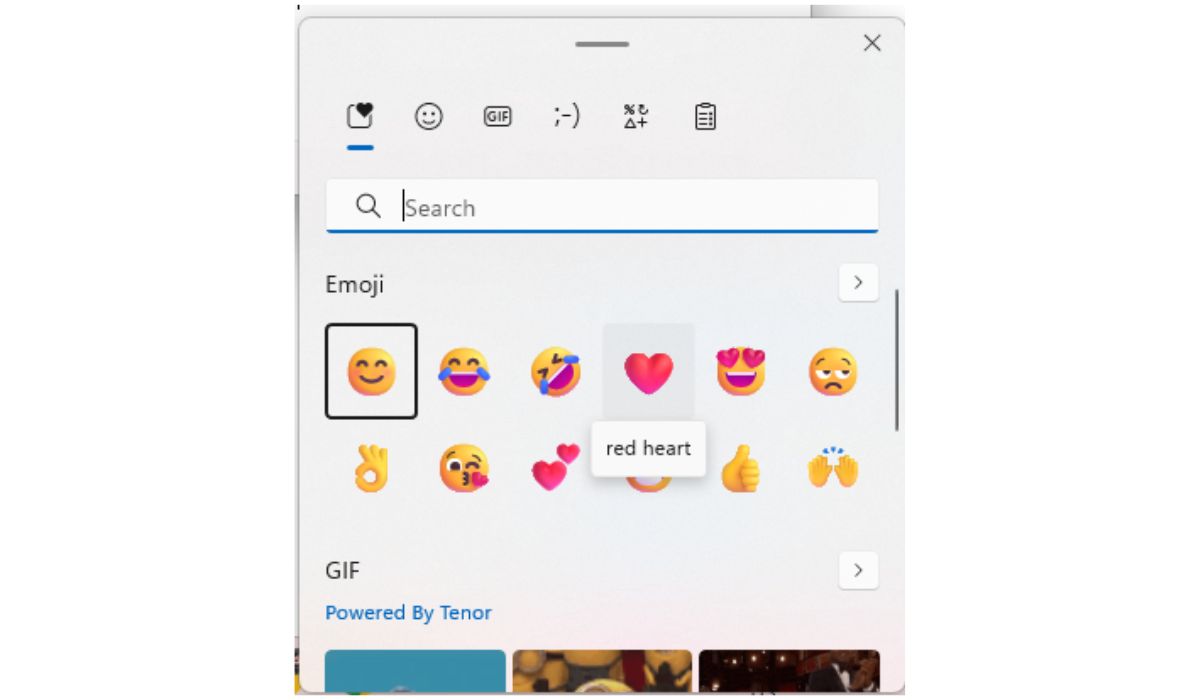
Imagine clicking open your Chrome browser and instead of a drab, utilitarian interface, you’re greeted with bouncing emojis, confetti raining down on your bookmarks bar, and animated icons accompanying your clicks. It’s not a new social media platform or a video game—this is the delightful world of emoji-themed Chrome extensions and themes turning regular browsing into a digital celebration.
TL;DR
Emoji-based Chrome extensions and browser themes offer a fun twist to the traditional web browsing experience. These tools can animate your tabs, customize cursor icons, and even gamify mundane tasks like opening a new tab. They especially appeal to users looking to inject a little personality and fun into their daily computer habits. You don’t need to be tech-savvy either—installation and customization are usually as easy as clicking a few buttons.
Why Emojis?
Emojis have transformed from simple communication tools into universal symbols of emotion, expression, and identity. Their abundance in texts and social media isn’t accidental—they provide a quick, visual way to convey mood and tone. Bringing them into the browsing experience adds energy and immediacy, replacing inert text and icons with something more animated, more ‘alive.’
Incorporating emojis in Chrome isn’t just about appearance; it’s also about emotional engagement. Instead of the flat minimalism of traditional web pages and interfaces, emojis deliver a sense of spontaneity and personalization. They resonate particularly well with younger users and digital natives who thrive on visual language and fast communication.
Top Emoji Chrome Extensions That Deliver the Party Vibe
The Chrome Web Store is filled with dozens of emoji-related extensions. Here’s a list of the most popular or most festive tools that can help you transform your browser into party mode:
- Emoji Keyboard by JoyPixels: This extension allows you to insert emojis into text easily, great for emails and messaging platforms. But beyond that, it also comes with mini-animations and tooltips that make typing more interactive.
- Tabby Cat: Possibly the most adorable extension out there, Tabby Cat replaces your new tab page with a randomly generated cute cat that blinks, reacts to clicks, and spawns with quirky accessories—from monocles to pizza slices.
- Super Emoji Cursor: Changes your ordinary cursor into a wide variety of emoji-shaped cursors. You can wave around a dancing banana or tiptoe with a unicorn, turning mouse movements into animated joy.
- Confetti Cannon: Every time you click a favorite shortcut or open a new bookmark, this extension celebrates your activity by letting off a burst of digital confetti accompanied by emojis.
Personalizing the Browse Party
Once you’ve installed a couple of these joyous extensions, the next step is customization. Chrome allows features like pinning extensions to your toolbar, setting new tab behavior, and even modifying your browsing themes. For example, combining an animated emoji cursor with an emoji-packed new tab experience can completely alter how the internet feels visually.
Some themes also allow animated GIFs and background music to be triggered when opening new pages. Imagine clicking to research, only to be gently welcomed by a smiling sun and calming ukulele strums. Browsing suddenly feels less like a task and more like a delightful interaction.
The user-friendliness of these tools is also worth emphasizing. Most extensions come with toggle buttons, sliders, and simple settings so you can adjust the “party level” of your browsing. Want just a sprinkle of emojis? No problem. Want a full confetti-and-tambourine-level celebration? You can do that too.
Compatibility and Performance
One common concern users have is whether these playful additions slow down their browser or interfere with functionality. The good news? Many of the emoji extensions are designed to be lightweight. They run scripts that engage only when necessary—like when opening a new tab or clicking the cursor.
Still, it’s important to monitor your system if you have an older setup or use Chrome for power-intensive tasks like video editing or deep research. In that case, you might want to limit the number of highly animated features running concurrently.
Who Is This For?
This emoji-enhanced browsing environment appeals to many user groups:
- Students: Bright colors and animated emojis can make studying and homework feel more engaging.
- Remote Workers: Let’s be honest—long Zoom calls and spreadsheet marathons deserve bursts of animated cheer.
- Casual Users: If you’re mostly using Chrome for casual web surfing, why not raise the fun factor?
- Content Creators: Designers and bloggers who live online may appreciate the burst of creativity and fresh energy emojis provide.
Tips for Maximizing the Fun
If you’re intrigued and ready to experiment, there are a few tips to help you get the most out of your emoji-oriented browsing experience:
- Start Small: Install one or two chrome extensions first to test compatibility and personal taste.
- Combine Themes and Extensions: A vibrant theme can work wonders when paired with a fun new tab or cursor extension.
- Use Profiles: If you share your computer, create separate Chrome profiles for work and play. One can be professional and toned down, while the other sports a parade of dancing tacos.
- Update Regularly: Many extensions are updated with new emojis and features—make sure to keep them current for maximum fun.
The Thin Line Between Fun and Chaos
While the emoji explosion can certainly improve mood and make browser time more enjoyable, there’s a fine line between delightful and distracting. For instance, if your tasks require a lot of focus—such as coding, financial planning, or academic research—you might want to keep the party muted. Many Chrome extensions allow “focus mode” where animations are turned off during specific hours or when visiting certain domains like *.edu or docs.google.com.
Knowing how and when to toggle the features can make emoji-based browsing a constant companion rather than a one-time gimmick. Customization and moderation are key to enjoying this mini party in a sustainable way.
Ready to Party?
With emoji-enhanced Chrome experiences readily available and frictionless to install, bringing joy to mundane web activities has never been easier. Whether you’re a college student, a creative professional, or just someone tired of dreary digital interfaces, there’s truly a party waiting to happen every time you open Chrome—if you let it.
FAQ
- Q: Will emoji-themed Chrome extensions slow down my browser?
A: Most are optimized for minimal performance impact, but having too many running simultaneously can affect older machines. - Q: Are these extensions free?
A: Yes, most emoji-based Chrome extensions and themes are entirely free, though some may offer premium features. - Q: Can I turn off the animations temporarily?
A: Absolutely. Either disable the extension or use the built-in “focus mode” features provided by many of them. - Q: Are emoji cursor extensions distracting during professional use?
A: They can be, depending on the workplace. Consider using Chrome profiles to keep work and personal setups separate. - Q: What are the best combinations for a full emoji experience?
A: A pairing of Tabby Cat for new tabs, Super Emoji Cursor, and a vibrant emoji-theme background creates a truly festive browser environment.
