



Quick Answer: A clickable phone number in WordPress uses a simple phone link. Add tel: before the number, then attach it to text, a button, or a contact block. When a visitor taps it on a phone, their device can open the dialer and start a call.
Introduction
This article is for small business owners, bloggers, freelancers, local service companies, and beginners who want more calls from their website. It is also helpful if you are building a contact page, editing a footer, or adding a call button to a sales page.
This blog post matters because a plain phone number makes people do extra work. They must copy it, remember it, or type it by hand. A clickable number removes that step. It makes your site easier to use, especially on mobile, where most people want fast action.
You do not need code skills for this setup. In most cases, you only need the right phone link format and the right place to add it inside WordPress.
How do you make a clickable phone number in WordPress?
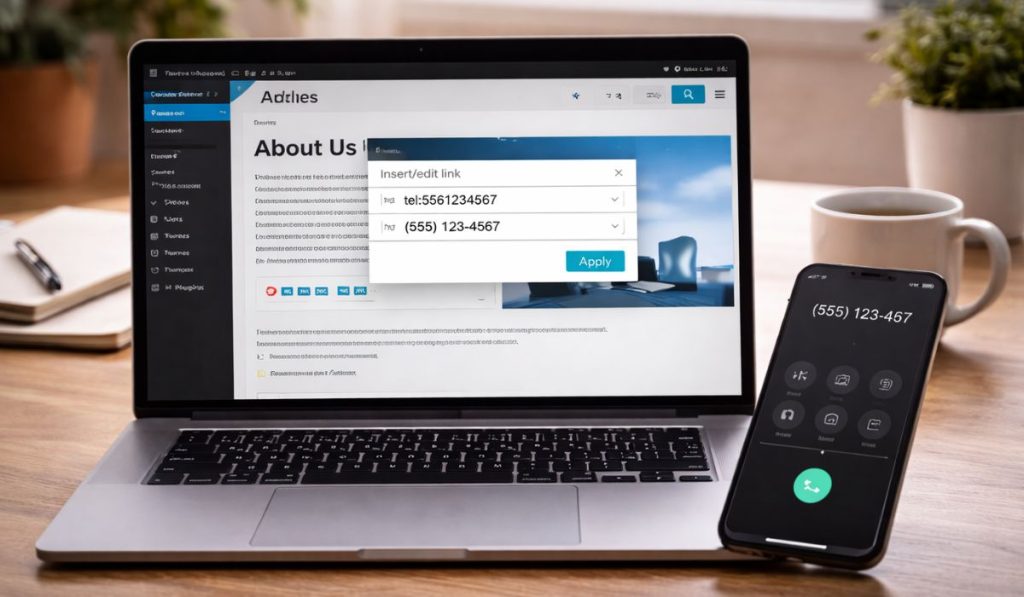 You make a clickable phone number by turning the number into a link that starts with tel:. That tells the browser or mobile device that the link is for a phone call.
Here is the basic format:
tel:+15551234567
You can show the number in a clean style for readers, but the actual link should still use the tel: format.
A simple example looks like this:
- Visible text: (555) 123-4567
- Link: tel:+15551234567
That is the core method. Once you know it, you can use it in text, buttons, sidebars, footers, and contact sections.
The simple meaning of a phone link
A phone link is just a normal hyperlink with a different target. Instead of opening a new page, it tells the device to start a phone action.
That is why this works so well for local businesses, repair services, clinics, restaurants, consultants, and real estate websites.
How to add a clickable phone number in the WordPress block editor
The block editor makes this easy. You can add the phone link inside a Paragraph block, Heading block, Button block, or other blocks that support links.
Method 1: Add a phone link to text
Follow these steps:
- Open the page or post you want to edit.
- Add a Paragraph block or click inside existing text.
- Type your phone number.
- Highlight the number.
- Click the link icon in the toolbar.
- Enter the phone link using tel: and the full number.
- Save or update the page.
Example:
tel:+15551234567
Now the number should work as a tap-to-call link on supported devices.
Keep the visible number clean
Your visible number can look friendly and easy to read. The link behind it can stay simple.
For example:
- Visible text: Call us at (555) 123-4567
- Link: tel:+15551234567
This gives you the best of both worlds. Readers see a normal phone number, while the browser reads a proper call link.
How to make a clickable phone number with a WordPress button
 A button can work even better than plain text because it stands out. It gives visitors a clear action, especially on mobile.
Method 2: Use a Buttons block
Here is the easy process:
- Add a Buttons block.
- Type button text such as Call Now or Speak With Us.
- Click the link option for the button.
- Paste your phone link using tel: and the number.
- Save the page.
Example button link:
tel:+15551234567
A button works well on these pages:
- Homepage
- Contact page
- Service page
- Landing page
- Mobile sticky bar
If your goal is more phone leads, a button is often stronger than a plain number in a paragraph.
How to use the Contact Info block for a clickable phone number
Some WordPress setups include a Contact Info block or similar contact block. This can make the job even easier because the block is built for contact details.
You usually add the block, enter the business phone number, and publish the page. The phone number can become clickable without much manual work.
This method is helpful if you want a clean contact section with:
- Phone number
- Email address
- Business address
- Icons or contact styling
If your site has that block available, it can be one of the easiest options for beginners.
Can you make a phone number clickable in the WordPress footer or sidebar?
Yes, you can. The same phone link method works in many places across a WordPress site.
That includes:
- Footer text
- Sidebar widgets
- Header bars
- Contact sections
- Announcement bars
- Menu areas in some themes
The main rule stays the same. Use tel: before the number in the link.
Footer example
If you place a number in the footer, use readable text for the visitor and a proper phone link behind it.
Example:
- Footer text: Call: (555) 123-4567
- Link: tel:+15551234567
This helps users find your number from any page on the site.
What is the best format for a clickable phone number?
The best format is one that works clearly for users and devices. For the actual link, keep it simple.
A safe format looks like this:
tel:+15551234567
Best practice tips
- Include the country code if you serve more than one country
- Remove extra words from the actual link
- Keep the visible number easy to read
- Test the number on a real phone
- Use the same number across the site for trust and consistency
Readable vs functional format
Here is a quick comparison:
- Type – Example
- Visible phone number – (555) 123-4567
- Link format – tel:+15551234567
This keeps your site clean and your phone link useful.
Why is my phone number not clickable in WordPress?
Sometimes the setup looks right, but the number still does not work. In most cases, the issue is small and easy to fix.
Common problems
- You forgot to add tel:
- The number is plain text, not a real link
- The block does not support links
- The page was not updated after editing
- The link uses the wrong number format
- A page builder or widget stripped the link
Another common issue on desktop
A phone link may not behave the same way on every desktop computer. Some desktops open a calling app, while others do little or nothing. That does not always mean the link is broken.
This is why you should always test the phone number on a mobile device. That is where click-to-call matters most.
How to test a clickable phone number in WordPress
Testing is simple, but you should do it before publishing important pages.
Use this checklist:
- Open the page on your phone.
- Tap the phone number.
- Check whether the dialer opens.
- Make sure the right number appears.
- Test again after any theme or plugin change.
You can also test on desktop, but the mobile test matters more because most call actions happen there.
Best places to put a clickable phone number on your WordPress site
Placement matters almost as much as setup. A phone number hidden at the bottom of a page will not get as many clicks as one placed where people expect it.
Strong places to add a phone link:
- Header contact bar
- Top of the contact page
- Homepage hero section
- Service pages
- Footer
- Mobile call button
- Sidebar for local service sites
Best option for local businesses
If you run a local business, use both a text number and a call button. This helps different types of visitors.
Some people want to see the number first. Others want one fast tap. Giving both options can improve user experience and lead quality.
Should you use a text link or a call button?
Both can work well, but they do different jobs.
- Option – Best use
- Clickable text number – Contact pages, footers, sidebars
- Call button – Homepages, service pages, mobile sections
A text number feels natural and trusted. A button feels stronger and more action-focused. Many business sites use both together.
Simple example you can copy
If you want the fastest working version, use this pattern:
<a href=”tel:+15551234567″>(555) 123-4567</a>
This is the basic HTML version of a clickable phone number. Many WordPress blocks handle the link for you, but this example helps you understand what is happening in the background.
Helpful tips before you publish your number on the website.
Keep the number the same across your website so visitors do not get confused.
- Put the number where mobile users can see it fast.
- Use a clear call phrase like Call Now, Speak With Our Team, or Book by Phone.
- Test after changing themes, widgets, or page builders.
These small steps can make a big difference in how many calls your site gets.
Frequently Asked Questions (FAQs)
Can I make a phone number clickable in WordPress without a plugin?
Yes. In most cases, you do not need a plugin. You only need to add a link with tel: before the number.
Can I use a clickable number in a button?
Yes. A Buttons block is one of the best ways to create a clear call-to-action for mobile users.
Can I add a clickable number in the footer?
Yes. The same phone link method works in footers, sidebars, and many widget or theme areas.
Why does my phone link not work on desktop?
Some desktop devices do not handle phone links the same way as mobile devices. Test the number on a smartphone to confirm it works properly.
Should I include the country code?
Yes, that is a smart choice, especially for businesses that serve more than one area or country.
Final thoughts
Making a clickable phone number in WordPress is simple once you know the method. Add tel: before the number, place it in text or a button, and test it on mobile. That is the core setup.
This small change can make your site easier to use and can help more visitors call you without delay. It works well for business websites, service pages, local SEO pages, and contact sections.
If you are updating your site today, start with the header, contact page, and footer. Those three spots usually give the best results.
Leave a comment below and tell me this: will you add your clickable phone number as plain text, a call button, or both?
