


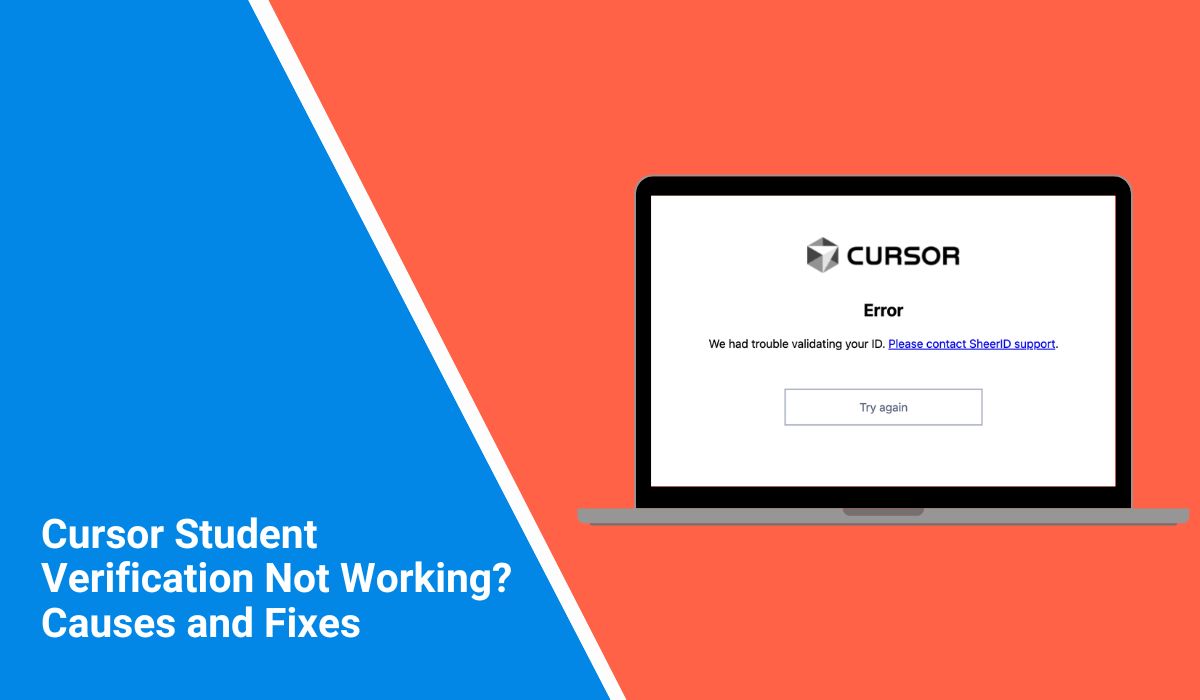
Trying to verify your student status on Cursor can get annoying fast. You enter your university email, hit verify, and then nothing happens. Or the email never shows up. Or the link opens but the verification still fails. That blocks the student plan and any student discount.
This guide explains why Cursor student verification stops working, what usually causes it, how to fix it step by step, and how to avoid the same issue next time.
Why Cursor Student Verification Is Not Working?
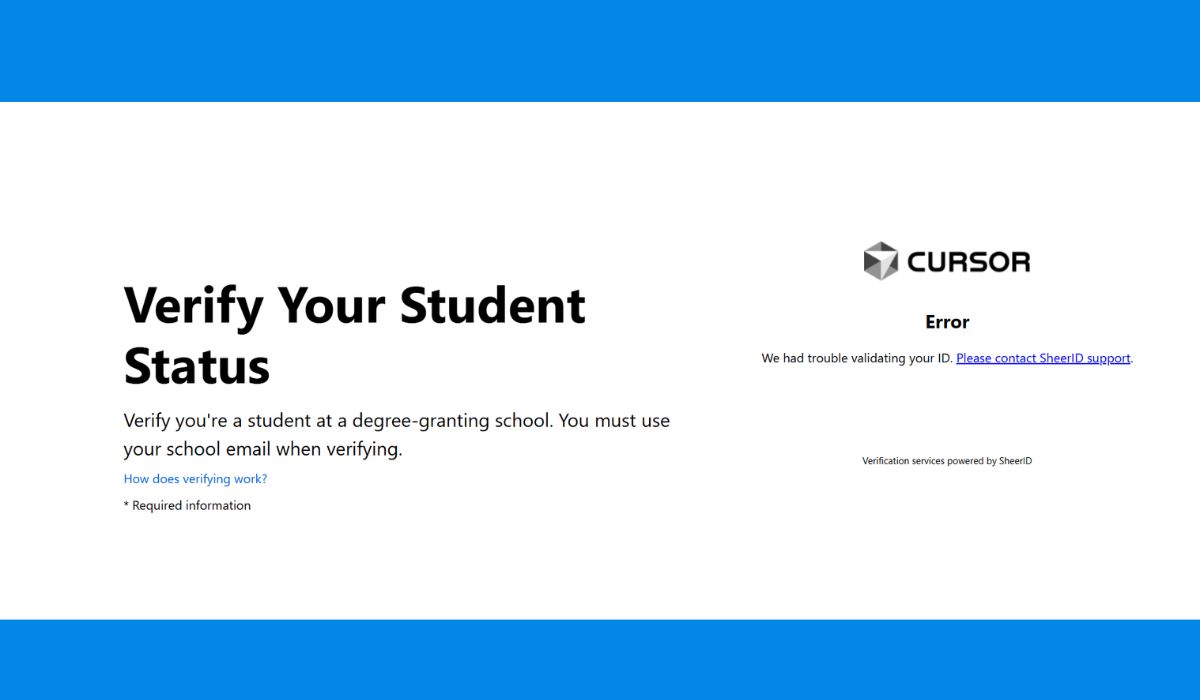 Cursor student verification usually fails for a few practical reasons. The most common one is email domain checking. Cursor may not accept every school domain, especially if the school uses a custom format that doesn’t look like a typical education domain.
The issue can also come from the verification email flow. The message can land in spam, the verification link can expire, or your Cursor login session can time out while you click around. In some cases, the verification system slows down because of service load, and you see a pending status that doesn’t change.
So the problem is rarely “random.” It’s usually the email domain, the link delivery, the session, or the network.
Common Causes of Cursor Student Verification Not Working
This problem often comes from email, browser, or network settings. Sometimes it’s also a delay on the verification side.
Common causes include:
- Your student email domain is not accepted by Cursor’s student system
- You typed the student email wrong, or used a personal email by mistake
- The verification email went to spam, junk, or promotions
- The verification link expired or you opened an old link after requesting a new one
- Your Cursor session logged out in the background
- A VPN, proxy, or firewall blocks the verification request
- Browser cache or cookies break the verification page
- Browser extensions interfere with sign-in or redirects
- The verification service is slow or temporarily down
How to Fix Cursor Student Verification Not Working
Fixes depend on what failed: the email, the link, the session, or the network. Try these in order and stop when it works.
Fix #1: Re-check the Student Email You Entered
This sounds basic, but it causes a lot of failures.
Look carefully at the email you entered. Even one extra character or a missing dot can cause the system to reject it. Make sure you are not using a personal Gmail or Outlook address by mistake.
If your university gives more than one email format, use the one meant for official portals, not an alias.
Fix #2: Look for the Verification Email Beyond the Inbox
The verification email does not always land where you expect.
Search your email for “Cursor” instead of scrolling. Also check spam, junk, and promotions. Some school email systems automatically filter external services.
If you find the email in spam, mark it as safe before clicking the link. This helps future verification emails arrive correctly.
Fix #3: Request a Fresh Verification Link
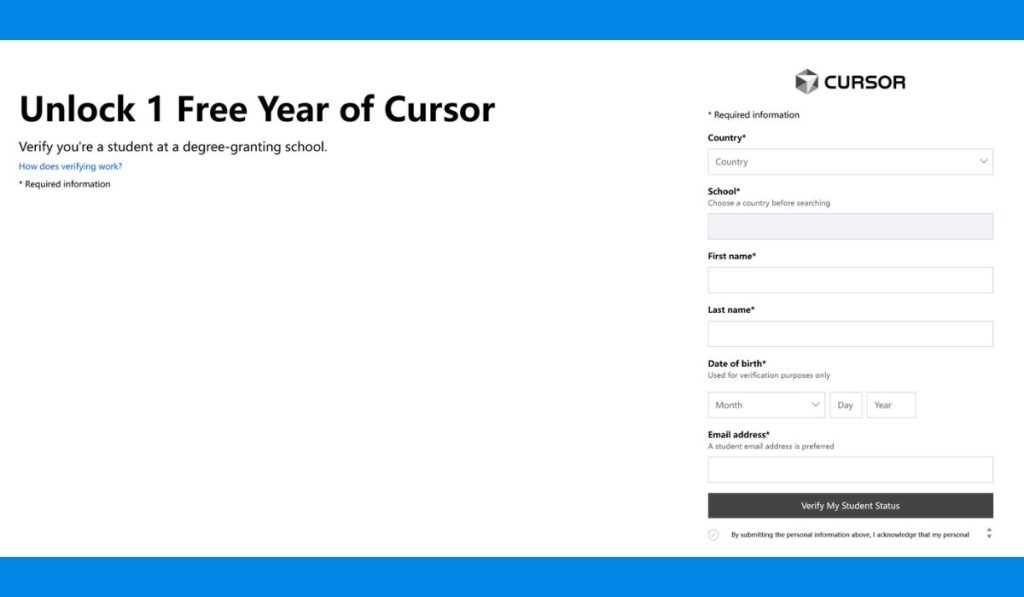 Verification links do not stay valid forever.
If you requested verification earlier and waited too long, the link may still open but silently fail. This is common and confusing.
Go back to Cursor’s verification page and request a new email. Once you do that, ignore all older messages and use only the newest link.
Fix #4: Log Out and Restart Your Cursor Session
Cursor may still think you are logged in, even when the session is partially expired.
Log out completely. Close the browser tab. Wait a few seconds. Then open Cursor again and log back in.
This resets the session and often fixes issues where the verification button does nothing or keeps loading.
Fix #5: Clear Browser Cache and Cookies
If the verification page keeps looping or showing errors, browser data is often the reason.
Here are the steps you can follow:
- Open browser settings
- Go to privacy or history
- Clear cache and cookies
- Close the browser
- Open it again and log into Cursor
This removes broken data that can block verification redirects.
Fix #6: Use Incognito Mode for a Clean Test
Incognito mode runs without most saved data and extensions.
- Open an incognito window, log into Cursor, and start verification again. If it works here but not in normal mode, the issue is local to your browser setup.
This is a strong signal that something in your regular browser is interfering.
Fix #7: Temporarily Disable Browser Extensions
Some extensions block scripts, redirects, or pop-ups without warning.
Ad blockers, privacy tools, and security extensions are common causes. Turn them off for a moment and refresh the verification page.
If verification works, re-enable extensions one by one later to find the exact cause.
Fix #8: Turn Off VPN or Proxy Services
VPNs change your IP address and can confuse verification systems.
Turn off your VPN completely and reload Cursor. Then retry the verification process from the start.
If verification works without the VPN, keep it off until verification finishes.
Fix #9: Switch to a Different Network
Network restrictions can silently block verification.
If you are on campus Wi-Fi, office internet, or a shared network, switch to home Wi-Fi or a mobile hotspot. Some networks block external verification services.
This fix is especially helpful when everything else looks correct but verification keeps failing.
Fix #10: Check Whether Your School Domain Is Supported
Not all universities use standard email domains.
Some schools use custom domains that verification systems don’t recognize automatically. If your email is real but keeps getting rejected, this may be the reason.
At this point, no browser or network fix will help.
Fix #11: Wait and Try Again Later
Sometimes the issue is timing.
If Cursor’s verification service is busy or delayed, your status may stay pending longer than expected. Waiting a few hours before retrying can help.
Avoid sending many requests back to back. That can slow things down further.
Fix #12: Contact Cursor Support for Manual Verification
If nothing works, support is the right next step.
When contacting Cursor support, include:
- Your university name
- Your student email domain
- What happens when you try to verify
- Whether you tried without VPN and with a clean browser
This helps them quickly tell whether your school is supported or if manual verification is possible.
Prevention Tips to Avoid This Verification Issue Again
A few habits reduce repeat issues:
- Use your official university email address, not a personal Gmail
- Request the verification email once, then use the newest link quickly
- Avoid VPNs during verification
- Keep one browser clean for signups, with fewer extensions
- Don’t verify on restricted Wi-Fi if you can avoid it
Conclusion
Cursor student verification usually fails because of email domain checks, missing verification emails, expired links, session problems, or network blocks. Most fixes are simple, like checking spam, requesting a fresh link, logging in again, or switching networks.
If you tried the fixes and it still fails, Cursor support is the best next step, especially if your school domain isn’t recognized. If this guide helped, share it with other students and comment what fixed it for you.
