


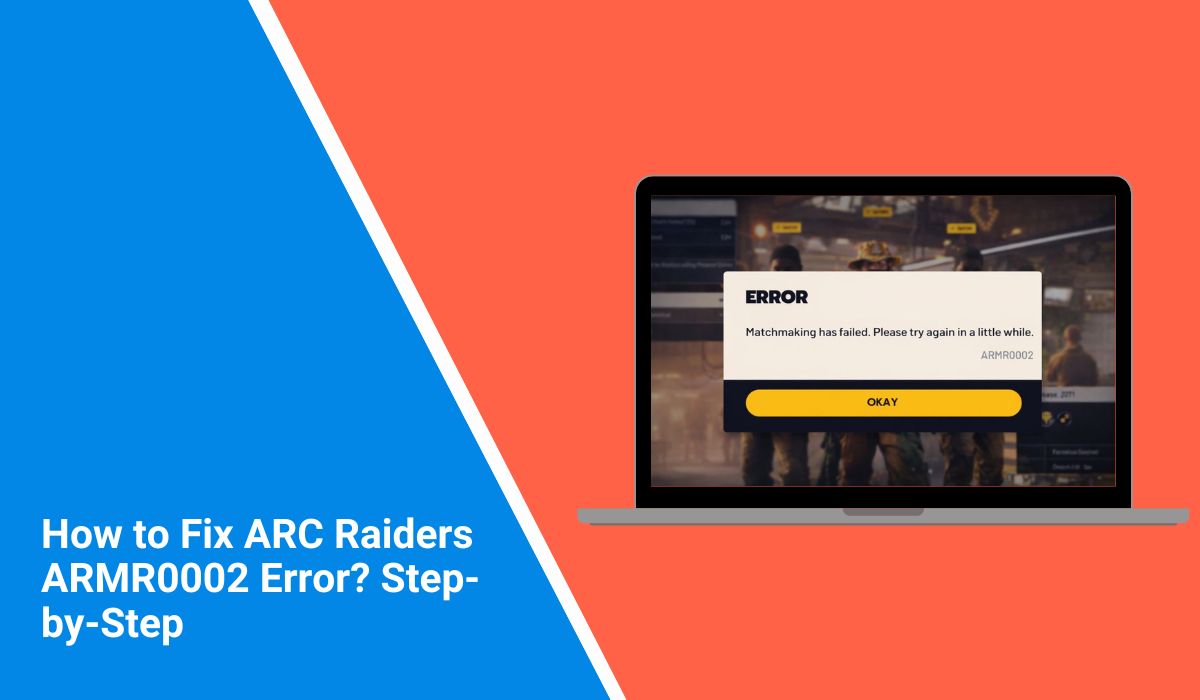
You start ARC Raiders, wait for it to load, and then a message appears with the code ARMR0002. The game does not let you continue, and you cannot reach the main menu or play online. This feels frustrating because everything else on your PC or console may work fine, yet ARC Raiders blocks access. Since the game depends on online services, this error stops you completely.
This guide explains what the ARC Raiders ARMR0002 error means, where it appears, why it happens, how to fix it step by step, and how to reduce the chance of seeing it again.
What Is ARC Raiders ARMR0002 Error?
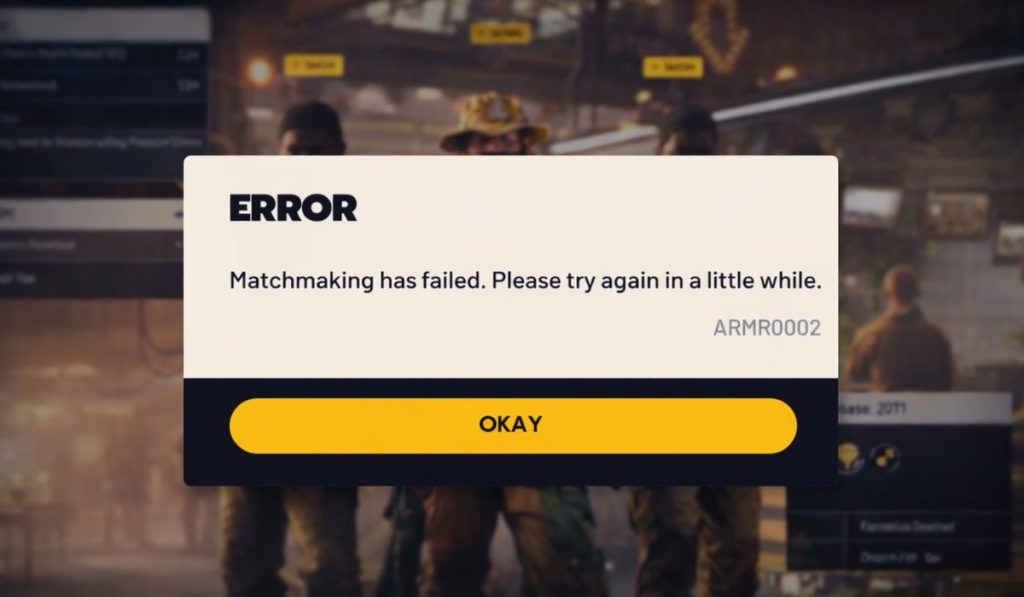 The ARC Raiders ARMR0002 error means the game cannot complete the login or authentication process. When you launch the game, it tries to connect your player account to online services managed by Embark Studios. If that connection fails, the system stops the process and shows the ARMR0002 error. This protects the game from loading into an unstable or incomplete online state.
You usually see this error during launch or right after the login screen. Sometimes it appears before the main menu loads. Other times, it shows after a short loading attempt. The error can appear on PC or other supported platforms, depending on server status and network conditions.
Common Causes of ARC Raiders ARMR0002 Error
This error can appear for several reasons, depending on server conditions, network setup, or local system issues. Below are the most common causes players experience.
- ARC Raiders servers are under maintenance
- Login servers are overloaded
- Internet connection is unstable
- Firewall or router blocks authentication traffic
- ARC Raiders game client is outdated
- Account session failed to sync properly
- Regional server connection issues
How to Fix ARC Raiders ARMR0002 Error?
The ARMR0002 error usually appears when ARC Raiders cannot complete the login or authentication process. This can happen because the game cannot reach its servers, the network blocks traffic, or the game client is out of sync.
The fixes below focus on server access, network stability, and game file health. Apply each fix one at a time and try launching the game after every step so you know what works.
Fix #1: Check ARC Raiders Server Status
The ARMR0002 error often shows up when ARC Raiders servers are offline, under maintenance, or overloaded. When authentication servers are not available, the game cannot log you in, even if your internet connection works fine. In this situation, local fixes will not help because the issue is on the server side.
Here are the following steps which help you check server status.
- Open a web browser on your PC or phone
- Visit the official ARC Raiders website
- Check Embark Studios announcements
- Look for maintenance or outage updates
- Check official ARC Raiders social media pages
- Wait until servers are confirmed online
If servers are down, wait before trying other fixes.
Fix #2: Restart Game, Launcher, and System
Temporary login data or background processes can block authentication and trigger the ARMR0002 error. Restarting clears cached sessions, refreshes system services, and forces the game to start clean. This fix helps when the error appears after long play sessions or repeated login attempts.
Restart the game completely, close the launcher, reboot your PC or console, and wait until the system fully loads before launching ARC Raiders again.
Fix #3: Check Internet Connection Stability
An unstable internet connection can interrupt authentication requests, even if the connection does not fully disconnect. Small drops, high latency, or packet loss can cause the login process to fail and show the ARMR0002 error.
Make sure your internet connection is stable. Pause downloads, avoid streaming on other devices, and use a wired connection if possible before starting the game.
Fix #4: Disable VPN or Proxy
VPNs and proxy services can reroute your connection through regions not supported by ARC Raiders servers. This can block authentication traffic and prevent the game from completing login checks. Disabling these services allows the game to connect directly to Embark Studios servers.
Follow the steps below to easily disable VPN or proxy services.
- Close ARC Raiders completely
- Open your VPN or proxy application
- Disconnect from the active server
- Exit the VPN app fully
- Open network settings
- Make sure no proxy is enabled
- Restart ARC Raiders and try logging in
Fix #5: Allow ARC Raiders Through Firewall
Firewalls can block the network ports ARC Raiders uses for authentication and login. When traffic is blocked, the game cannot verify your account and shows the ARMR0002 error. Allowing the game through the firewall restores proper communication.
Follow these easy instructions to allow ARC Raiders through the firewall.
- Open Windows Security
- Go to Firewall and network protection
- Click Allow an app through firewall
- Select Change settings
- Find ARC Raiders in the list
- Allow both private and public access
- Save changes and restart the game
Fix #6: Update ARC Raiders Game Client
An outdated ARC Raiders game client may not match the current server version. When versions differ, authentication requests can fail during login. Updating the game ensures compatibility with live servers and fixes known login issues.
Use the steps below to update the game client.
- Open the game launcher
- Go to the game library
- Locate ARC Raiders
- Check for available updates
- Download and install updates
- Restart the launcher
- Launch the game and try logging in
Fix #7: Verify Game Files
Corrupted or missing game files can prevent ARC Raiders from completing the login process. This often happens after interrupted updates or system crashes. Verifying files checks the installation and repairs damaged data.
Follow these steps to verify game files.
- Open your game launcher
- Go to the game library
- Select ARC Raiders
- Open game settings
- Choose Verify or Repair files
- Wait for the scan to complete
- Restart the launcher and launch the game
Prevention Tips to Avoid ARC Raiders ARMR0002 Error
Prevention helps reduce repeated login errors and saves time. These simple habits help keep access stable.
- Keep ARC Raiders updated
- Avoid VPNs while playing
- Restart your router regularly
- Maintain a stable internet connection
- Close background network-heavy apps
- Play during off-peak server hours
- Follow official server announcements
Conclusion
In short, the ARC Raiders ARMR0002 error means the game cannot complete the login or authentication process. This usually happens because of server maintenance, network blocks, outdated game files, or connection instability. While the error looks serious, it is often temporary or easy to fix.
Try the fixes one by one and follow the prevention tips to reduce future problems. If the error keeps appearing, contact Embark Studios support and share your platform and network details. If this article helped you, leave a comment and share it with other ARC Raiders players who may be stuck on the same error.
