


If you are deciding between macOS Ventura and macOS Sonoma, you are really choosing between a mature, reliable release and a more polished, feature-rich evolution of the same modern macOS foundation. Ventura introduced important productivity tools like Stage Manager, Continuity Camera, Passkeys, and a redesigned System Settings app, while Sonoma refined the experience with desktop widgets, better video conferencing tools, Game Mode, and visual improvements. The “better” version depends on your Mac model, your workflow, and how much you value stability versus newer features.
TLDR: For most users with a compatible Mac, macOS Sonoma is the better choice because it offers newer features, improved security updates, and a more refined everyday experience. macOS Ventura is still a strong option if you rely on older apps, use an older Mac, or prefer a more established release. If your Mac runs Sonoma smoothly, upgrading is generally worth it; if your system is near the compatibility cutoff, Ventura may feel safer and faster.
Understanding the Difference Between Ventura and Sonoma
macOS Ventura, released in 2022, represented a major shift in how Apple wanted Mac users to multitask and manage settings. Its biggest changes included Stage Manager, the iPhone-powered Continuity Camera, improved Spotlight search, Passkeys for passwordless sign-ins, and a System Settings redesign inspired by iOS and iPadOS.
macOS Sonoma, released in 2023, was not as disruptive, but it brought a more complete and comfortable version of Apple’s modern desktop vision. Instead of changing everything, Sonoma focused on quality-of-life improvements: interactive widgets on the desktop, enhanced video call controls, Safari profiles, web apps in the Dock, better gaming performance, and subtle design polish.
In simple terms, Ventura feels like the foundation, while Sonoma feels like the refinement.
Image not found in postmetaInterface and Everyday Usability
Ventura’s interface is clean and modern, but some users found its changes slightly jarring. The redesigned System Settings app, for example, moved away from the old grid-based System Preferences layout. It became more consistent with iPhone and iPad settings, but longtime Mac users sometimes found it less intuitive.
Sonoma keeps the same System Settings approach but makes the overall experience feel smoother. The most noticeable visual feature is the addition of desktop widgets. These widgets can show reminders, weather, calendar events, battery levels, podcasts, notes, and more directly on your desktop. They fade into the background when you open apps, so they remain useful without becoming distracting.
Sonoma also introduced new animated screensavers that transition beautifully into wallpapers when you unlock your Mac. This may sound cosmetic, but it adds a sense of freshness and personality to the desktop. If you enjoy a more dynamic and visually pleasing workspace, Sonoma clearly has the advantage.
Productivity Features: Stage Manager vs Desktop Widgets
Ventura’s headline productivity feature was Stage Manager. It organizes active apps into a centered workspace while keeping other app windows available along the side of the screen. For some users, especially those working on smaller MacBook displays, Stage Manager can reduce clutter. For others, it feels unnecessary compared with traditional Mission Control, Spaces, and window management habits.
Sonoma does not replace Stage Manager; it builds around it. The addition of desktop widgets gives you quick access to information without opening separate apps. For example, you can glance at your calendar, check off reminders, or monitor smart home devices from the desktop. If you also use an iPhone, Sonoma can display compatible iPhone widgets on your Mac, even if the corresponding Mac app is not installed.
For productivity, Sonoma wins for users who like at-a-glance information and a more customizable desktop. Ventura remains perfectly capable, but Sonoma feels more flexible.
Safari and Web Browsing
Both Ventura and Sonoma include fast, efficient versions of Safari, but Sonoma adds several useful improvements. The biggest is Safari Profiles, which lets you separate browsing data for work, personal use, school, or side projects. Each profile can have its own history, cookies, extensions, tab groups, and favorites.
This is especially useful if you use the same Mac for multiple roles. You can keep work logins separate from personal accounts, reduce distractions, and avoid mixing bookmarks. Sonoma also allows you to add websites to the Dock as web apps, making sites like email, project management tools, or streaming services behave more like standalone applications.
Ventura’s Safari is still excellent, but Sonoma offers a better browsing setup for anyone who lives in web apps or juggles multiple online identities.
Video Calls and Remote Work
Ventura made video calls better with Continuity Camera, allowing you to use an iPhone as a high-quality webcam. This was a major improvement, especially for Mac mini, Mac Studio, or older MacBook users with less impressive built-in cameras.
Sonoma takes video conferencing further with features such as Presenter Overlay, which lets you appear in front of or beside shared content during calls. It also adds reactions like hearts, balloons, fireworks, and thumbs-up animations that can be triggered during supported video calls. These may seem playful, but Presenter Overlay is genuinely useful for teachers, presenters, sales teams, and remote workers.
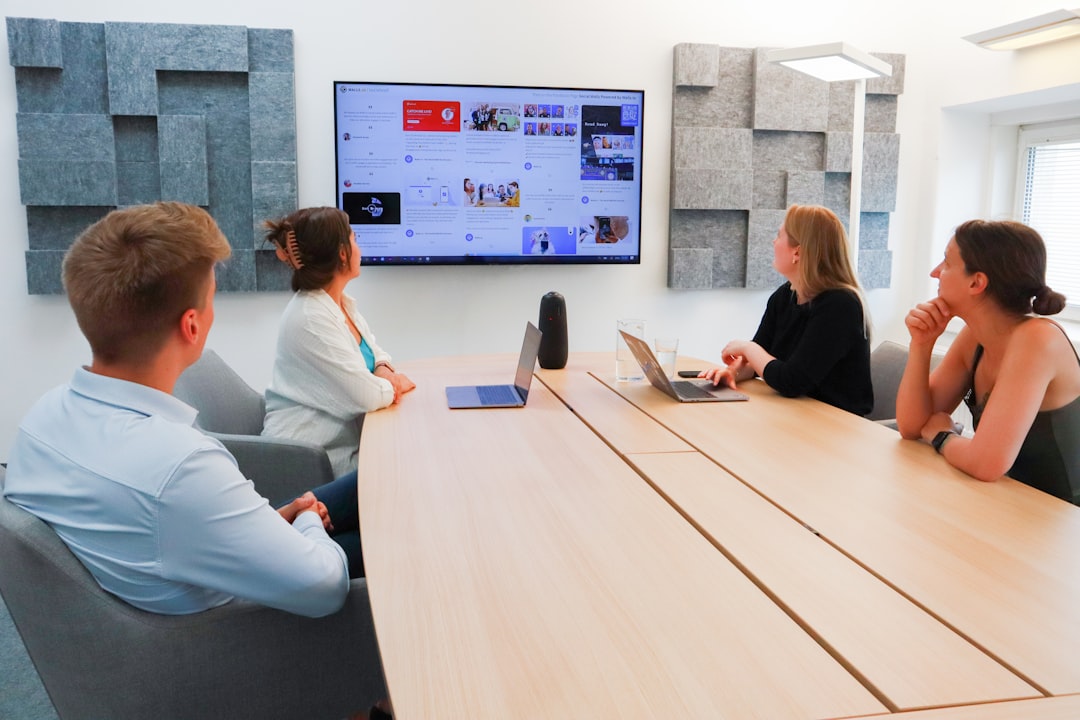
If video meetings are a major part of your workday, Sonoma is the stronger choice. Ventura covers the basics very well, but Sonoma feels more suited to the modern remote-work environment.
Gaming and Performance
Gaming has never been the Mac’s strongest area, but Sonoma made an important step forward with Game Mode. When you play a game in full screen, Game Mode gives it higher priority on the CPU and GPU while reducing background task interference. It also lowers latency for wireless controllers and AirPods.
This does not magically turn every Mac into a gaming PC, but it does improve the experience on Apple silicon Macs, especially with supported games. Sonoma also introduced developer tools that made it easier for studios to bring games to macOS, which helped signal Apple’s growing interest in Mac gaming.
For general performance, the answer is more nuanced. On newer Apple silicon Macs, Sonoma generally runs smoothly and may feel just as fast as Ventura. On older Intel Macs, Ventura may feel lighter, particularly if the machine has limited memory or storage. If your Mac is supported by Sonoma but is one of the oldest eligible models, it is worth checking user reports for your specific device before upgrading.
Compatibility: Which Macs Can Run Each Version?
Compatibility may be the deciding factor. Ventura supports some older Macs that Sonoma does not. In general, Sonoma dropped support for several 2017-era models, while Ventura reaches slightly further back.
Ventura is better if:
- Your Mac cannot officially run Sonoma.
- You use an older Intel-based Mac and want to avoid possible slowdowns.
- You depend on older software, drivers, plug-ins, or hardware accessories.
- You prefer to stay with a more established system that has received many fixes.
Sonoma is better if:
- You have an Apple silicon Mac such as an M1, M2, or newer model.
- You want the latest supported features and security improvements between these two versions.
- You use Safari heavily and want profiles or Dock-based web apps.
- You care about desktop widgets, better video calls, and Game Mode.
Before upgrading, always confirm that your essential apps are compatible. This is especially important for musicians, designers, developers, and anyone using specialized professional software.
Security and Long-Term Support
Security is one of the strongest reasons to choose Sonoma if your Mac supports it. Apple typically provides security updates for recent macOS versions, but newer versions receive the most complete attention and feature support. Sonoma includes newer security enhancements and app privacy improvements, making it a better option for users who handle sensitive data.
Ventura is not insecure simply because Sonoma exists. It still benefits from Apple’s security architecture, including Gatekeeper, FileVault, app permissions, and Passkeys. However, the farther you move into the future, the more important it becomes to stay on a newer supported system.
If you use your Mac for banking, client work, business files, or travel, Sonoma gives you a stronger long-term position.
App Compatibility and Professional Workflows
For creative and technical professionals, “newer” does not always mean “better immediately.” Audio plug-ins, printer drivers, 3D tools, development environments, and enterprise apps can lag behind macOS updates. Ventura has the benefit of time: many developers have already optimized their apps for it.
Sonoma is now mature enough for most mainstream users, but if you depend on a very specific workflow, you should check compatibility before upgrading. For example, if you use external audio interfaces, older Adobe plug-ins, virtualization tools, CAD programs, or custom business software, Ventura may be the safer choice until every piece of your setup is verified.
Battery Life and Stability
Battery life depends heavily on your Mac model, battery health, background apps, and usage habits. On Apple silicon MacBooks, Sonoma generally performs well and should not create major battery concerns. In some cases, users may even notice better efficiency after indexing and background setup are complete.
However, older Intel MacBooks may behave differently. Ventura may feel more predictable on these machines because it is slightly older and often better matched to their hardware generation. If your Mac already struggles with heat, fan noise, or short battery life, upgrading to Sonoma may not dramatically improve things.
For stability, both versions are reliable. Ventura has the advantage of being older and widely tested, while Sonoma has matured through updates and offers a more current platform. If stability is your top priority, the best version is the one that supports all your apps and hardware without workarounds.
So, Which Version Is Better for You?
Choose macOS Sonoma if you have a compatible, reasonably modern Mac and want the best overall experience between the two. It is more polished, more attractive, and more useful for modern workflows involving web apps, video meetings, widgets, and light gaming. It also gives you a better path forward for security and software support.
Choose macOS Ventura if your Mac is older, your workflow depends on proven compatibility, or you simply do not need Sonoma’s new features. Ventura remains fast, capable, and familiar enough for users who value reliability over novelty.
The practical answer is this: Sonoma is better for most people, but Ventura is better for certain Macs and specialized workflows. If your Mac is an Apple silicon model, Sonoma is the clear recommendation. If your Mac is an older Intel machine, Ventura may be the smarter, safer, and smoother choice.
Ultimately, the best macOS version is not just the newest one; it is the one that lets your Mac do its job with the least friction. For many users, that will be Sonoma. For others, especially those holding onto older hardware or mission-critical apps, Ventura still has plenty of life left.
