Editing photos used to feel like wizard work. You needed a big computer, lots of time, and maybe a tiny dragon. Not anymore. Today, the best editing apps fit in your pocket. They help you crop a messy photo, smooth a tiny flaw, remove a random trash can, or add wild visual effects in a few taps.
TLDR: If you want simple edits, try Snapseed, Adobe Lightroom, or Photoshop Express. If you want retouching magic, try TouchRetouch, Facetune, or AirBrush. If you want fun effects, try Picsart, PhotoDirector, or CapCut. Pick one app that fits your style, then practice with small edits first.
What Makes a Great Editing App?
A good editing app should not make your brain melt. It should be clear. It should be fast. It should help you fix photos without needing a degree in “button science.”
The best apps usually do three things well:
- Cropping: Cutting the photo to improve the frame.
- Retouching: Fixing skin, objects, spots, or other distractions.
- Visual effects: Adding style, drama, filters, text, light, or motion.
Some apps are great at one job. Others are like a Swiss Army knife with glitter. Let’s look at the best ones.
1. Snapseed: The Friendly Power Tool
Snapseed is a favorite for a reason. It is free. It is powerful. It is also not too scary. That is a rare combo.
Snapseed is great for cropping. You can straighten a crooked horizon. You can crop for Instagram, portraits, banners, or simple square posts. The app feels smooth and quick.
It also has smart tools for retouching. The healing tool can remove small objects. Think zits, crumbs, wires, or a tiny beach photobomber. It is not always perfect, but it works well for simple fixes.
Snapseed also has fun effects. Try Drama for bold detail. Try Vintage for old movie vibes. Try Grainy Film if you want your photo to look like it drinks iced coffee and writes poetry.
Best for: Beginners who want strong tools for free.
2. Adobe Lightroom: The Color Genius
Adobe Lightroom is wonderful for anyone who cares about color. It helps make photos look clean, rich, and professional. It is popular with photographers, creators, travelers, and people who take 74 photos of one latte.
Lightroom has excellent cropping tools. You can use common ratios like 1:1, 4:5, 16:9, and more. This is helpful when posting to different platforms. It also has a good straighten tool.
For retouching, Lightroom works best with light and color fixes. You can brighten faces. You can soften shadows. You can make skin tones look more natural. Some versions also include healing and masking tools.
The visual effects are more classy than silly. You can create moody shadows, golden sunset tones, clean white looks, or deep cinematic colors. Presets make this easy. One tap can change the whole mood.
Best for: Color correction, clean edits, and polished social media photos.
3. Photoshop Express: Quick Fixes With Big-Name Energy
Photoshop Express is like the snack-size version of Photoshop. It is easier to use, but still powerful. It works well when you need a photo fixed fast.
The crop tool is simple. You can rotate, flip, straighten, and resize. This is perfect for profile pictures, product shots, thumbnails, and quick posts.
For retouching, Photoshop Express has blemish removal and smoothing tools. You can clean up small marks and make portraits look nicer. Just be careful. Too much smoothing can make a person look like a plastic spoon.
It also has filters, overlays, borders, text, and collage tools. It is not the wildest effects app, but it gives you plenty of creative options.
Best for: Fast fixes, casual retouching, and easy design-style edits.
4. TouchRetouch: The Object Removal Wizard
Have you ever taken a perfect photo, then noticed a power line slicing through the sky? Or a trash bin posing in the background? That is when TouchRetouch enters the chat.
This app focuses on one key thing: removing unwanted objects. It does that job very well. You brush over the thing you want gone. Then the app tries to fill the space behind it.
It is great for removing:
- Power lines
- Signs
- Small people in the background
- Skin spots
- Dust or lens marks
- Random objects on tables
TouchRetouch is not mainly for visual effects. It is not a full editing studio. But for retouching, it is one of the best. It feels like using an eraser from the future.
Best for: Removing objects and cleaning messy photos.
5. Facetune: Portrait Polish in Your Pocket
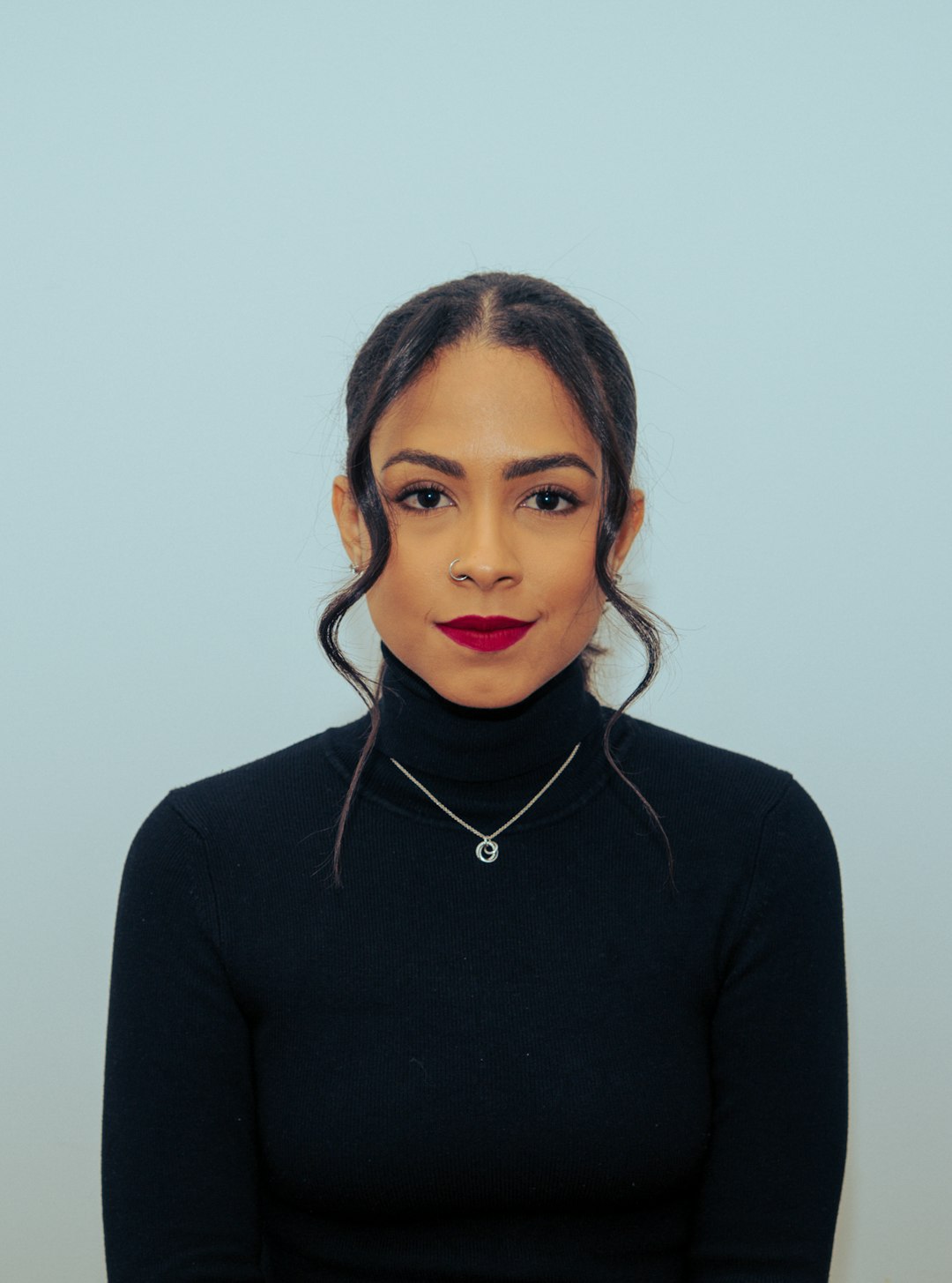
Facetune is built for portraits and selfies. It helps with skin, teeth, eyes, hair, and face lighting. It is popular because it is easy and fast.
You can crop selfies, adjust angles, and change the frame. But the real fun is retouching. You can smooth skin, reduce shine, whiten teeth, add detail to eyes, and fix small marks.
Here is the golden rule: use it gently. A tiny edit can look great. A huge edit can look like your face was generated by a nervous robot.
Facetune also has creative effects. You can add makeup looks, change backgrounds, adjust lighting, and create a more polished portrait. It is great for personal photos, profile pictures, and creator content.
Best for: Selfies, portraits, beauty edits, and social profiles.
6. AirBrush: Soft, Simple, and Selfie-Friendly
AirBrush is another strong choice for portrait retouching. It is simple to use, which makes it perfect for beginners.
The app has tools for smoothing skin, removing blemishes, brightening eyes, shaping features, and changing makeup style. It also includes filters that are made for people shots.
AirBrush is a good pick if Facetune feels too much. It is softer. It feels friendly. It gives you nice results without needing many steps.
Best for: Easy portrait edits and natural-looking selfies.
7. Picsart: The Fun Factory
Picsart is not shy. It is colorful, playful, and packed with tools. If Lightroom is a clean art gallery, Picsart is a party with stickers, neon lights, and someone wearing sunglasses indoors.
It has strong cropping tools. You can crop photos into normal sizes, custom shapes, or cutouts. The background remover is useful for making stickers, thumbnails, and social posts.
For retouching, Picsart includes smoothing, blemish tools, object removal, and background cleanup. It might not be as precise as some specialist apps, but it is very flexible.
The effects are where Picsart shines. You can add:
- Stickers
- Text
- Glitches
- Neon outlines
- Cartoon effects
- Background changes
- AI-style filters
It is ideal for bold edits. It is also great for memes, fan edits, and posts that say, “Yes, I own 400 sparkly fonts.”
Best for: Creative effects, stickers, cutouts, and fun social content.
8. PhotoDirector: Effects With Extra Sparkle
PhotoDirector is a strong all-around editing app. It handles the basics well. It also gives you lots of visual effects to play with.
You can crop, rotate, resize, and straighten with ease. The interface is clear enough for beginners, but still has deeper tools.
Retouching options include object removal, skin smoothing, face tools, and light fixes. It is good for both portraits and general photos.
The effects are the real treat. You can add animated elements, sky replacements, light leaks, dispersion effects, and art filters. Want your photo to look like magic dust exploded in a good way? This app can help.
Best for: Fancy effects, animated edits, and dramatic image changes.
9. CapCut: Not Just for Videos
CapCut is known for video editing, but it is also useful for images. It is especially good if your final post will be part of a video, reel, or story.
You can crop photos for vertical video, square posts, or widescreen content. This is helpful for TikTok, Instagram Reels, YouTube Shorts, and other platforms.
CapCut has filters, effects, text, cutouts, background tools, and templates. You can make a still photo feel alive with zooms, motion, transitions, and animated effects.
Retouching is more limited than in apps like Facetune or TouchRetouch. But for content creation, it is excellent. It turns simple images into eye-catching posts.
Best for: Social videos, animated photos, and trendy visual effects.
10. VSCO: Clean Style Without the Fuss
VSCO is perfect if you like calm, stylish edits. It is known for beautiful filters. Many of them make photos look like film.
Cropping is simple. You can adjust the frame and straighten images quickly. It is not packed with heavy retouching tools, though.
VSCO is more about mood. You can adjust exposure, contrast, grain, fade, temperature, and sharpness. Its filters can make a basic photo feel soft, warm, cool, vintage, or dreamy.
Best for: Film-style filters, simple edits, and elegant photo feeds.
How to Pick the Right App
Do not download ten apps and panic. Start with your goal. That makes everything easier.
- For cropping: Try Snapseed, Lightroom, or Photoshop Express.
- For object removal: Try TouchRetouch or PhotoDirector.
- For selfies: Try Facetune or AirBrush.
- For color: Try Lightroom or VSCO.
- For wild effects: Try Picsart, PhotoDirector, or CapCut.
- For social media: Try CapCut, Picsart, or Photoshop Express.
Simple Editing Tips That Always Help
Good editing is not about pushing every slider to 100. Please do not do that. Your photo may start glowing like radioactive soup.
Try these simple tips instead:
- Crop first. Remove empty space and distractions.
- Straighten lines. A level horizon feels better right away.
- Fix light next. Brighten dark areas, but keep detail.
- Adjust color gently. Skin should still look like skin.
- Retouch small things. Do not erase all texture.
- Add effects last. Effects should support the photo, not eat it.
- Compare before and after. This keeps you honest.
Free vs Paid Apps
Many editing apps are free to start. That is great. But some of the best tools may be behind a paid plan. This often includes background removal, advanced healing, premium filters, AI effects, and higher export quality.
If you edit once in a while, free tools may be enough. Snapseed is a great example. If you create content often, a paid app can save time. Think of it like buying better scissors. You can still cut paper with cheap ones, but the good ones feel nicer.
Final Thoughts
The best editing app is the one you will actually use. Not the fanciest one. Not the one with 92 buttons named things like “chromatic turbo mist.” Pick the app that feels fun and clear.
Use Snapseed for free power. Use Lightroom for color. Use TouchRetouch to remove annoying objects. Use Facetune or AirBrush for portraits. Use Picsart, PhotoDirector, or CapCut when you want effects that pop.
Most of all, play. Try edits. Make mistakes. Undo them. Then try again. Editing should feel creative, not stressful. Your photos already have the story. These apps just help them tell it louder, cleaner, and with a little extra sparkle.