


Finder Error -36 can feel like your Mac suddenly dropped a banana peel on the floor. You try to copy, move, or delete a file. Then boom. A strange message appears. It often says Finder cannot complete the operation because some data cannot be read or written. That sounds scary. But most of the time, the cause is simple.
TLDR: Finder Error -36 usually means your Mac had trouble reading or writing a file. It often happens because of hidden Mac files, drive problems, bad cables, permission issues, or weird file names. It is common when copying files to external drives, memory cards, USB sticks, or network folders. The good news is that it is usually fixable.
What Is Finder Error -36?
Finder Error -36 is a read and write error. That means Finder tried to move data from one place to another. But something got in the way.
Think of Finder as a tiny delivery driver. It picks up your file. It drives across your Mac. It tries to drop the file in a new place. Error -36 means the driver hit a roadblock.
This error often appears during tasks like:
- Copying files to an external hard drive.
- Moving photos from an SD card.
- Dragging folders to a USB stick.
- Copying data from a network server.
- Deleting files from a drive.
- Backing up old folders.
The message may look a little robotic. That is normal. Macs are smart. But their error messages are not always friendly.
The important thing is this: Error -36 is not always a disaster. It is often a clue. Your Mac is saying, “Hey, I cannot safely handle this file right now.”
1. Hidden Dot Underscore Files
This is one of the most common causes. It is also one of the weirdest.
Macs create hidden helper files. These files often begin with ._. They are sometimes called dot underscore files. They store extra information about your files. This may include icons, metadata, tags, and other Mac-only details.
Most users never see them. Finder hides them. But they can cause trouble when files move between different systems.
For example, you may copy a folder from your Mac to:
- A Windows-formatted drive.
- A USB stick.
- An SD card.
- A shared network folder.
- An old external disk.
The hidden files may not copy correctly. Finder trips over them. Then Error -36 appears.
This is a classic case of “tiny invisible file causes giant visible headache.” Very dramatic. Very Mac.

2. Corrupted Files
Sometimes the problem is the file itself. A file can become damaged. This is called corruption.
A corrupted file may look normal. It may have a normal name. It may even show a normal icon. But inside, something is broken.
This can happen for many reasons:
- The file was not downloaded fully.
- The app crashed while saving it.
- The drive was unplugged too soon.
- The Mac lost power during a transfer.
- The storage device is getting old.
Finder may try to copy the file. Then it reaches the broken part. Then it stops. Error -36 jumps onto the screen like an unwanted pop-up goblin.
Large files can be more likely to show this issue. Videos, photo libraries, design files, and backups can be huge. If even one chunk is damaged, the transfer may fail.
3. External Drive Problems
Error -36 often appears when using external storage. This includes hard drives, SSDs, USB sticks, and memory cards.
The drive might have small errors. It might have bad sectors. It might be failing. Or it might simply be tired and cranky.
Signs of drive trouble include:
- Files copy very slowly.
- The drive disconnects by itself.
- You hear clicking sounds from a hard drive.
- Some folders will not open.
- Files vanish or appear strange.
- Disk Utility reports errors.
If the drive cannot read part of a file, Finder cannot copy it. If the drive cannot write data safely, Finder also cannot copy it. Either way, Error -36 may appear.
Tip: If the drive contains important files, stop using it heavily. Back up what you can. A dying drive is not a fun party guest.
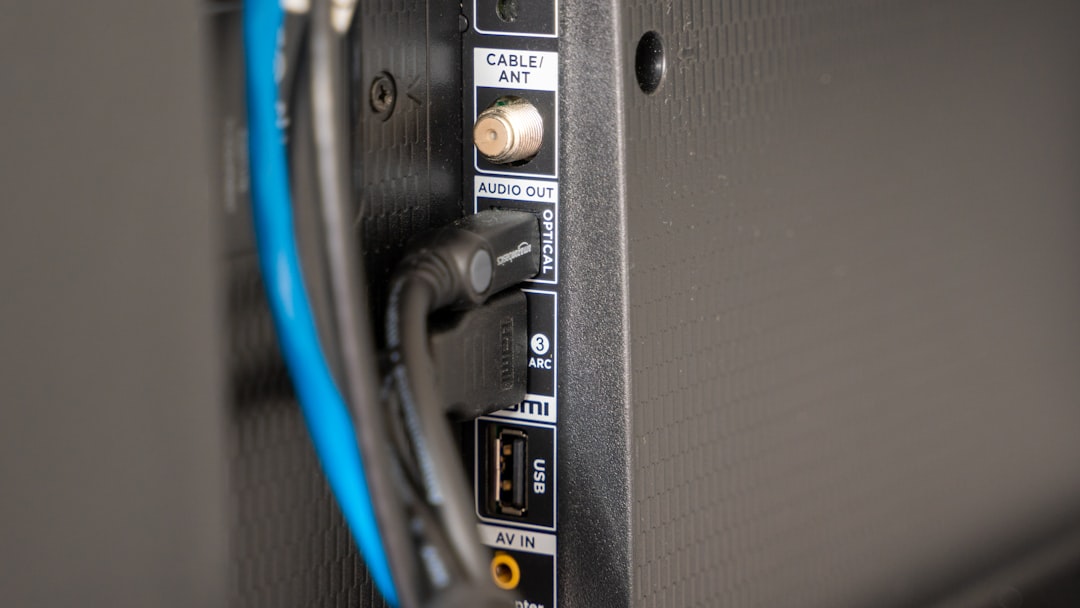
4. Bad USB Cables, Hubs, or Ports
Yes, a cable can cause Error -36. It sounds silly. But it is true.
Your Mac needs a stable connection to copy files. If the cable is loose, damaged, or cheap, data transfer can fail. The same can happen with a weak USB hub or a dirty port.
This is especially common with:
- Old USB cables.
- Very long cables.
- Low-quality adapters.
- Overloaded USB hubs.
- Loose USB-C connections.
Files move as streams of data. If that stream gets interrupted, Finder gets confused. Then Error -36 may show up.
It is like trying to drink a smoothie through a cracked straw. Messy. Annoying. Not ideal.
5. File System Incompatibility
Every drive uses a file system. This is the structure that tells the drive how to store files.
Common file systems include:
- APFS: Modern Mac format.
- Mac OS Extended: Older Mac format.
- exFAT: Works with Mac and Windows.
- FAT32: Older format with limits.
- NTFS: Common Windows format.
Sometimes a drive format does not play nicely with your Mac. This can happen with old drives. It can also happen with drives used on both Mac and Windows.
FAT32 has a big limit. It cannot store files larger than 4 GB. So if you try to copy a big video, it may fail. That may not always show as Error -36, but it can create similar transfer trouble.
NTFS can also be tricky. Macs can usually read NTFS drives. But writing to them may need extra software. If that software has issues, Finder may complain.
In short, file systems are like languages. If your Mac and your drive are speaking different languages, things can get awkward fast.
6. Permission Problems
Your Mac uses permissions to control who can open, edit, move, or delete files. Usually this works quietly in the background.
But sometimes permissions get messy.
This can happen when:
- Files came from another Mac user.
- Files came from an old backup.
- Files are stored on a shared drive.
- You copied folders from another computer.
- The account ownership changed.
If Finder does not have permission to read a file, it cannot copy it. If it does not have permission to write into a folder, it cannot paste there.
Error -36 may appear because Finder is blocked. It is standing at the file door. The file bouncer says, “Not on the list.”
7. Strange File Names
File names can cause problems too. Most normal names are fine. But some characters can confuse certain drives, servers, or older systems.
Problem characters may include:
- Slashes.
- Colons.
- Question marks.
- Very long names.
- Emoji in some cases.
- Invisible characters copied from the web.
Your Mac may allow a name. But a network drive or external drive may not like it. Then copying can fail.
This often happens with folders full of old files. Maybe the files came from many apps. Maybe they came from older computers. Maybe someone named a file final final real final use this one!!!. We have all been there.
Long folder paths can also cause issues. A file buried inside many folders may be harder to copy to some systems.
8. Network Drive Glitches
Error -36 can happen when copying files over a network. This includes office servers, NAS drives, shared folders, and remote storage.
A network transfer needs many things to work at once:
- Your Mac.
- Your Wi-Fi or Ethernet connection.
- The router.
- The server.
- The shared folder permissions.
If one piece hiccups, the file transfer can fail. Wi-Fi drops for one second. The server gets busy. The folder disconnects. Finder loses its grip.
Then Error -36 may pop up.
This is more common with large files. A tiny text file may copy before anything goes wrong. A 40 GB video folder has more time to trip over the network rug.

9. Cloud Sync Conflicts
Cloud services are helpful. They are also sometimes confusing.
If you use iCloud Drive, Dropbox, Google Drive, OneDrive, or similar tools, some files may not be fully stored on your Mac. They may appear in Finder. But the full data may still live in the cloud.
If you try to copy one of these files before it downloads fully, Finder may fail. If the cloud app is syncing at the same time, that can also cause conflict.
Common cloud-related issues include:
- The file is online only.
- The sync app is paused.
- The internet connection is weak.
- The file is being edited elsewhere.
- The local cache is damaged.
Finder sees the file. But it may not have all the file data ready. That is like seeing a cake in a window, but the bakery is closed.
10. Interrupted Transfers
File transfers need calm. They do not like surprises.
Error -36 may happen after a transfer is interrupted. Maybe the Mac went to sleep. Maybe the drive was pulled out. Maybe the battery died. Maybe an app crashed.
When this happens, part of the file may be copied. The rest may be missing. Later, Finder may struggle with that half-finished file.
This can create duplicate files, damaged folders, or temporary files. These leftovers may cause more errors later.
Simple rule: Let transfers finish. Eject drives properly. Give Finder a peaceful little workspace.
11. Problems With Memory Cards
SD cards and microSD cards are common causes of Error -36. Photographers see this one a lot.
Memory cards are small. They are useful. But they can wear out. They can also become damaged if removed from a camera too soon.
Error -36 may appear when copying photos or videos from a card. This may mean one file is damaged. It may also mean the card has file system errors.
If this happens, avoid taking more photos on that card. You may overwrite data that could still be recovered.
12. Old macOS Bugs or Finder Glitches
Sometimes the cause is not the file. It is Finder itself.
Finder may get stuck. macOS may have a bug. A background process may behave oddly. This is less common, but it happens.
A restart may help. Relaunching Finder may help. Updating macOS may also help if the issue is related to a known bug.
Computers are powerful. But sometimes they just need a nap.
How to Recognize the Real Cause
Error -36 does not always tell you the exact cause. So you need to play detective.
Ask these simple questions:
- Does it happen with one file only?
- Does it happen with one drive only?
- Does it happen over Wi-Fi only?
- Does it happen with large files?
- Does it happen with files from a camera or phone?
- Does it happen after using Windows?
If one file always fails, the file may be damaged. If one drive always fails, the drive may have errors. If the issue happens only on a network folder, the network may be the problem.
Easy Ways to Reduce Error -36
You can lower the chance of seeing Error -36 by using good file habits.
- Eject drives properly. Do not just yank them out.
- Use quality cables. Cheap cables can be sneaky troublemakers.
- Keep backups. Always have another copy of important files.
- Use the right drive format. APFS is best for Mac-only drives.
- Avoid strange file names. Keep names simple and clean.
- Update macOS. Updates can fix Finder bugs.
- Check disks with Disk Utility. First Aid can find and repair some problems.
- Download cloud files first. Make sure the full file is on your Mac.
There is also a Terminal command called dot_clean. It can merge or remove certain hidden dot underscore files. Many Mac users try it when Error -36 appears while copying folders. But use Terminal carefully. Commands are powerful. They are tiny dragons.
When Should You Worry?
Most Error -36 cases are not a major emergency. But you should pay attention if the error happens often.
You should be more careful if:
- The same drive keeps failing.
- Files disappear.
- The drive makes strange sounds.
- Disk Utility finds serious errors.
- Your Mac freezes during transfers.
- Important files will not open.
These signs may mean the storage device is failing. Back up your data as soon as possible. If the files are very important, consider professional data recovery before trying lots of fixes.
Final Thoughts
Finder Error -36 is annoying. But it is not magic. It usually means your Mac hit a problem while reading or writing data.
The most common causes are hidden Mac files, corrupted files, drive errors, bad cables, permission problems, file system issues, network glitches, and cloud sync conflicts.
Start simple. Try another cable. Try another drive. Rename the file. Download cloud files fully. Run First Aid in Disk Utility. Check if only one file is the troublemaker.
And remember, your Mac is not being dramatic on purpose. Well, probably not. It is just trying to protect your data from a messy transfer. Treat the error like a warning sign, not a monster. Then you can fix the cause and get your files moving again.
