


You try to install or update your AMD Radeon driver, and suddenly you see error 207. The installation stops. Your screen may flicker, or games refuse to launch. That feels frustrating, especially if you need stable graphics performance. This error usually connects to corrupted driver files or Windows conflicts.
In this guide, you’ll learn what AMD 207 GPU driver error means and how to fix it step by step.
What Is AMD 207 GPU Driver Error?
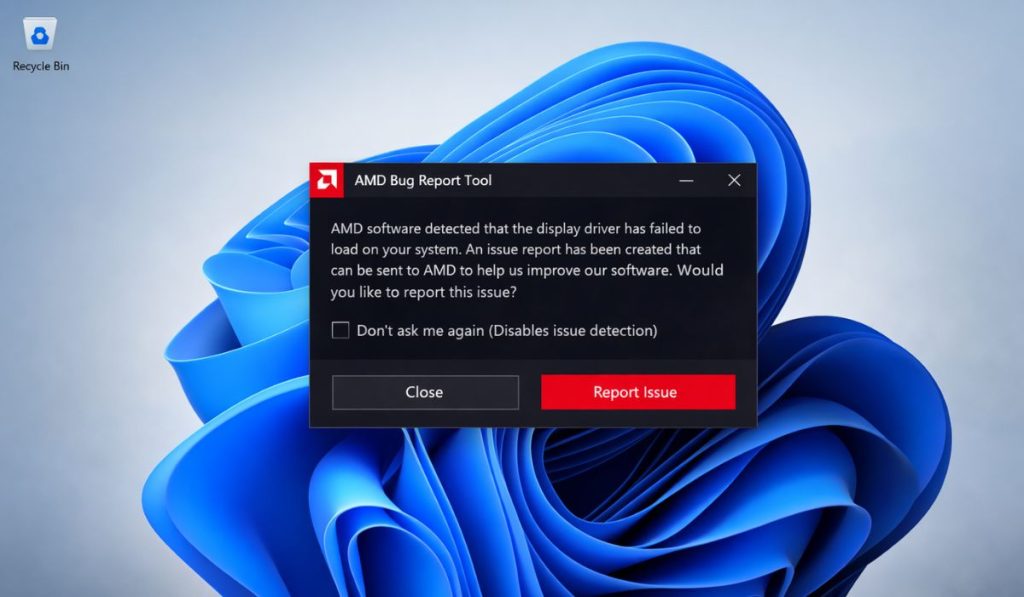 AMD 207 GPU driver error appears when Radeon Software fails to complete installation. During setup, the installer checks system compatibility, existing drivers, and Windows build version. If it detects corrupted files, incomplete uninstall traces, permission issues, or conflicts with Windows Update, it stops and shows error 207.
This error often happens on Windows 10 or Windows 11 systems where old GPU drivers still exist in Device Manager. It is usually a local system issue, not a hardware failure of the graphics card itself.
You may see this error during Radeon Software installation, after a Windows Update replaces the driver, or when launching a game that requires a newer GPU driver.
Common Causes of AMD Driver Error 207
This error usually connects to corrupted files or system conflicts. Below are some common causes:
- Corrupted AMD Radeon driver package
- Incomplete uninstall of previous GPU driver
- Windows Update automatically replacing driver
- Conflicting graphics driver version in Device Manager
- Outdated BIOS firmware
- Insufficient administrator permissions
- GPU hardware detection issue
How to Fix AMD 207 GPU Driver Error on Windows?
Fixing this problem depends on whether the issue comes from corrupted files, Windows conflicts, or hardware detection problems. Most users solve it by performing a clean driver installation. Follow these fixes carefully.
Fix #1: Restart Your PC
Sometimes temporary system glitches block driver installation. Try these simple steps to quickly restart your system.
- Close all programs
- Click Start
- Select Restart
- Wait for Windows to boot
- Run the AMD installer again
A fresh restart clears temporary driver conflicts.
Fix #2: Use AMD Cleanup Utility
Old driver files may remain in your system even after uninstall. Follow the steps below to easily use AMD Cleanup Utility.
- Download AMD Cleanup Utility from the official AMD website
- Run the tool as Administrator
- Allow it to remove all Radeon files
- Restart your PC
- Try reinstalling Radeon Software
This removes leftover registry entries and driver components.
Fix #3: Use Display Driver Uninstaller in Safe Mode
If cleanup utility does not work, deeper removal may help. The following steps will show you how to use Display Driver Uninstaller properly.
- Download DDU from its official source
- Restart Windows into Safe Mode
- Run DDU
- Select AMD GPU
- Click Clean and Restart
This fully removes old GPU drivers before reinstalling.
Fix #4: Disable Windows Automatic Driver Update
Windows Update sometimes installs a different driver version automatically, causing conflicts.
Perform the following steps carefully to disable automatic driver updates.
- Open Control Panel
- Go to System
- Click Advanced System Settings
- Open Hardware tab
- Select Device Installation Settings
- Choose No
After disabling, install the AMD driver again.
Fix #5: Install Latest Driver from Official AMD Website
Using incorrect or outdated drivers can cause error 207.
Go to the official AMD support page. Select your exact graphics card model, such as Radeon RX series. Download the latest stable driver for your Windows version. Run the installer as Administrator.
Always avoid third-party driver websites.
Fix #6: Update BIOS and Windows
Compatibility issues between BIOS firmware and GPU drivers may cause installation errors.
Open Windows Update and install pending updates. Then check your motherboard manufacturer’s website for BIOS updates. Only update BIOS if you understand the process. Incorrect BIOS flashing can damage the motherboard.
Fix #7: Check GPU Hardware Connection
Sometimes the problem is physical, not software.
Turn off your PC completely. Open the case. Check that the graphics card sits properly in the PCIe slot. Ensure power cables connect securely. Then close the case and restart the system.
Loose hardware connections may cause driver detection issues.
Prevention Tips to Avoid AMD Driver Errors
Preventing this error keeps your graphics card stable and improves gaming performance. Follow given tips to avoid errors:
- Download drivers only from the official AMD website
- Perform clean uninstall before major driver updates
- Avoid interrupting installation process
- Keep Windows updated regularly
- Maintain stable power supply
- Monitor GPU temperature
- Avoid installing beta drivers unless necessary
Conclusion
In short, AMD 207 GPU driver error usually happens because of corrupted driver files, incomplete uninstall, Windows Update conflicts, or system compatibility issues. It rarely means your graphics card is damaged.
Follow each fix step by step and test the installation again. If the error continues, contact AMD Support for official assistance.
If this guide helped you, share it with others and leave a comment about which solution worked for you.
