


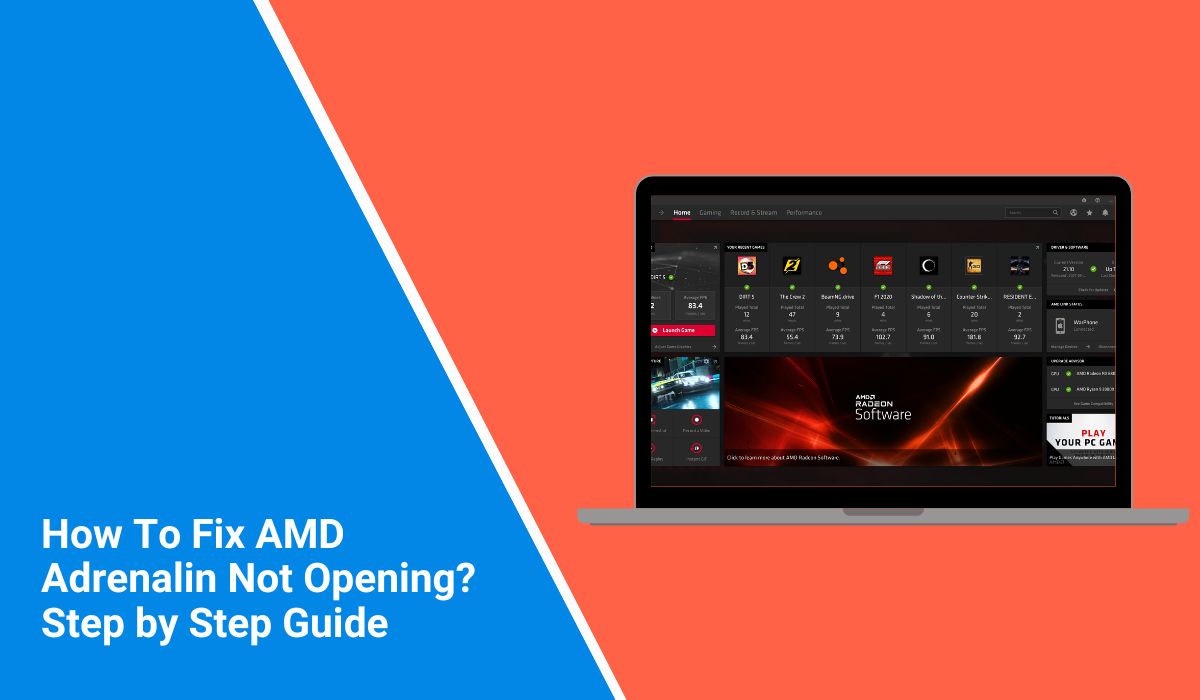
It feels annoying when AMD Adrenalin will not open. You click the icon, wait for the window, and nothing shows up. When that happens, you cannot change graphics settings, update drivers, or use game profiles. This guide walks you through what the issue means, why it appears, how to fix it, and how to stop it from happening again.
What Is AMD Adrenalin Not Opening Mean?
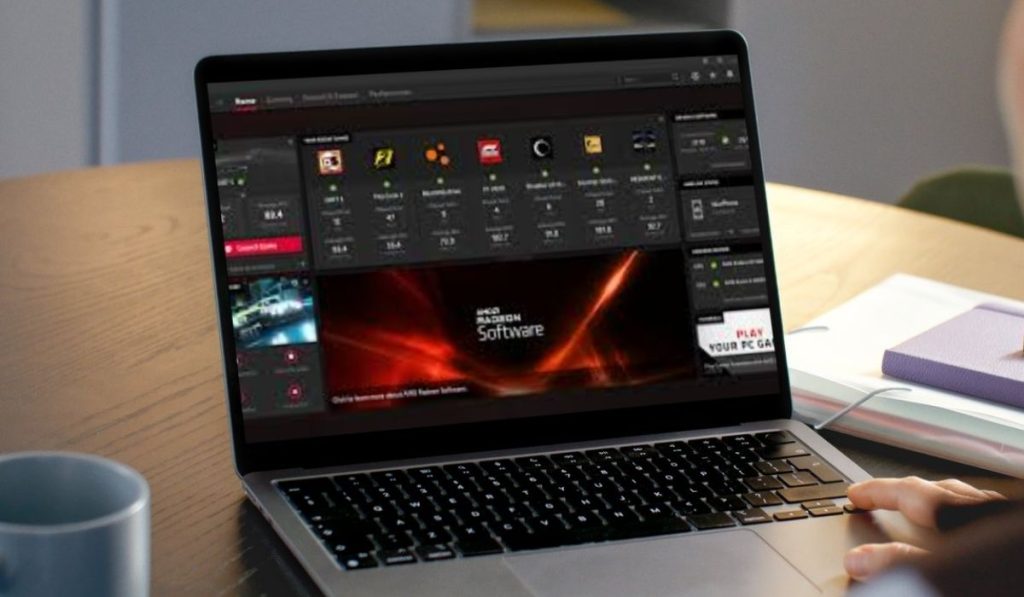 AMD Adrenalin not opening means the Radeon software tries to start but fails. The interface should load so you can use GPU features, but something blocks the software. This can happen when the driver, the system, or the app files are not working correctly.
You usually notice the issue when the Adrenalin window never appears, closes instantly, or freezes at launch. It can happen on Windows 10 or Windows 11. Sometimes the GPU still works, but the control panel will not open at all.
Common Causes of AMD Adrenalin Not Opening
This issue can happen for several reasons depending on your Windows setup or driver installation. Below are the most common causes you should know.
- Corrupted or incomplete Radeon driver installation
- Old GPU driver files still stored in Windows
- Background overlays blocking the Radeon interface
- Outdated system files or missing Visual C++ libraries
- Damaged AMD Adrenalin configuration files
- Disabled AMD services inside Windows
- Wrong driver version installed after a Windows update
How To Fix AMD Adrenalin Not Opening?
Fixes depend on your driver version, Windows settings, and what caused the software to break. However, the steps below usually resolve the issue for most users.
Fix #1: Restart Your PC
This error often appears when Windows loads a bad driver state. A simple restart refreshes your GPU drivers. Once the system starts again, the Radeon software sometimes opens without any issue.
Fix #2: End Radeon Processes in Task Manager
This fix works when the software is running in the background but not showing the window. Ending those tasks forces Windows to start a clean process. Once you relaunch it, the software usually loads the interface.
Follow the steps below to easily close stuck processes:
- Press Ctrl + Shift + Esc
- Open Task Manager
- Find RadeonSoftware.exe
- Right click and select End Task
- Close Task Manager
- Try opening AMD Adrenalin again
Fix #3: Update Windows
This error often appears when Windows lacks important system files. Updating Windows installs missing components that the Radeon software needs. Once the update is done, the Adrenalin UI loads more smoothly.
Here’s how you can check for updates in just a few seconds:
- Open Settings
- Go to Windows Update
- Tap Check for updates
- Install any pending updates
- Restart your PC
Fix #4: Reinstall AMD Adrenalin Using Factory Reset
This fix is connected to corrupted driver files. When the driver install breaks, the UI fails to load. A factory reset removes the damaged data. After reinstalling, the driver and the software work together again.
The following steps will show you how to reinstall properly:
- Download the installer from AMD’s website
- Run the tool and choose Factory Reset
- Let the system reboot
- Install the clean driver
- Launch AMD Adrenalin
Fix #5: Use AMD Cleanup Utility
Sometimes leftover files from older GPU drivers block the Adrenalin interface. The AMD Cleanup Utility removes every old file. Once the cleanup finishes, the new driver installs clean and the software opens normally.
Perform the following steps carefully to run the cleanup:
- Download AMD Cleanup Utility
- Run it in Safe Mode when possible
- Accept the prompts
- Let the tool remove all driver files
- Reinstall the latest AMD driver
Fix #6: Install the Correct Driver for Your GPU
This error often appears when the wrong driver version is installed. When Windows forces a generic driver, the Adrenalin UI cannot start. Installing the correct driver matches your GPU model. Once installed, the control panel loads normally.
Here are the following steps which help you install the right driver:
- Check your GPU model in Device Manager
- Visit AMD’s official site
- Download the correct driver
- Install it
- Restart your PC
Fix #7: Enable AMD Services
If AMD services are turned off, the Adrenalin UI cannot launch. Turning them back on restores communication between the GPU driver and the software. Once enabled, the window appears like normal.
You can perform the following steps to enable services:
- Press Windows + R
- Type services.msc
- Find AMD External Events Utility
- Set it to Automatic
- Restart your PC
Fix #8: Remove Conflicting Overlays
Overlays from Discord, Steam, or other apps sometimes block the Radeon interface. When this happens, Adrenalin tries to open but never shows the window. Removing the overlay frees the UI. After disabling it, the software opens more easily.
Fix #9: Repair Missing Visual C++ or .NET Components
AMD Adrenalin needs certain Windows libraries to run. When these files are missing, the UI fails. Installing Visual C++ and .NET fixes the missing links. Once installed, the software usually opens without problems.
Below are the steps that will guide you to repair components:
- Download Visual C++ redistributables
- Install all versions
- Install the latest .NET package
- Restart your PC
- Try opening Adrenalin again
Prevention Tips To Avoid This Error
Stopping this error is easier than fixing it. Keeping your system clean and updated makes AMD Adrenalin launch smoothly each time.
- Keep Windows updated
- Install the correct AMD driver for your GPU
- Remove old GPU driver files before updating
- Turn off extra overlays when not needed
- Restart after each driver install
- Keep Visual C++ libraries updated
- Download drivers only from AMD’s official site
Conclusion
In short, AMD Adrenalin fails to open when drivers are corrupted, Windows is outdated, or system files are missing. Most issues come from leftover driver data or conflicts with background tools.
Try the fixes above and your software should open again. If the problem keeps coming back, reach out to AMD support for deeper help or check for new driver releases.
