


You load into ARC Raiders, everything seems fine, and then you get kicked out. You reconnect, try again, and the same thing happens after a few seconds. This loop makes the game unplayable because you cannot stay in a session long enough to move, fight, or explore. When disconnects keep happening every 10 seconds, it feels like the game is broken even though it launches normally.
This guide explains what constant disconnects mean in ARC Raiders, where they usually happen, why they occur, how to fix them step by step, and how to prevent them in future sessions.
What Does “Getting Disconnected Every 10 Seconds” Mean in ARC Raiders?
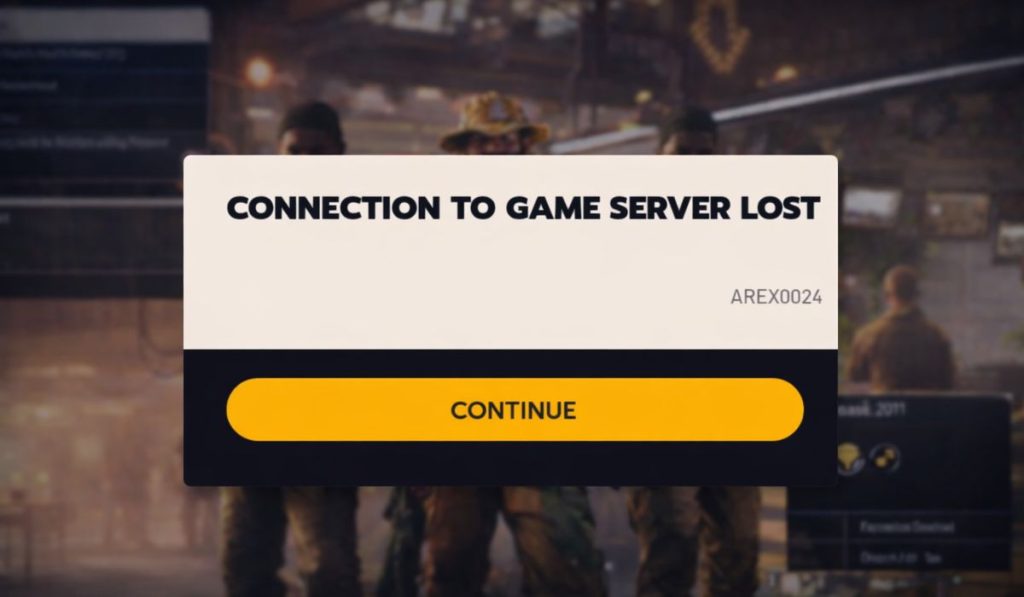 Getting disconnected every 10 seconds means ARC Raiders cannot keep a stable connection between your game client and the online servers managed by Embark Studios. The game connects, starts a session, and then loses communication almost immediately. When this happens, the server drops the session and sends you back to the lobby or loading screen to protect game data and other players.
These disconnects can happen in different places. Some players get disconnected while loading into the lobby. Others get kicked during mission start or shortly after spawning in the game world. The timing may look random, but the pattern stays the same: the connection does not stay active long enough.
Common Causes of ARC Raiders Disconnecting Every 10 Seconds
This issue can happen for several reasons, depending on network quality, server conditions, and system settings. Below are the most common causes.
- Unstable internet connection or packet loss
- ARC Raiders server instability or overload
- Strict NAT type blocking session traffic
- Firewall or router blocking game ports
- VPN or proxy interference
- DNS resolution problems
- Background apps using bandwidth
How to Fix ARC Raiders Disconnecting Every 10 Seconds
Frequent disconnects usually mean the game cannot keep a steady connection, not that the game files are broken. The fixes below focus on checking server health, stabilizing your network, and removing anything that interrupts communication.
Apply each fix one at a time and test the game after every step so you know what works.
Fix #1: Check ARC Raiders Server Status
If ARC Raiders servers are unstable or under maintenance, disconnects can happen even when your internet works fine. During server issues, sessions may start but drop quickly because the backend cannot maintain them.
Check official ARC Raiders channels or Embark Studios announcements. If servers are unstable, wait until service improves before trying other fixes.
Fix #2: Restart Router and Modem
Network hardware can build up small errors over time, which leads to packet loss and session drops.
Follow the steps below to restart your network.
- Turn off your PC or console
- Unplug the router and modem
- Wait 30 to 60 seconds
- Plug the modem back in first
- Plug the router back in
- Wait until the internet stabilizes
- Launch ARC Raiders and test the connection
Fix #3: Use a Wired Internet Connection
Wi-Fi can cause short drops that disconnect online games even if browsing works fine. ARC Raiders needs a stable connection, not just a fast one.
If possible, connect your system to the router using an Ethernet cable. Wired connections reduce packet loss and improve session stability.
Fix #4: Disable VPN or Proxy
VPNs and proxy services can route traffic through distant or unsupported regions. This can cause constant disconnects when the server rejects unstable routes.
Follow these steps to disable VPN or proxy services.
- Close ARC Raiders
- Open your VPN or proxy app
- Disconnect from the active server
- Exit the VPN app fully
- Open network settings
- Make sure no proxy is enabled
- Restart ARC Raiders and test again
Fix #5: Check NAT Type and Router Settings
A strict NAT type can block session traffic and cause repeated disconnects. ARC Raiders works better with open or moderate NAT. Check your router settings and enable UPnP if available. Avoid double NAT setups where possible.
Fix #6: Change DNS Settings
DNS issues can delay or break server communication, which may cause frequent disconnects.
Follow these steps to change DNS settings.
- Open network settings on your system
- Go to adapter options
- Open your active connection properties
- Select Internet Protocol Version 4
- Set DNS to a public provider like Google or Cloudflare
- Save changes and restart your network
Fix #7: Allow ARC Raiders Through Firewall
Firewalls can block the ports ARC Raiders uses to maintain sessions. When blocked, the server may disconnect you repeatedly.
Follow these steps to allow ARC Raiders through the firewall.
- Open Windows Security
- Go to Firewall and network protection
- Click Allow an app through firewall
- Select Change settings
- Find ARC Raiders in the list
- Allow private and public access
- Save changes and restart the game
Prevention Tips to Stop ARC Raiders Disconnects
Prevention helps keep gameplay stable and reduces repeated issues. These habits make a difference.
- Use a wired internet connection
- Restart your router weekly
- Avoid VPNs while playing
- Close background downloads and streams
- Keep ARC Raiders updated
- Monitor server announcements
- Play during off-peak hours
Conclusion
In short, getting disconnected every 10 seconds in ARC Raiders means the game cannot keep a stable connection to the servers. This usually happens because of network instability, server load, NAT restrictions, or blocked traffic. While the issue feels serious, most causes are fixable with basic network and system checks.
Try the fixes one by one and follow the prevention tips to avoid future disconnects. If the problem continues, contact Embark Studios support with your platform and network details. If this article helped you, leave a comment and share it with other ARC Raiders players who may be facing the same issue.
