


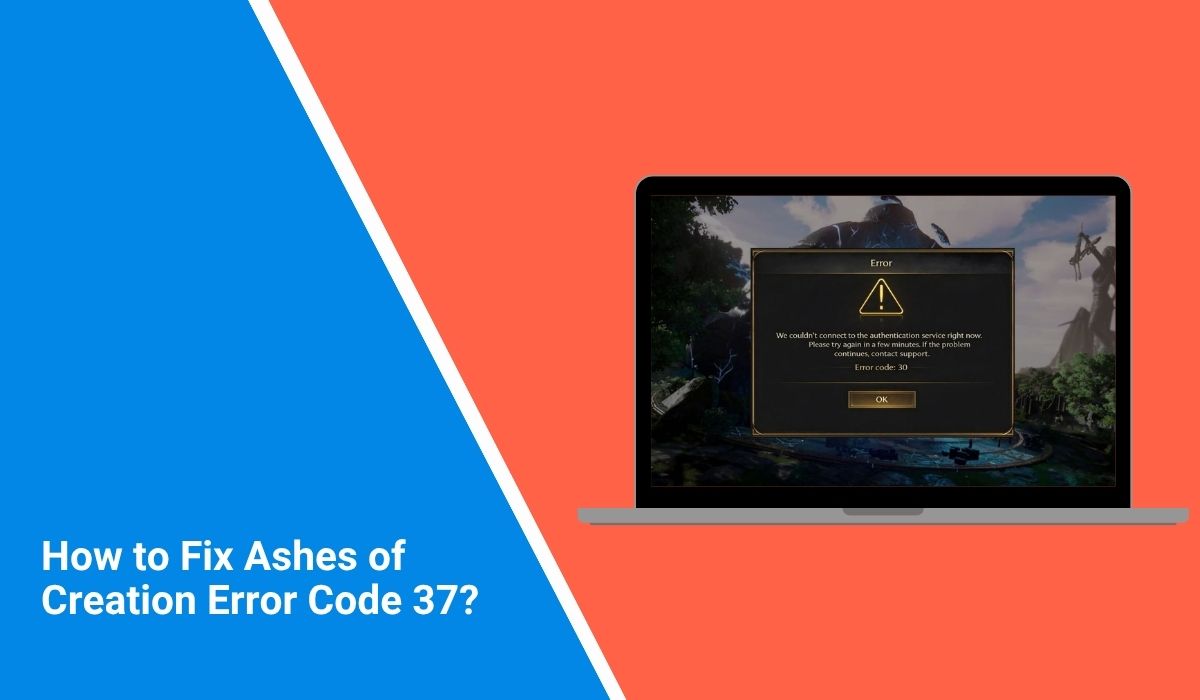
What Is Ashes of Creation Error Code 37?
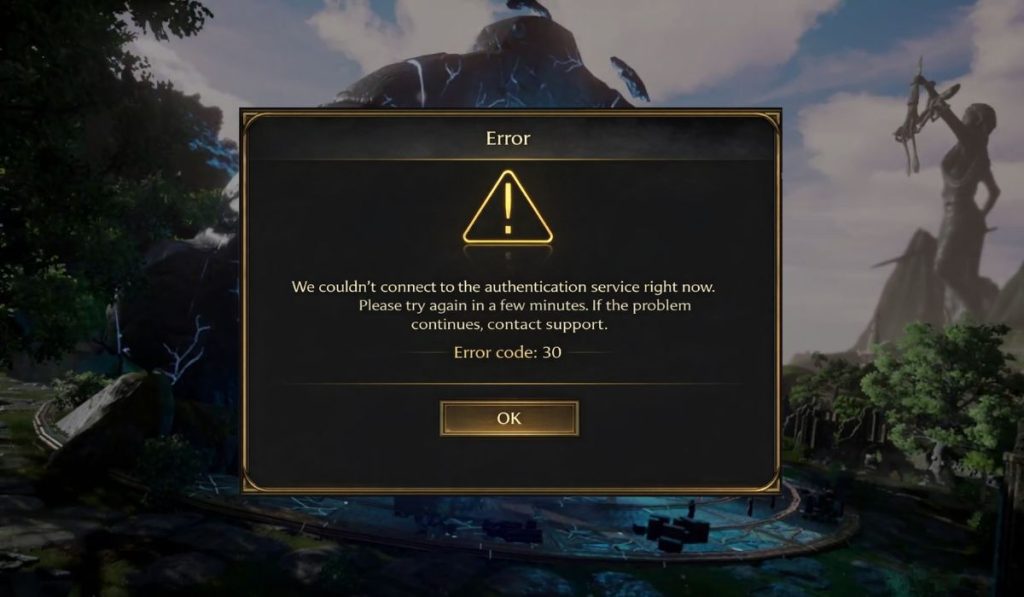 Ashes of Creation error code 37 is currently reported as a login or connection failure rather than a graphics or gameplay error. One recent troubleshooting guide ties it to missing or broken Microsoft Edge or WebView2 components that the launcher may rely on for authentication, while player discussions describe it as a character login problem in some cases. Because Intrepid does not appear to publish a dedicated public explanation page for code 37, the safest description is that it is a login-state or connection-state error with more than one possible trigger.
Players usually see code 37 before getting into the world, after queue, or when trying to log back into one specific character. Some Steam discussions say another character can log in while the original one cannot, which points to a stuck session. Other reports connect the problem to a zone crash, where logging back into the affected zone brings up error 37. That means where the error appears matters a lot.
Common Causes of Ashes of Creation Error Code 37
This error can happen for several reasons, depending on whether the issue is coming from the launcher, Windows, your security setup, or the game server. The causes below are based on current troubleshooting coverage and player reports, not on a clear official Intrepid breakdown for this exact code.
- Missing Windows updates may break the login process or leave required launcher components outdated.
- A broken Microsoft Edge WebView2 runtime may stop the launcher from completing authentication correctly.
- A damaged Microsoft Edge installation can affect the same web-based login components.
- Antivirus or firewall software may block launcher communication with login services.
- VPN or proxy tools may interfere with the connection between your PC and the login server.
- One character may still be stuck in an active session on the server, especially after a disconnect or crash.
- Zone or server instability may stop one character from loading back in after a crash, even when another character still works.
How to Fix Ashes of Creation Error Code 37?
In most cases, the best approach is to start with the simple launcher and PC checks first. If the error comes from Windows-side login components, those fixes may help quickly. If the problem is tied to one stuck character or one unstable zone, you may need a different path.
Fix #1: Restart the launcher and try again
A full launcher restart can clear a stale login session and force Ashes of Creation to request a fresh connection. This is a good first step because it is quick and does not change your files. If the error came from a temporary launcher issue, this may be enough to get past the login screen. It also fits the reports that describe code 37 as a connection-state problem rather than a permanent install failure.
Fix #2: Restart your PC
A PC restart can reset Windows networking, close stuck launcher processes, and refresh background services that affect login. This matters more when the error comes from Windows components, WebView2, or a broken session that survives a simple launcher close. It is basic, yes, but it is still one of the cleanest first fixes to try before deeper repair steps.
Fix #3: Install all pending Windows updates
Recent troubleshooting coverage points to missing Windows updates as one of the repeated triggers behind code 37. Updating Windows can restore required components and fix broken dependencies that the launcher needs.
Follow the steps below to easily install pending Windows updates.
- Open the Start menu.
- Go to Settings.
- Open Windows Update.
- Click Check for updates.
- Install every available update.
- Restart your PC after the updates finish.
- Open the Intrepid Launcher again and test the login.
This fix is based on current reporting, not on a direct official Intrepid code 37 support page.
Fix #4: Repair or reinstall Microsoft Edge WebView2
This is one of the clearest recurring fix paths in current reports. If WebView2 is missing, damaged, or outdated, the launcher may fail to complete login tasks that rely on Microsoft web components.
The following steps will show you how to repair or reinstall Microsoft Edge WebView2 properly.
- Open Windows Settings.
- Go to Apps or Installed Apps.
- Look for Microsoft Edge and Microsoft Edge WebView2 Runtime.
- Choose Repair if that option appears.
- If WebView2 is missing or still broken, download the WebView2 Runtime installer from Microsoft.
- Run the installer and finish the setup.
- Restart your PC, then try Ashes of Creation again.
This path is supported by recent troubleshooting coverage, but I did not find a public Intrepid support article confirming WebView2 as the official root cause of code 37.
Fix #5: Verify the game files
Corrupted or incomplete game files can make login errors harder to diagnose, so verification is a useful cleanup step. Player reports and recent troubleshooting guides both mention file verification as part of the code 37 fix path.
Below are the steps that will guide you to verify the game files.
- Open the Intrepid Launcher.
- Find Ashes of Creation in the launcher.
- Open the game options or settings menu.
- Select Verify Files.
- Let the launcher check the game files completely.
- Wait for any missing or broken files to be repaired.
- Restart the launcher and try logging in again.
This is a practical workaround supported by current reports rather than a fully confirmed official fix for every code 37 case.
Fix #6: Try another character
Some Steam users report that code 37 affects one character while another character still logs in normally. That suggests the first character may still be marked as active on the server or stuck after a crash. If you have another character available, trying that one is a fast test. If the second character works, the issue may be tied to the original character session rather than to the whole account or launcher.
Fix #7: Check antivirus, firewall, VPN, and proxy settings
Security tools and network-routing apps can block the launcher without making the cause obvious. Current troubleshooting coverage specifically mentions firewall, antivirus, VPN, and proxy interference as possible causes.
Try these simple steps to quickly check antivirus, firewall, VPN, and proxy settings.
- Close the launcher fully.
- Turn off any VPN or proxy app you are using.
- Open your firewall settings and make sure the Intrepid Launcher is allowed.
- Check your antivirus app for blocked launcher activity.
- Add the launcher and game as trusted apps if needed.
- Save the changes and restart your PC.
- Open the launcher again and test the login.
This fix is supported by current troubleshooting coverage, though not by a dedicated official code 37 support note from Intrepid.
Fix #8: Wait or contact support if the issue looks zone-based or server-side
If one zone just crashed, or if one specific character keeps failing while others work, the problem may be server-side or tied to a stuck character state. In that case, local Windows fixes may not solve everything. Waiting a few minutes can help when the server has not fully released the session.
If the same character keeps failing after that, support is the better next step. Include the exact error code, the character name, the server, and whether another character can still log in.
Prevention Tips to Avoid Ashes of Creation Error Code 37 in Future
Prevention will not stop every server-side problem, but it can lower the chance of launcher-side and Windows-side login failures. These simple habits help keep the game and the launcher in a cleaner state.
- Keep Windows fully updated so login components do not fall behind.
- Keep Microsoft Edge and WebView2 installed and healthy.
- Verify files after major patches or after a crash.
- Avoid VPN use during login unless you truly need it.
- Whitelist the launcher in antivirus and firewall tools if they are strict.
- Restart the launcher instead of stacking repeated failed login attempts.
- Watch player reports during server crashes or zone instability so you can tell whether the issue is wider than your PC.
Conclusion
To summarize, Ashes of Creation error code 37 is currently reported in two main ways: a launcher or Windows-side login communication problem, and a stuck-character or zone-side login problem after a crash or server issue. The strongest recent troubleshooting path points to Windows updates and Microsoft Edge WebView2 repair, while Steam discussions strongly support the idea that some cases come from a character still being logged in on the server. Since official documentation for this exact code appears limited, the safest way to handle it is to test both paths in a sensible order.
Start with the easy fixes first – restart the launcher, restart the PC, install Windows updates, and repair WebView2. Then verify files and test another character if the problem looks character-specific. If the error keeps returning, contact support with clear details. And if this article helped, share it with another player or leave a comment with the fix that worked for you.
