


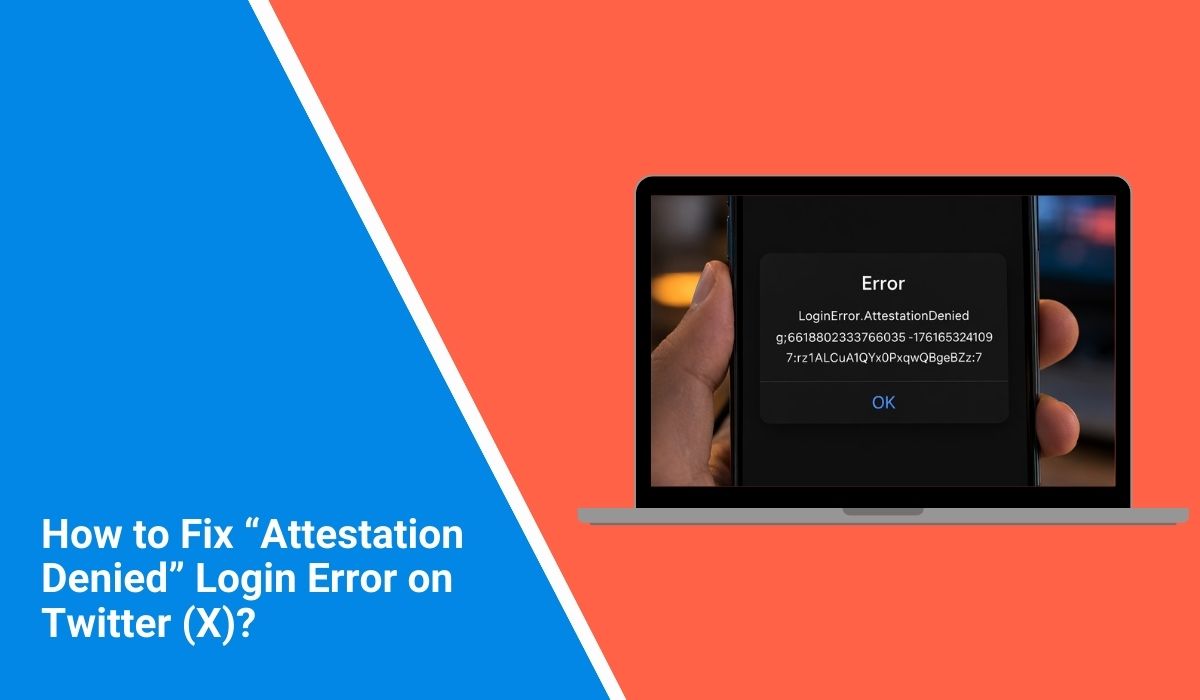
Sometimes when you try to sign in to Twitter (now X), the login fails and shows the message “attestation denied.” The error stops the login process even when the username and password are correct. This issue usually appears when the platform cannot verify the device or login request. In this guide, you will learn what the error means, why it happens, and how to fix it.
What Does “Attestation Denied” Mean on Twitter?
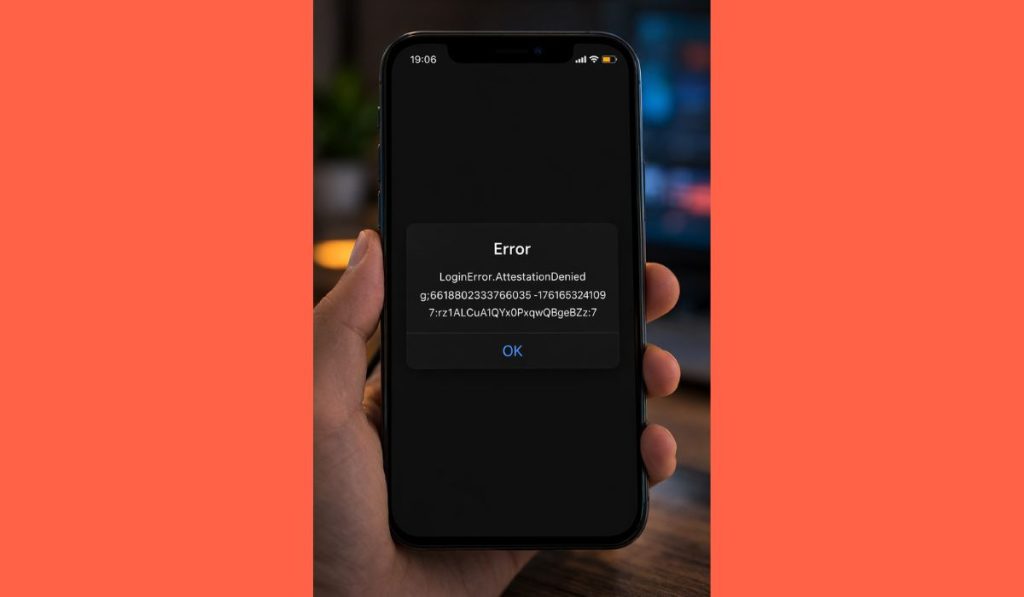 Twitter uses several security systems to protect user accounts from unauthorized access. One of these systems involves device attestation, a process that verifies whether a login request comes from a trusted device and application. During the login process, the app or browser sends a request to the Twitter authentication server, which checks the device identity, app integrity, and network conditions. If the verification process detects a problem, the system blocks the login request and prevents access to the account.
When this security verification fails, the system returns the “attestation denied” message. The login request does not complete, and the user must try again after fixing the problem.
Common Causes of Login Error Attestation Denied
Several technical or security factors may cause this login error. Sometimes the issue comes from the mobile app, while other times it relates to the network or account security checks.
Below are the most common causes you should know.
- outdated Twitter mobile application
- corrupted application cache or stored login data
- VPN or proxy server changing the device IP address
- suspicious login activity detected by the platform
- device verification failure on Android or iOS
- login attempts from third-party applications
- unstable internet connection
- temporary server security restrictions
For example, if a user attempts to log in through a VPN network, the platform may treat the request as suspicious and deny the attestation check.
How to Fix Login Error Attestation Denied on Twitter?
In most situations the error can be resolved by refreshing the app, updating the software, or adjusting the network settings. These fixes help the Twitter authentication system verify the device correctly.
To resolve this issue efficiently, try the following fixes.
Fix 1 – Restart the Twitter App
Temporary app glitches can interrupt the login verification process. Restarting the application refreshes the session.
Follow the steps below to restart the Twitter app.
- Close the Twitter app completely
- Open the recent apps menu on your device
- Swipe the Twitter app away to force close it
- Wait a few seconds
- Open the app again and attempt login
A fresh app session often resolves temporary authentication problems.
Fix 2 – Clear App Cache
Corrupted cached data may cause login verification errors.
Here are the following steps which help you clear the app cache.
- Open the device settings
- Navigate to the Apps section
- Locate the Twitter app in the list
- Open the storage settings
- Tap Clear Cache
After clearing the cache, the app loads new login data from the server.
Fix 3 – Update the Twitter Application
Older versions of the app may not work properly with the latest authentication system.
Try these simple steps to quickly update the application.
- Open Google Play Store or Apple App Store
- Search for Twitter or X
- Check whether an update is available
- Install the latest version
- Restart the application after updating
Updated apps often resolve compatibility issues.
Fix 4 – Disable VPN or Proxy
A VPN or proxy server can hide your real IP address, which may cause the platform to reject the login request.
Follow these easy instructions to disable VPN or proxy settings.
- Open your VPN application
- Disconnect the active VPN connection
- Close the VPN software
- Restart the Twitter app
- Attempt login again
Direct network connections improve device verification.
Fix 5 – Try Logging in Through a Web Browser
Sometimes the mobile app fails to authenticate the login request, but the web version works.
The following steps will show you how to log in through a browser.
- Open a web browser on your device
- Visit the official Twitter website
- Click the login button
- Enter your username and password
- Complete any security verification if prompted
Browser login may bypass temporary mobile app issues.
Fix 6 – Check Your Internet Connection
A weak or unstable connection may interrupt communication with the authentication server.
You can perform the following steps to check the network.
- Turn off Wi-Fi on your device
- Enable mobile data
- Attempt login again
- Switch back to Wi-Fi if needed
- Restart your router if the problem continues
A stable connection improves login reliability.
Fix 7 – Verify Your Account
Sometimes the platform requires additional verification when detecting unusual activity.
Perform the following steps carefully to verify the account.
- Open the Twitter login page
- Enter your account credentials
- Follow the verification instructions
- Confirm your email or phone number
- Complete any security checks requested
Successful verification restores normal account access.
Fix 8 – Contact Twitter Support
If the error continues after troubleshooting, the issue may involve a server-side security restriction.
These are the exact steps you need to follow to contact support.
- Visit the Twitter support center
- Navigate to account access issues
- Submit a support request
- Describe the attestation error clearly
- Wait for a response from the support team
Support staff can review account activity and resolve security restrictions.
Prevention Tips to Avoid Twitter Login Errors
Preventing login issues usually involves maintaining secure account practices and stable device settings. These habits help reduce the chance of authentication failures.
Here are some helpful prevention tips you can follow.
- keep the Twitter app updated regularly
- avoid using VPN services during login
- maintain verified email and phone details
- enable two-factor authentication for better security
- avoid suspicious third-party login applications
- use a stable internet connection
- monitor account security alerts
These practices help ensure smoother login verification.
Conclusion
The login error attestation denied message on Twitter usually occurs when the platform cannot verify the device or login request. Security systems may block access because of suspicious network activity, outdated apps, corrupted cache data, or verification problems. By refreshing the app, updating the software, disabling VPN connections, and verifying your account, most users can restore access quickly.
If the issue continues after trying these fixes, contacting Twitter support may be necessary to resolve security restrictions on the account. If this guide helped you solve the problem, consider sharing your experience in the comments so others can benefit from your solution.
