


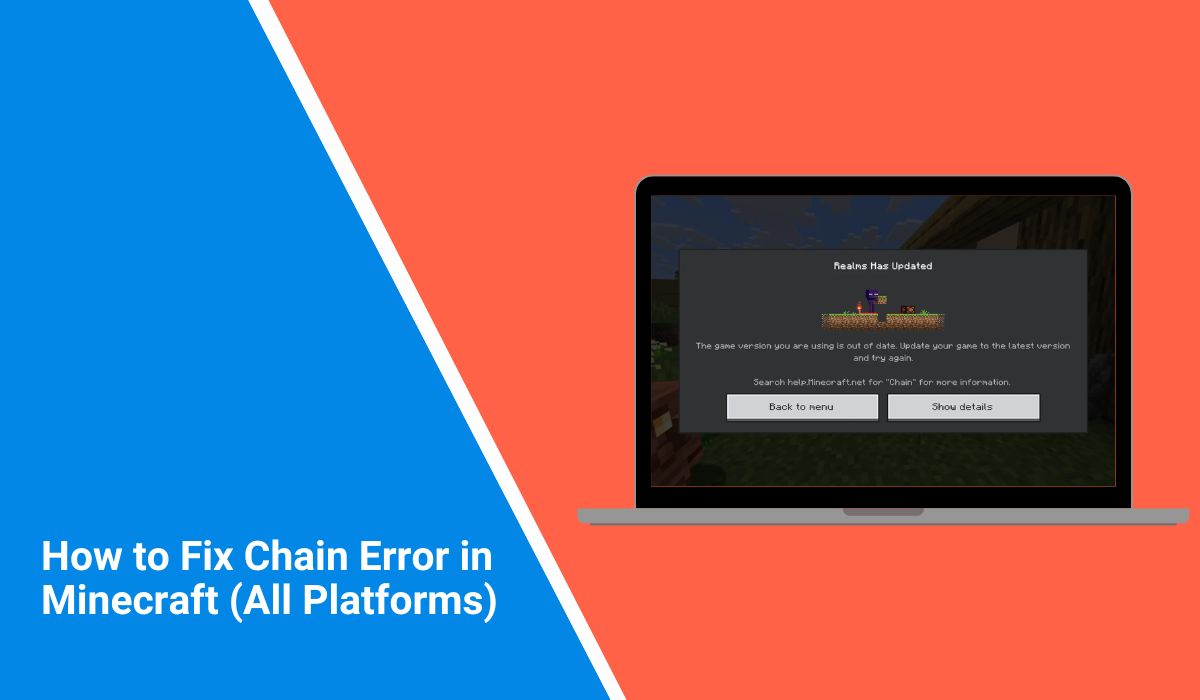
The “Chain” error in Minecraft usually appears when you try to join a Realm or connect to a multiplayer game. The message reads something like:
“The game version you are using is out of date. Update your game to the latest version and try again.”
It blocks access to online play, you can’t join your friend’s world, Realms won’t load, and you’re stuck unless you update. The issue affects Minecraft Bedrock Edition on all platforms, including mobile, PC, Xbox, and Switch.
This guide explains what the error means, why it occurs, and how to fix it step by step.
What Does the “Chain” Error Message Mean in Minecraft?
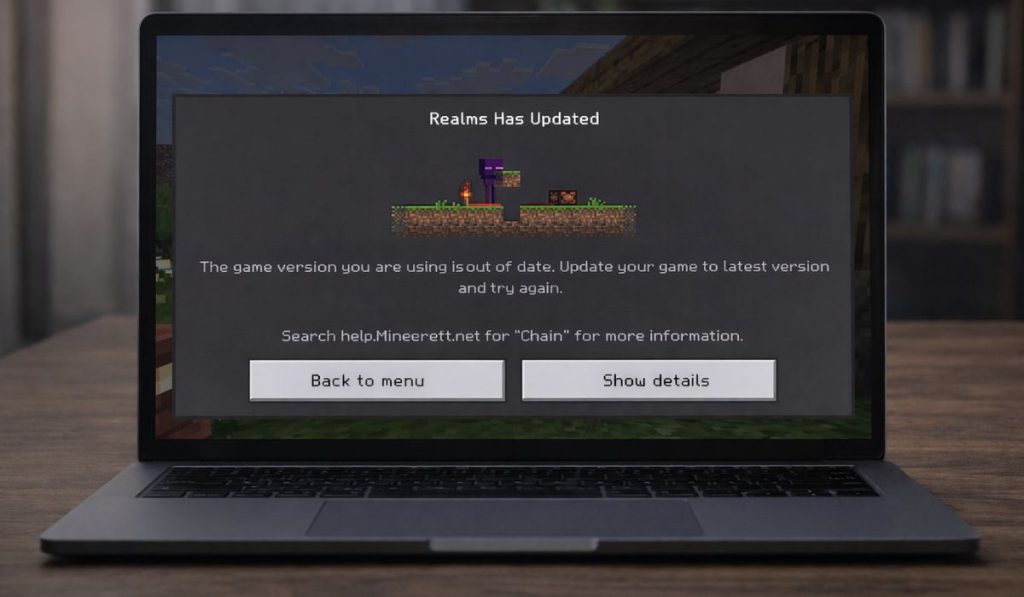 The Chain error occurs when the Minecraft version you’re using doesn’t match the version required by the server or Realm. It’s most common right after a new game update is released.
Minecraft uses version sync to keep online multiplayer stable. If your game is even one version behind, you may get blocked from joining. This issue also shows up if someone else (like a friend hosting a world) is using a newer or older version than you.
In some cases, the error can also be caused by login issues with your Microsoft account, especially if the authentication fails during session setup. The good news? Most of the time, it’s a simple fix.
Common Causes of the Chain Error
Here are the most common reasons you’ll see this error:
- Your Minecraft app isn’t updated
- The person you’re joining is using a newer version
- You’re using a beta or preview version, and they’re not (or vice versa)
- Authentication failed with Microsoft/Xbox Live
- App store delays on mobile or console
- Cached session data interfering with version sync
- Network issues causing handshake errors during multiplayer join
Fixes for the Minecraft “Chain” Error
Here’s how to fix the error quickly and get back to playing.
Fix #1 – Update Minecraft to the Latest Version
The most common fix. You and your friends need to be on the same game version.
Steps:
- Fully close Minecraft
- Go to your device’s store or launcher
- Check for updates manually
- Install the latest version
- Restart the game and try again
Don’t rely on auto-updates, some devices delay them.
Fix #2 – Make Sure Your Friends Are Updated Too
If you’re updated but still getting the error, it might be the other player who hasn’t updated yet. Everyone in a Realm or multiplayer session must be on the exact same version of Minecraft, including hotfixes.
Fix #3 – Restart Your Device and Internet
Sometimes, the app or network doesn’t sync properly until it’s restarted.
- Fully shut down Minecraft
- Reboot your device
- Restart your Wi-Fi router (optional but helpful)
- Relaunch Minecraft and rejoin the Realm
This refreshes session tokens and clears temporary sync problems.
Fix #4 – Sign Out and Back Into Your Microsoft Account
Authentication issues can cause errors like this, especially if the login didn’t sync correctly.
To fix:
- Open Minecraft
- Go to Settings > Profile
- Sign out of your Microsoft account
- Close and restart the game
- Sign back in
- Try joining again
On Xbox, Switch, or Windows, make sure you’re signed into the same Xbox Live account you used to create or access Realms.
Fix #5 – Reinstall Minecraft (Only If Needed)
If nothing else works and you’re still stuck, reinstalling the game helps fix stuck version data or store sync problems.
Before reinstalling:
- Backup your worlds (especially on mobile or PC)
- Uninstall Minecraft
- Reinstall it from the official store
- Log in again and rejoin
This often helps when the store shows no updates but the version is still behind.
Platform-Specific Tips
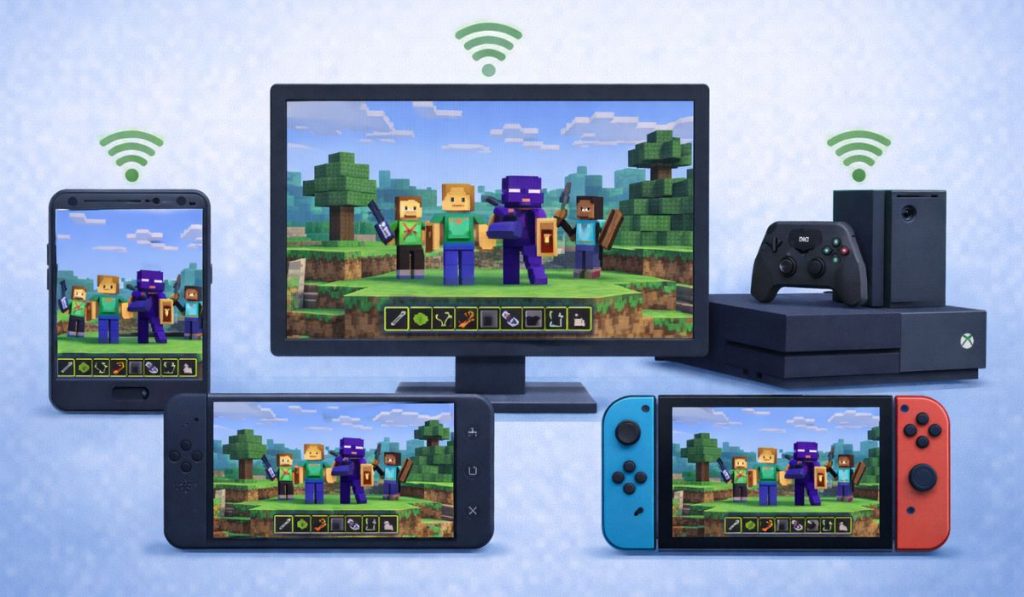 Mobile (iOS/Android):
Open the App Store or Play Store and check for updates manually. Store rollout delays are common, especially right after new releases.- Xbox / Nintendo Switch / Console:
Restart the console and check for updates in the system’s store, not just inside Minecraft. Sometimes, background downloads get stuck. - PC / Windows 10/11:
Use the Minecraft Launcher for updates. The Microsoft Store version can lag behind — or show as updated when it’s not. The launcher usually gets the patch first.
How to Avoid the Chain Error in the Future
Keep your game ready for Realms and multiplayer with these habits:
- Check for updates before launching multiplayer
- Don’t use beta builds unless your friends do too
- Restart the game if it’s been open for days
- Avoid switching between preview and release builds
- Update the game manually from your device’s store after every patch
- Make sure your Microsoft account is always signed in and synced
Conclusion
The Minecraft “Chain” error happens when your game version doesn’t match the server, Realm, or friend you’re trying to join. It’s most often caused by a simple version mismatch or an update that hasn’t been installed yet.
To fix it, update Minecraft on your device, make sure your friends do the same, restart your device, and double-check your login status. If that still doesn’t solve it, reinstalling the game or waiting for your platform’s store to catch up usually works.
Once fixed, you’ll be able to connect and play again no error, no interruption.
If this guide helped, feel free to share it or bookmark it for the next update day!
