


It feels annoying when your keybinds stop working in Destiny Rising. You press a button and nothing happens, or the game refuses to save your new binds. When this happens, you cannot move right, cast skills, or play the way you normally do. This guide explains what the problem means, why it happens, and nine easy fixes to get your controls working again.
What Is the Destiny Rising Keybind Issue?
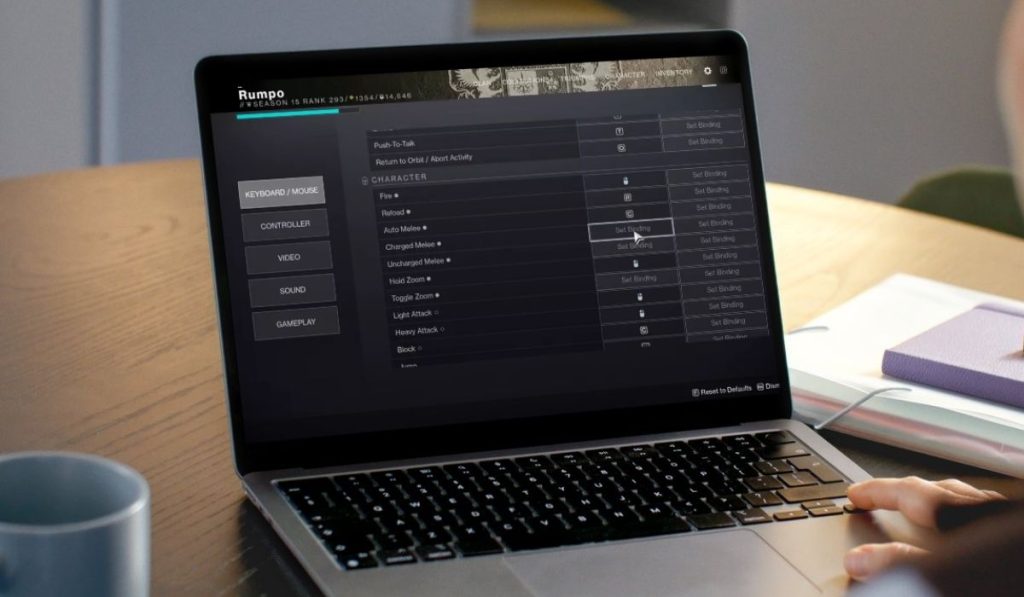 When players say the keybinds are not working, they mean the game is not detecting keyboard input, mouse buttons, or custom hotkeys. The controls may freeze, reset, or ignore the keys you click. Some players see binds greyed out in the settings menu. Others see binds save for a moment, then revert.
You may notice this problem in the keybind menu, during combat, while opening your skill bar, or right after a new patch update. It can show up when switching from controller to keyboard, when using a laptop with multiple input modes, or when Windows changes your keyboard layout.
Common Causes of Destiny Rising Keybinds Not Working
This issue can come from a few different things. Here are the most common causes:
- Controller mode replacing your keyboard input
- Steam Input or launcher overlay blocking keys
- Windows keyboard layout switching by accident
- Background apps grabbing your keys before the game
- Corrupted control config file
- Old or broken input drivers
- Game updates that reset or break binds
How To Fix Destiny Rising Keybinds Not Working?
Different systems cause different problems. However, the nine fixes below solve the issue for most players.
Fix #1: Restart the Game and Your Input Devices
Small glitches happen. A restart clears stuck input.
Here are the following steps which help you refresh your setup:
- Close Destiny Rising.
- Unplug your keyboard or turn it off.
- Plug it back in and wait a moment.
- Relaunch the game.
- Test your keybinds again.
Fix #2: Check Controller Mode and Disable It
Destiny Rising may switch to controller mode without telling you. When that happens, the keyboard gets ignored.
Follow the steps below to check it:
- Open the settings menu.
- Go to Controls.
- Look for a controller mode toggle.
- Turn it off.
- Restart the game.
Fix #3: Reset Keybinds and Rebind One Key at a Time
Sometimes the game gets stuck on a bad bind. A reset clears the problem.
Try these simple steps to quickly reset your binds:
- Go to the keybind menu.
- Select Reset to Default.
- Save the changes.
- Rebind one action at a time.
- Test each bind before adding more.
Fix #4: Change Windows Keyboard Layout Back to Normal
Windows can switch layouts by accident. When that happens, some keys will not match what you press.
You can perform the following steps to fix the layout:
- Press Windows plus space to switch layouts.
- Pick your normal layout.
- Open the game again.
- Test your movement keys.
Fix #5: Turn Off Steam Input or Any Launcher Input Layer
Steam Input sometimes overrides what the game sees. The same happens with Epic or other launchers.
Below are the steps that will guide you:
- Open Steam.
- Right click Destiny Rising.
- Select Properties.
- Open Controller settings.
- Turn Steam Input off.
- Relaunch the game.
Fix #6: Disable Overlays and Background Apps
Overlays grab keys. So do apps like Discord, GeForce, Razer Synapse, and macro tools. These apps often block hotkeys and mouse buttons.
Here’s how you can test it in just a few seconds:
- Close Discord.
- Turn off GPU overlays.
- Disable RGB or macro apps.
- Restart Destiny Rising.
- Try the keybinds again.
Fix #7: Update or Reinstall Keyboard and HID Drivers
Old drivers can make your keyboard act slow or drop inputs.
Perform the following steps carefully to update them:
- Open Device Manager.
- Expand Keyboards or HID devices.
- Right click your device.
- Select Update Driver.
- Restart your PC.
- Test the game again.
Fix #8: Delete or Refresh the Game’s Control Config File
Sometimes the config file becomes corrupted. Removing it forces the game to rebuild a clean version.
These are the exact steps you need to follow to refresh it successfully:
- Close Destiny Rising.
- Open the game folder.
- Look for the config or input file.
- Move it to your desktop as a backup.
- Restart the game and let it generate a new file.
Fix #9: Repair the Game or Check Patch Notes
A recent update may have broken keybinds. Repairs fix missing files, and patch notes may explain known issues.
No steps needed here except checking your launcher for a Repair option and reading the latest update notes.
Prevention Tips to Avoid Errors in Destiny Rising
Keeping keybind issues away is easier when you follow a few simple habits:
- Update your input drivers
- Keep overlays off when playing
- Restart the game after patches
- Back up your config files
- Test binds after major changes
- Avoid running macro tools
- Use a stable wired keyboard when possible
Conclusion
In short, the Destiny Rising keybind problem usually comes from controller mode issues, Steam Input conflicts, layout changes, or corrupted config files. Most of the time, the nine fixes in this guide solve the issue fast.
Try the steps in order and see which one clears the problem. If nothing works, check for new game updates or reach out to support. And if this guide helped you, feel free to comment or share it so other players can fix their controls too.
