


Seeing Error Code 15 on YouTube can stop a video from playing right when you need it. This can break a study session, pause a live stream, or ruin a short break. It feels confusing because the message gives no clear reason.
This guide explains what Error Code 15 means, why it shows up, how to fix it, and how to stop it from coming back. The steps are simple and written to help you move fast.
What Is Error Code 15 on YouTube?
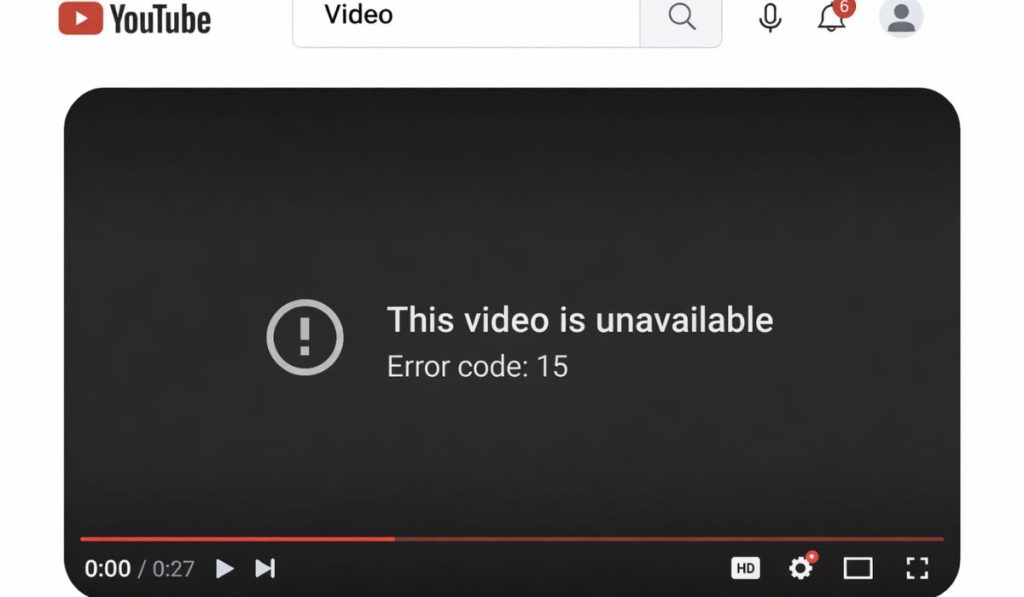 Error Code 15 appears when YouTube cannot load or play a video. The page may open, but playback fails. This usually links to network access limits, browser problems, app issues, or device settings. In many cases, the video itself is fine, but something blocks YouTube from reaching it.
Common Causes of Error Code 15 on YouTube
This error often comes from more than one place. It can be your network, your device, or the app.
Common causes include:
- Weak or unstable internet connection
- Network restrictions from an ISP, school, or office Wi-Fi
- VPN or proxy blocking YouTube traffic
- Firewall rules stopping video streams
- Corrupted browser cache or cookies
- Outdated YouTube app
- Old browser version
- DNS settings that fail to resolve YouTube servers
- Device software bugs
- Temporary YouTube server issues
How to Fix Error Code 15 on YouTube
The fixes below cover network checks, app and browser steps, and device settings. Try them in order.
Fix #1: Check Your Internet Connection First
Before changing settings, check if your internet is stable. Open another website or app and see if it loads quickly. If pages take too long or fail to open, YouTube will struggle to load videos.
If you are on Wi-Fi, try moving closer to the router. If possible, switch to mobile data for a quick test. A weak signal alone can trigger Error Code 15.
Fix #2: Restart Router and Modem
Network devices can run for weeks without rest. Over time, this causes connection errors that only show up on video streaming sites.
Here are the steps you can follow:
- Turn off the router and modem
- Unplug both from power
- Wait at least one full minute
- Plug them back in
- Turn them on and wait for all lights to stabilize
After this, open YouTube again and try playing the video.
Fix #3: Turn Off VPN or Proxy Services
VPNs and proxy servers often block or reroute video traffic. YouTube may load the page but fail during playback.
Turn off your VPN completely, refresh the page, and test the video again. If the video works, the VPN is the cause. You may need to whitelist YouTube or avoid VPN use while watching videos.
Fix #4: Clear Browser Cache and Cookies
Browsers store temporary data to load sites faster. When this data becomes corrupted, features like video playback stop working.
Here are the steps you can follow:
- Open your browser settings
- Go to privacy or history
- Clear cache and cookies
- Restart the browser
- Sign back into your Google account
This fix helps when YouTube loads but refuses to play videos.
Fix #5: Test Incognito Mode or Disable Extensions
Some browser extensions interfere with YouTube without warning. Ad blockers and privacy tools are common causes.
Open YouTube in incognito mode. If the video plays there, extensions are the issue. Go back to normal mode and disable extensions one by one until the error stops.
Fix #6: Update the YouTube App
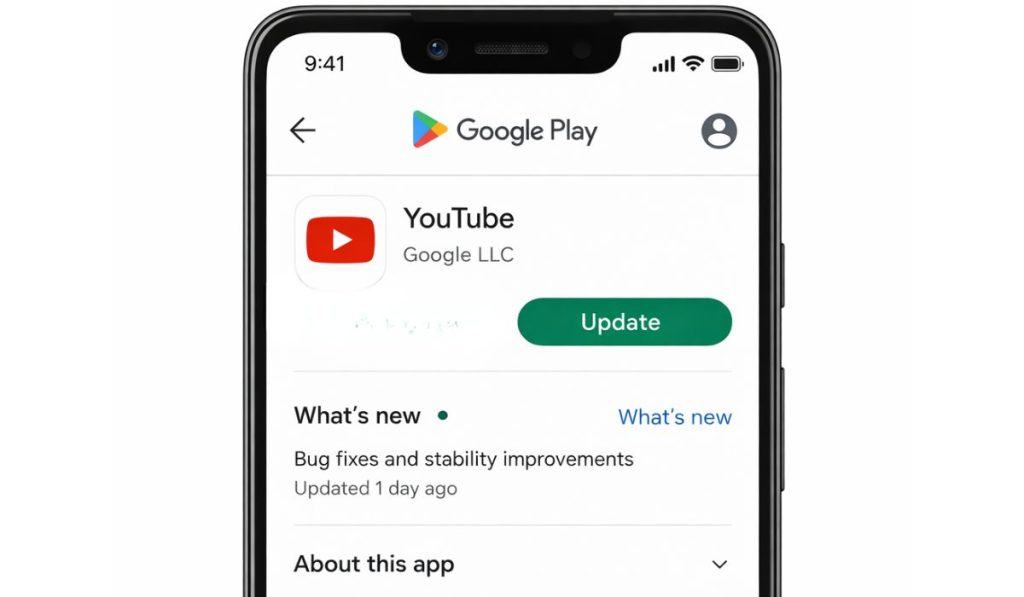 If you’re using YouTube on Android, iOS, or a smart TV, an outdated app can cause playback errors like code 15.
Open your app store, check for updates, and install the latest version. After updating, restart your device before testing the video again.
Fix #7: Update Your Browser
YouTube depends on modern browser features. Old versions may fail to load videos properly.
Update your browser, then close and reopen it. This fix is especially important if YouTube recently stopped working after a system update.
Fix #8: Change DNS Settings
Sometimes the issue comes from your internet provider’s DNS servers. When DNS fails, YouTube cannot connect to video servers.
Switching to public DNS like Google DNS or Cloudflare DNS can fix this. If you are not comfortable changing DNS settings, you can skip this step or ask someone for help.
Fix #9: Check Firewall or Network Restrictions
Some networks block streaming by design. This often happens on school Wi-Fi, office networks, or public hotspots.
If YouTube works on mobile data but not Wi-Fi, the network is restricting access. In this case, there may be no fix unless the network owner allows streaming.
Fix #10: Try a Different Network
Switching networks helps confirm the real cause. Connect to another Wi-Fi network or use a mobile hotspot.
If YouTube works instantly on another network, your main connection needs adjustment or support from the ISP.
Fix #11: Restart or Update Your Device
System-level bugs can affect video playback. Restart your phone, computer, or smart TV.
Also check for system updates. Older device software may not fully support current YouTube playback methods.
Fix #12: Wait and Check YouTube Server Status
Sometimes the issue is not on your side at all. YouTube servers can experience outages or regional problems.
If many users report similar errors, waiting is the only solution. Once servers recover, videos usually start working again without changes.
Prevention Tips to Avoid Error Code 15 in the Future
A few habits can reduce this error.
- Keep your browser and apps updated
- Avoid VPN use while streaming
- Clear cache once in a while
- Restart your router weekly
- Use trusted networks for video playback
- Keep device software updated
These steps help keep YouTube stable.
Conclusion
Error Code 15 on YouTube usually appears due to network limits, browser data issues, app problems, or blocked access. While it can feel sudden, most cases are easy to fix with basic checks.
Try the fixes in this guide and follow the prevention tips. If the error keeps coming back, contacting your ISP or YouTube support may be needed. If this article helped you, share it or leave a comment about which fix worked for you.
