


When your G Pro X Wireless headset mic stops working, it quickly becomes a problem. You can hear game audio just fine, but no one hears you. Voice chat fails. Calls go silent. This usually happens without warning, even if the headset worked before.
This guide explains what this issue means and what you can try without damaging your setup.
What Is G Pro X Wireless Headset Mic Not Working?
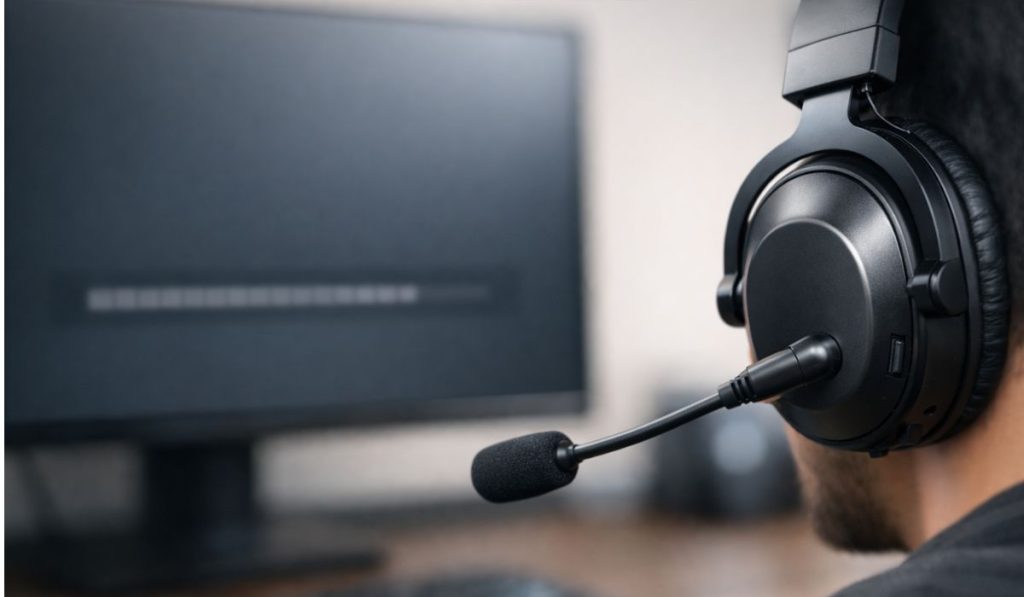 The Logitech G Pro X Wireless Headset includes a detachable microphone that sends voice through a wireless USB receiver. When the mic is not working, the system may detect the headset but receive no sound input. In some cases, the mic level stays flat, or your voice sounds very quiet or distorted.
Most users notice this problem in Windows sound settings, Discord, Zoom, or in-game voice chat. The mic may appear as an input device, but speaking into it produces no response.
Common Causes of G Pro X Wireless Mic Not Working
This issue can happen for several reasons, depending on settings, software, or wireless connection.
- Wrong microphone selected as the input device
- Mic muted on the headset or in software
- Logitech G Hub not syncing correctly
- Outdated firmware or audio drivers
- App-level microphone permission blocked
- Wireless receiver connection issue
- Low battery affecting mic function
How to Fix G Pro X Wireless Headset Mic Not Working?
In most cases, the fix comes down to settings or software refreshes. Try each fix in order and don’t skip steps.
Fix #1: Set the Headset as the Default Input Device
If Windows uses the wrong input device, your voice won’t register even though the mic works.
Follow the steps below to easily set it:
- Open Windows Sound Settings
- Go to Input devices
- Select G Pro X Wireless as default
- Test the microphone level
- Apply changes
- Close settings
Once selected, apps usually start detecting the mic immediately.
Fix #2: Check the Mic Mute and Boom Connection
The microphone boom must be fully connected, and the mic mute must be off. Check the physical mute button on the headset and confirm the boom clicks firmly into place. Even a loose connection can block audio input.
Fix #3: Restart Logitech G Hub and Background Services
The Logitech G Hub software controls mic routing and profiles. When it glitches, the mic may stop responding.
Here are the following steps which help reset it:
- Close Logitech G Hub
- End G Hub processes from Task Manager
- Restart the app
- Wait for the headset to reconnect
- Test the microphone
This often restores lost mic input.
Fix #4: Update Headset Firmware and Audio Drivers
Old firmware or audio drivers can cause mic issues, especially after Windows updates.
Perform the following steps carefully:
- Open Logitech G Hub
- Check for firmware updates
- Install available updates
- Restart your PC
- Open Device Manager
- Check for audio driver updates
After updating, mic stability usually improves.
Fix #5: Check App-Specific Microphone Permissions
Some apps block microphone access even if Windows allows it.
Check these points:
- App allowed to use microphone
- Correct input device selected in the app
- No push-to-talk conflicts
- No exclusive control enabled
Once permissions are correct, voice input should return.
Fix #6: Reconnect the Wireless Receiver and Check Battery
Wireless issues can interrupt mic data. A low battery can also weaken the mic signal.
Try these steps:
- Unplug the USB receiver
- Plug it into a different USB port
- Fully charge the headset
- Power it back on
- Test the mic again
This refreshes the wireless connection.
Fix #7: Test the Headset on Another Device
If none of the fixes work, testing on another PC helps confirm whether the issue is hardware-related. If the mic fails on multiple systems, the microphone itself may be faulty. At that point, contacting Logitech support is the safest option.
Prevention Tips to Avoid Mic Issues in the Future
A few habits help keep the microphone working smoothly.
- Keep Logitech G Hub updated
- Charge the headset regularly
- Restart G Hub after system updates
- Check mic input before calls
- Avoid forcing exclusive audio mode
- Store the mic boom properly
- Test the mic after firmware updates
Conclusion
Overall, when the G Pro X Wireless headset mic is not working, the cause is usually related to settings, software sync, or wireless connection issues. These problems feel sudden, but most are fixable with simple checks.
Try each fix calmly and give the system time to refresh. If this guide helped you, share it with others and leave a comment about which fix worked for you.
