



You open HBO Max, pick a show, press play, and then the screen stops with Error Code 1400503. That can be annoying, especially when everything else on your device seems fine. This error usually appears during video playback and blocks streaming.
This guide explains what the error means, why it happens, how to fix it step by step, and how to avoid it in the future.
What Is HBO Max Error Code 1400503?
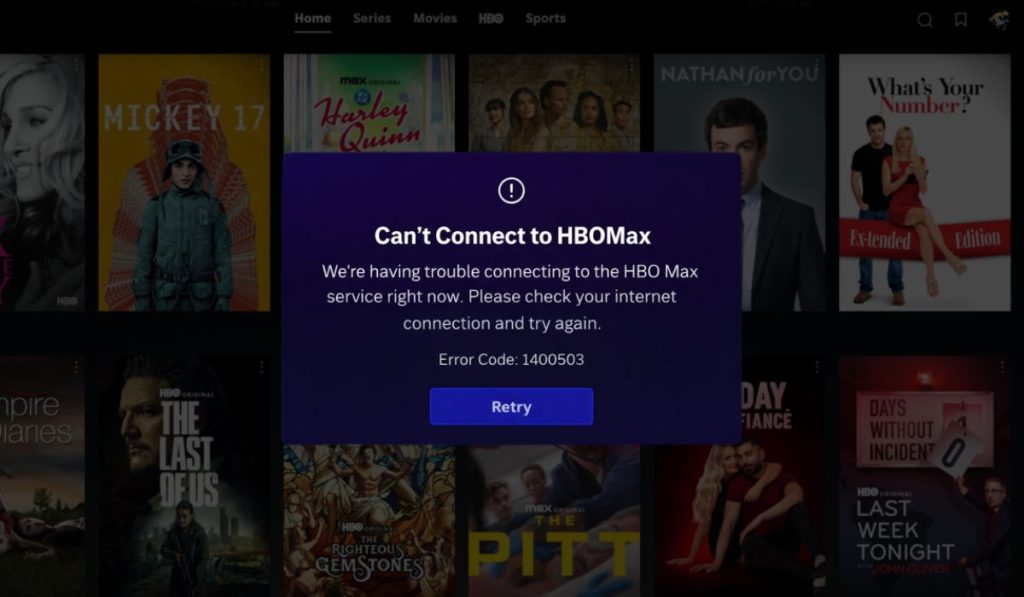 HBO Max Error Code 1400503 is a playback error. It appears when the app cannot load or play a video correctly. The app opens, menus work, but the video itself fails to start or stops suddenly.
Most users see this error while starting a movie, switching episodes, or during buffering. The message shows on screen and streaming does not continue.
Common Causes of HBO Max Error Code 1400503
This error can happen for several reasons, usually linked to the app, device, or network.
- Temporary HBO Max server issues
- Unstable or slow internet connection
- Corrupted app cache or data
- Outdated HBO Max app version
- Device compatibility problems
- Account or profile sync issue
- VPN or custom DNS interference
How to Fix HBO Max Error Code 1400503?
Most fixes focus on refreshing the app, checking your internet, or resetting stored data. Try each fix one at a time and test playback after every step.
Fix #1: Restart the HBO Max App and Your Device
Temporary app glitches often cause playback errors. Restarting clears them quickly.
Follow the steps below to restart the app and device.
- Close the HBO Max app fully.
- Turn off your device.
- Wait for 30 seconds.
- Turn the device back on.
- Open HBO Max and try playing a video.
Fix #2: Check Your Internet Connection
Streaming needs a stable connection, not just fast speed. Drops in connection can trigger this error.
Try these steps to confirm your connection is stable.
- Restart your Wi-Fi router.
- Move closer to the router.
- Disconnect other devices using the network.
- Test another streaming app.
- Switch to wired internet if possible.
- Retry HBO Max playback.
Fix #3: Clear HBO Max App Cache and Data
Corrupted cache files can stop videos from loading properly. Clearing them often fixes playback errors.
The following steps will show you how to clear app cache safely.
- Open device settings.
- Go to Apps or Applications.
- Select HBO Max.
- Open Storage.
- Tap Clear cache.
- If needed, tap Clear data.
- Open HBO Max and sign in again.
Fix #4: Update the HBO Max App
Older app versions may fail to connect to updated servers. Keeping the app current helps avoid errors.
Open the app store on your device, check for updates, install the latest version, then restart the app.
Fix #5: Sign Out and Sign Back Into Your HBO Max Account
Account session issues can cause playback errors even when the app works normally.
Here’s how you can refresh your account session.
- Open HBO Max settings.
- Sign out of your account.
- Close the app completely.
- Reopen HBO Max.
- Sign back in and test playback.
Fix #6: Disable VPN or Change DNS Settings
VPNs and custom DNS settings can interfere with streaming services. HBO Max may block or limit playback when a VPN is active.
Turn off your VPN and reset DNS settings to default, then restart the app and try again.
Fix #7: Reinstall the HBO Max App
If nothing else works, reinstalling the app gives you a clean setup with fresh files.
These are the exact steps to reinstall the app.
- Uninstall HBO Max from your device.
- Restart the device.
- Open the app store.
- Download HBO Max again.
- Sign in to your account.
- Play a video to test.
Prevention Tips to Avoid HBO Max Error Code 1400503 in the Future
Prevention helps keep streaming smooth and avoids repeat errors.
- Keep the HBO Max app updated
- Restart your device regularly
- Use a stable Wi-Fi connection
- Avoid VPNs while streaming
- Clear app cache occasionally
- Update device system software
- Use supported devices only
Conclusion
HBO Max Error Code 1400503 is a playback issue that stops videos from loading or playing. It usually comes from app glitches, network instability, or cached data problems. Most users fix it by restarting the app, checking the internet, or clearing cache.
Try the fixes calmly and test playback after each one. If the error continues, contact HBO Max support with your device details. If this guide helped, share it with others and leave a comment about which fix worked for you.
