


Seeing Steam error code -379 is frustrating because it can stop the Steam client from loading the way it should. The problem may affect the Steam store, the library, downloads, or other parts of the desktop app. Valve does not appear to have a dedicated support page that explains error code -379 by name, but its official troubleshooting steps for Steam client and download issues match the same kind of problem.
This guide explains what the error likely means, why it happens, how to fix it, and how to help prevent it from coming back.
What Is Steam Error Code -379?
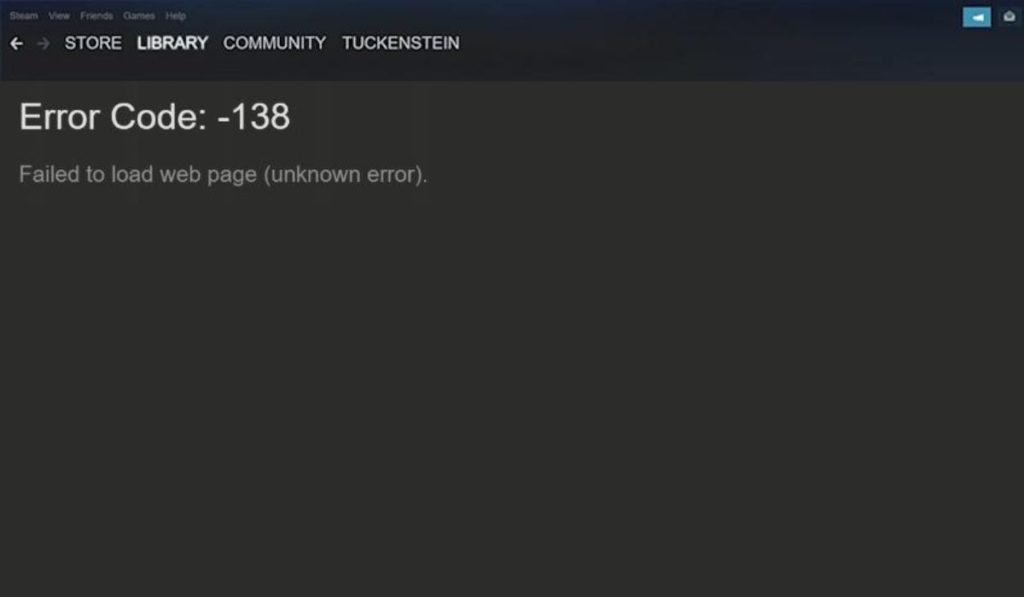 Steam error code -379 appears to be a Steam client problem tied to loading, connection, or cached client data, not a single game-specific bug. I could not find a Valve page that defines this exact code directly, so it is better to describe it by its behavior and by the fixes Valve recommends for similar Steam client issues. Those official steps include clearing the download cache, changing the download region, and checking the network connection.
Users usually run into this kind of Steam problem in the desktop app while loading store pages, handling downloads, or dealing with interface elements that rely on Steam’s web-based views. Community discussions also point to client-rendering issues in some cases, especially when GPU accelerated rendering in web views is involved.
That does not prove GPU rendering is the root cause of -379 in every case, but it is a common troubleshooting path.
Common Causes of Steam Error Code -379
This error can happen for several reasons, depending on your Steam client, your internet connection, and your local PC setup. Valve’s official guidance strongly supports checking the Steam download cache, the download region, and connection quality, while community reports add rendering and security-software issues to the list.
- Corrupted Steam download cache can cause client and download problems. Valve officially recommends clearing it for update and installation issues.
- An unstable internet connection can interrupt how the Steam client loads content or communicates with Steam services. Valve recommends checking the quality of the connection and testing basic network stability.
- Wi-Fi interference or weak wireless connections can create intermittent failures. Valve specifically notes that wireless and powerline connections can cause unstable behavior and recommends testing a direct wired connection.
- Firewall or antivirus tools may block Steam traffic or downloads. Community troubleshooting often points to Windows Firewall, router firewall, and antivirus software as possible blockers.
- Proxy or routing problems can interfere with Steam connectivity. Valve’s connection troubleshooting supports checking network conditions, and proxy interference is a common practical check for client connection errors.
- GPU accelerated rendering in Steam web views may cause client interface problems on some systems. This is supported by community discussions and Valve’s Linux issue tracker, though not by a Valve page about -379 specifically.
- A damaged Steam install or stale client session can keep the app stuck until it is repaired or reinstalled. Valve includes reinstalling Steam among broader client troubleshooting options.
How to Fix Steam Error Code -379?
In most cases, the best way to fix this error is to start with the simple Steam client resets first. Then move to cache, region, rendering, and network checks. Some fixes below come from Valve’s official guidance, while others are community-reported paths that help with Steam client interface issues.
Fix #1: Restart Steam completely
A full Steam restart can clear a stale client session, reload the Steam interface, and remove temporary loading problems. This is a simple first step because it does not change any files or settings.
If Steam was stuck while loading a store page, a library element, or a download process, closing it fully and opening it again may be enough. It is basic, yes, but it is still worth trying first before deeper changes.
Fix #2: Restart your PC
A restart can reset Steam, Windows networking, background processes, and temporary client issues in one move. This helps when the error comes from a broken session, a network hiccup, or a system-level conflict that Steam alone cannot clear. It is also a low-risk fix because it does not remove your client data or downloads.
Community troubleshooting around Steam client issues often includes this step early for that reason.
Fix #3: Clear the Steam download cache
Valve officially recommends clearing the Steam download cache for update and installation issues. The support page explains that this flushes locally cached configuration data so the Steam client can pull fresh data again. That makes this one of the strongest fixes to try when the client is behaving strangely.
Follow the steps below to easily clear the Steam download cache.
- Open Steam.
- Click Steam in the top-left corner.
- Open Settings.
- Go to the Downloads section.
- Find the Clear Download Cache button.
- Confirm the action when Steam asks.
- Sign in again after Steam restarts.
Valve notes that clearing the cache will log you out of Steam, so be ready to sign back in.
Fix #4: Change the Steam download region
Valve also recommends changing the download region when Steam downloads or client behavior are unstable. Sometimes the selected region server has temporary issues, or the route to that region is slower than expected. Switching to a nearby region can improve how Steam connects and loads.
Here are the following steps which help you to change the Steam download region.
- Open Steam.
- Click Steam, then Settings.
- Open the Downloads section.
- Find Download Region.
- Choose another region close to your location.
- Save the change.
- Restart Steam and test the client again.
This is an official Valve troubleshooting step, so it is one of the most solid fixes in this guide.
Fix #5: Disable GPU accelerated rendering in Steam
Some Steam users report that the client interface behaves better after turning off GPU accelerated rendering in web views. Community discussions and Valve’s Linux bug tracker both show cases where disabled GPU acceleration stopped visual corruption or broken web-view behavior.
That does not prove it causes error -379 every time, but it is a useful troubleshooting step when the Steam client itself looks broken or pages fail to render properly.
You can perform the following steps to disable GPU accelerated rendering in Steam.
- Open Steam.
- Click Steam, then Settings.
- Go to the Interface section.
- Find the option for Enable GPU accelerated rendering in web views.
- Turn that option off.
- Restart Steam completely.
- Check whether the client loads normally now.
This fix is community-supported rather than officially tied by Valve to error -379.
Fix #6: Test a wired connection and basic network checks
Valve specifically says wireless and powerline connections can cause intermittent network failures and recommends testing a direct wired connection. If you are using Wi-Fi and Steam keeps failing, try Ethernet if possible. A wired connection can reduce packet loss, weak signal issues, and random instability.
If Steam works on Ethernet but not on Wi-Fi, then the problem is likely your network path rather than the Steam client itself.
Fix #7: Check firewall, antivirus, and proxy settings
Security tools can block Steam without making the problem obvious. Windows Firewall, router firewall rules, antivirus filtering, and proxy settings can all interfere with Steam traffic. Community troubleshooting around Steam errors often points to these blockers when downloads or client pages fail.
Try these simple steps to quickly check firewall, antivirus, and proxy settings.
- Close Steam first.
- Open your Windows Firewall settings and check whether Steam is allowed.
- Review your antivirus app for any blocked Steam process.
- Check your router or security software for filtering rules.
- Disable any proxy you do not need.
- Reopen Steam after saving the changes.
- Test whether the error still appears.
This step is practical and commonly recommended, but it is based more on general Steam troubleshooting and community advice than on a Valve page for -379 itself.
Fix #8: Reinstall Steam if nothing else works
If Steam error -379 keeps returning after cache clearing, region changes, and network checks, reinstalling Steam may help. A reinstall can replace damaged client files and reset parts of the app that a simple restart cannot fix.
Valve’s broader support flow directs users to Steam Support for deeper client issues, and reinstalling is a normal late-stage fix for persistent client corruption. It takes more time, so it is better saved for the end.
Prevention Tips to Avoid Steam Error Code -379 in Future
Prevention helps most when the issue comes from stale cache, weak Wi-Fi, or repeated client instability. These simple habits can keep the Steam client more stable and make future troubleshooting easier.
- Keep Steam updated so the client uses the newest fixes from Valve.
- Clear stale cache if Steam starts acting oddly after updates or failed downloads.
- Prefer Ethernet over unstable Wi-Fi for large downloads and heavy Steam use.
- Avoid aggressive firewall, antivirus, or proxy settings that may block Steam traffic.
- Restart Steam after a long stuck session instead of leaving the client half-loaded.
- Check GPU acceleration settings if the interface starts showing rendering issues.
- Look for wider Steam-side issues before changing every setting on your PC.
Conclusion
To summarize, Steam error code -379 appears to be a Steam client loading, cache, rendering, or connection-related problem rather than a game-specific error. Valve does not seem to publish a dedicated page for this exact code, so the most reliable approach is to follow its broader Steam troubleshooting steps and then add the most relevant community-reported fixes. The strongest official fixes in this guide are clearing the download cache, changing the download region, and checking connection quality.
Start with the easy fixes first – restart Steam, clear the cache, change the region, and test your network. Then check firewall settings, GPU rendering, and reinstall Steam only if needed. If the problem keeps coming back, contact Steam Support with the exact error code and the steps you already tried. And if this article helped, share it with someone else or leave a comment with the fix that worked for you.
