


Sometimes you open the Escape from Tarkov launcher and the game refuses to start. Instead of loading normally, the launcher shows the message “Failed to get a game package – Error 0.”
That error stops the client from downloading the game package required to run the game. This guide explains what the error means, why it appears, and what steps can help restore access to Escape from Tarkov servers.
What Is Tarkov Failed to Get a Game Package Error 0?
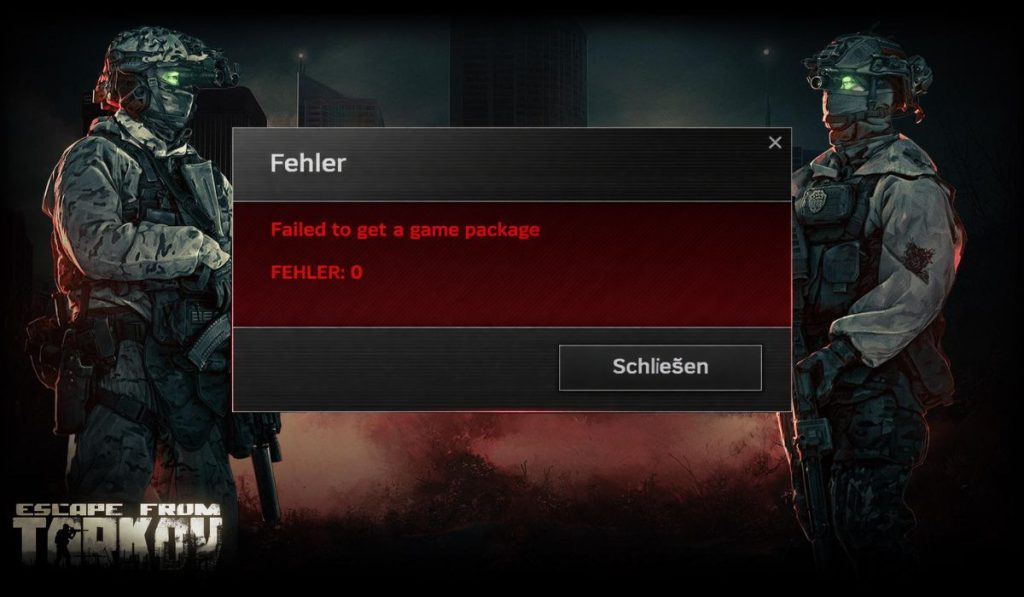 The message “Failed to get a game package – Error 0” appears when the Battlestate Games launcher cannot retrieve the required game package from the Escape from Tarkov server infrastructure. When a player launches the game, the launcher sends a request to the authentication server. The server then verifies the user account and sends back the game package information needed to start the game client.
If the request fails because of a network interruption, corrupted launcher cache, or blocked connection, the launcher cannot obtain the required package data. As a result, the system stops the login process and displays error code 0.
Players usually see this error during launcher startup, while logging into the game account, or when the system attempts to download updates from Battlestate Games servers.
Common Causes of Tarkov Error 0
Several technical problems can trigger this message. Some issues come from the network connection, while others involve the launcher configuration or server communication.
Common causes include:
- unstable internet connection
- corrupted launcher cache files
- firewall rules blocking the Battlestate launcher
- active VPN service interfering with server routing
- outdated Battlestate Games launcher
- temporary server maintenance
- incorrect DNS server configuration
These factors interrupt communication between the Escape from Tarkov client and the authentication servers that deliver the game package.
How to Fix Tarkov Failed to Get a Game Package Error 0?
Fixing this error usually requires refreshing the connection between the Battlestate Games launcher and the Escape from Tarkov server network. The launcher must successfully authenticate the account and retrieve the required package files before the game client can load.
If something interrupts that process, the launcher stops and shows error code 0.
The solutions below help reset the connection, repair launcher files, and restore communication with the server.
Fix #1 Restart the Tarkov Launcher
Temporary launcher glitches sometimes interrupt the server request process.
Follow these steps to restart the launcher.
- Close the Battlestate Games launcher.
- Open Task Manager.
- End any running Escape from Tarkov launcher processes.
- Launch the launcher again.
- Try logging in.
Restarting the launcher resets the connection request to the server.
Fix #2 Check Escape from Tarkov Server Status
Sometimes the issue comes from Battlestate server maintenance or temporary outages.
Follow these steps.
- Open a web browser.
- Visit the Battlestate Games website.
- Check the server status page or announcements.
- Look for maintenance updates or service interruptions.
If the servers are offline, players must wait until service returns.
Fix #3 Run the Launcher as Administrator
Windows permission settings sometimes block the launcher from accessing required files.
Follow the steps below.
- Locate the Battlestate Games launcher shortcut.
- Right click the launcher.
- Select Run as administrator.
- Log into the launcher again.
Administrator access allows the launcher to read and write installation files.
Fix #4 Clear Launcher Cache
Corrupted cache data can prevent the launcher from retrieving the correct game package information.
Follow these steps to clear cache files.
- Open the Battlestate launcher settings.
- Locate the cache or temporary files option.
- Clear stored launcher data.
- Restart the launcher.
This forces the launcher to download fresh data from the servers.
Fix #5 Disable VPN Services
A VPN connection may route traffic through a different region. This sometimes conflicts with Escape from Tarkov authentication servers.
Turn off the VPN application. Disconnect from the VPN network. Then start the Tarkov launcher again using your normal internet connection.
Fix #6 Change DNS Server
Your DNS provider helps locate online services. Slow or incorrect DNS responses can interrupt communication with the game servers.
Follow the steps below.
- Open Windows network settings.
- Select your active network adapter.
- Open IPv4 properties.
- Enter Google DNS 8.8.8.8 and 8.8.4.4.
- Save the settings and reconnect.
Switching DNS servers often improves server routing.
Fix #7 Verify Game Files
Corrupted game files can also prevent the launcher from loading the correct package data.
Follow these steps.
- Open the Battlestate Games launcher.
- Navigate to game settings.
- Select Verify game files.
- Allow the launcher to scan and repair files.
The verification process replaces damaged files with new versions.
Fix #8 Reinstall the Tarkov Launcher
If the launcher itself becomes corrupted, reinstalling it may resolve the issue.
First uninstall the Battlestate Games launcher from Windows. Then download the latest version from the official Escape from Tarkov website. Install the launcher again and log in to your account.
Prevention Tips to Avoid Tarkov Error 0
Maintaining a stable connection and updated software helps prevent launcher problems. Because Escape from Tarkov relies on server authentication before starting the game client, clean network settings and updated launcher files reduce the chance of errors.
Helpful tips include:
- keep the Battlestate Games launcher updated
- avoid using VPN services while launching the game
- maintain a stable internet connection
- clear launcher cache periodically
- allow the launcher through Windows firewall
- monitor server maintenance announcements
- update network drivers in Windows
These small maintenance steps help maintain stable communication between the launcher and game servers.
Conclusion
The message “Failed to get a game package – Error 0” appears when the Battlestate Games launcher cannot retrieve the required game package from Escape from Tarkov servers. Network interruptions, corrupted launcher cache, VPN routing, firewall restrictions, or outdated launcher files can interrupt the authentication process and prevent the game from launching.
Most players solve the problem by restarting the launcher, clearing cache files, changing DNS settings, or verifying game files. If the error continues, reinstalling the launcher or checking server status may be necessary.
If this guide helped you fix the issue, share it with other Escape from Tarkov players who may face the same error. You can also leave a comment and explain which solution worked for you.
