


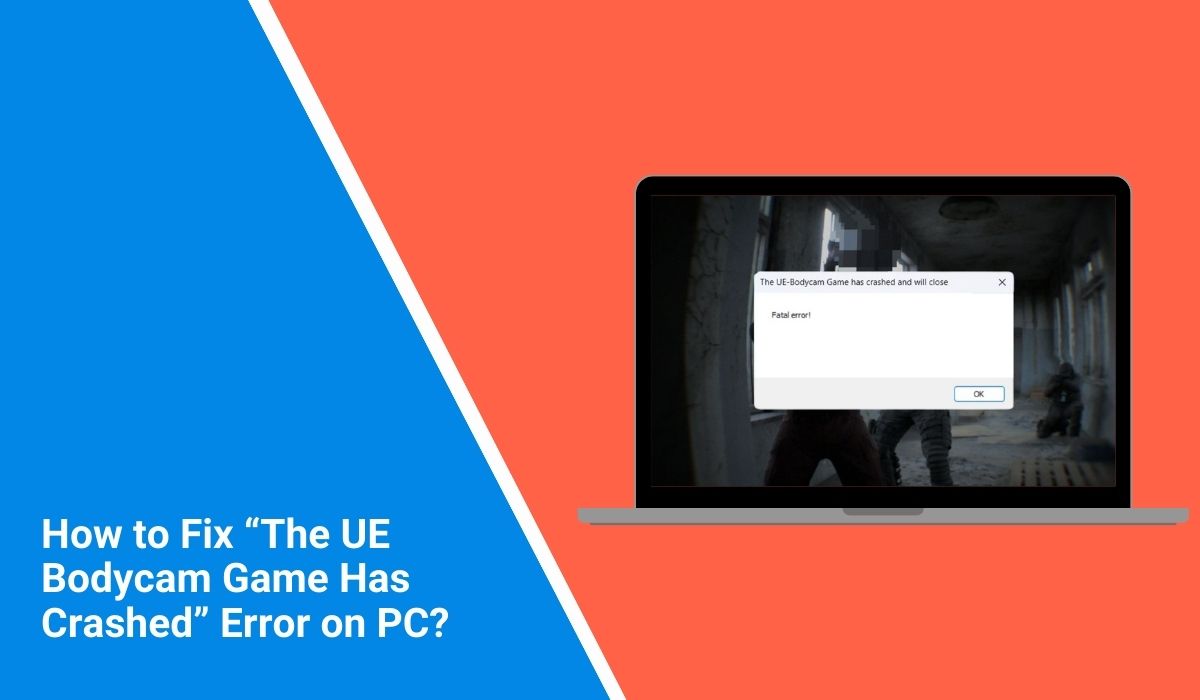
This crash usually happens when Unreal Engine, the game engine behind Bodycam, encounters a problem with the system. It may involve graphics drivers, game files, DirectX, or system memory. In this guide you will learn what this crash message means, why it happens on a Windows gaming PC, how to fix it step by step, and how to prevent the crash in the future.
What Does “The UE Bodycam Game Has Crashed” Mean?
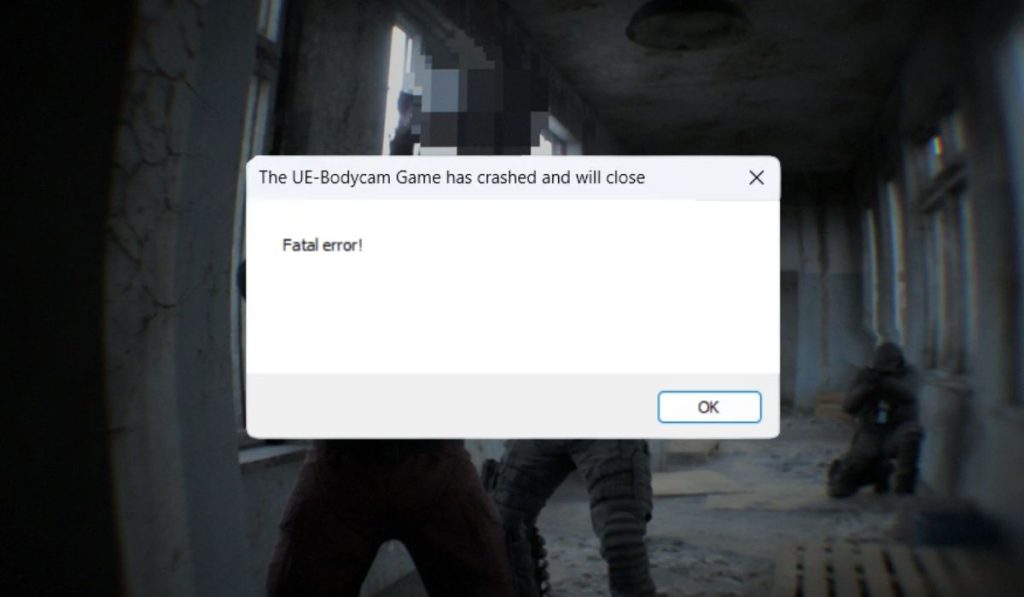 The message “the UE Bodycam game has crashed” is generated by Unreal Engine, which is the software framework that runs the Bodycam game. Game engines like Unreal Engine manage graphics rendering, physics simulation, memory usage, and gameplay logic. When the engine detects a critical problem, it shuts down the game to prevent further errors.
Several technical issues can trigger this crash. The system might not have enough GPU memory, the graphics driver might be outdated, or the engine may fail to load certain game assets. Sometimes the crash occurs because DirectX components, Visual C++ libraries, or system files are missing. When the engine detects one of these problems, it stops the program and displays a crash report window.
Players usually encounter the crash when launching the Bodycam game from Steam, loading a map, or during intense gameplay scenes when the graphics processing unit (GPU) is rendering complex environments.
Common Causes of the UE Bodycam Game Crash
The Bodycam crash can occur for several reasons related to system hardware, game files, or software compatibility. In many cases the issue comes from the graphics environment or missing runtime components.
Here are the most common causes:
- Outdated NVIDIA or AMD graphics drivers
- Corrupted Bodycam game files in the Steam installation
- Insufficient RAM or GPU VRAM during gameplay
- Outdated DirectX runtime components required by Unreal Engine
- Missing Microsoft Visual C++ Redistributable packages
- CPU or GPU overclocking instability
- Windows compatibility issues or missing system updates
These conditions can interrupt communication between Unreal Engine, the graphics driver, and the Windows operating system.
How to Fix “The UE Bodycam Game Has Crashed”?
Fixing the crash usually involves checking drivers, verifying the game installation, and updating system components. Many Unreal Engine crashes happen because the game cannot access required resources or system libraries.
The solutions below help restore stability so the Bodycam game can run properly.
Fix #1: Restart the Computer
Temporary system conflicts can cause Unreal Engine games to crash. Restarting the Windows PC clears temporary memory and reloads system drivers.
After restarting, launch the Bodycam game again and check whether the crash still appears.
Fix #2: Update Graphics Drivers
Graphics drivers control how the GPU communicates with games. Outdated drivers often cause Unreal Engine crashes.
Follow these steps to update the driver.
- Open NVIDIA GeForce Experience or AMD Radeon Software.
- Navigate to the driver update section.
- Download the latest GPU driver version.
- Install the update.
- Restart the computer.
Updating drivers improves compatibility between the GPU and Unreal Engine.
Fix #3: Verify Game Files on Steam
Sometimes game files become damaged or incomplete. The Steam client includes a feature that scans and repairs missing files.
Follow these steps:
- Open the Steam application.
- Go to your game Library.
- Right-click the Bodycam game.
- Select Properties.
- Open the Installed Files tab.
- Click Verify integrity of game files.
Steam will automatically replace corrupted or missing files.
Fix #4: Update Windows
The Bodycam game depends on updated system components and drivers. Installing the latest Windows updates can solve compatibility issues.
Follow these steps:
- Open Windows Settings.
- Select Windows Update.
- Click Check for updates.
- Install any available updates.
- Restart the computer.
Updated system files improve compatibility with games built on Unreal Engine.
Fix #5: Install Microsoft Visual C++ Redistributable
Many PC games require Microsoft Visual C++ Redistributable libraries. These runtime components allow software to run certain functions inside Windows.
If the required packages are missing or outdated, Unreal Engine games may crash. Download and install the latest Visual C++ Redistributable packages from the Microsoft website.
Fix #6: Update DirectX
DirectX is responsible for rendering graphics in many Windows games. If DirectX components are outdated or missing, the game engine may fail to render scenes correctly.
Updating DirectX ensures that the Bodycam game can access the required graphics APIs.
Fix #7: Lower Graphics Settings
Sometimes the crash occurs because the GPU runs out of memory when rendering high-quality graphics.
Lowering certain settings can improve stability. Try reducing:
- texture quality
- shadow resolution
- anti-aliasing settings
- post-processing effects
Reducing graphics load helps prevent GPU memory errors.
Fix #8: Reinstall the Bodycam Game
If none of the previous fixes solve the issue, reinstalling the game may help. A fresh installation replaces corrupted files and restores the correct configuration.
Uninstall the game from Steam, restart the computer, and download the game again from the Steam library.
Prevention Tips to Avoid Future Game Crashes
Maintaining a stable gaming system can reduce the chance of Unreal Engine crashes. Regular updates and proper hardware management improve overall game stability.
Here are several useful prevention tips:
- Keep graphics drivers updated regularly
- Maintain enough RAM and storage space on the system
- Avoid unstable CPU or GPU overclocking
- Install Windows updates regularly
- Verify game files after large updates
- Monitor GPU temperature while gaming
- Install required runtime components such as Visual C++ libraries
Following these practices helps maintain a stable PC gaming environment.
Conclusion
The error “the UE Bodycam game has crashed” appears when Unreal Engine encounters a critical problem while running the Bodycam game. The issue often relates to outdated graphics drivers, corrupted game files, missing runtime components, or insufficient system resources.
Most players can solve the problem by updating drivers, verifying Steam game files, installing system updates, or adjusting graphics settings. If the crash continues after troubleshooting, reinstalling the game or checking hardware compatibility may help.
Have you experienced this crash while playing Bodycam? Share your experience in the comments and let others know which solution worked for you. If this guide helped fix the issue, consider sharing it with other players facing the same problem.
