


In this guide, you’ll learn what Error 390 means and how to fix it using 8 clear solutions.
What Is Umamusume Error Code 390?
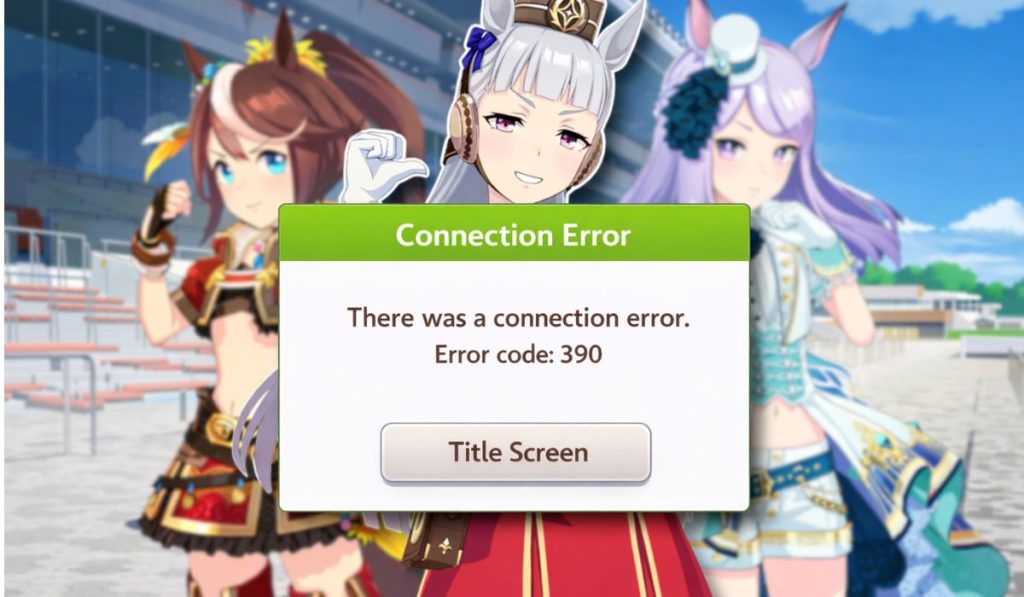 Error Code 390 in Uma Musume usually appears when the game client fails to connect properly to the Cygames servers or cannot download required data. When you launch the game on Steam, Android, or iPhone, the client checks internet connectivity and verifies game files.
If the connection drops, if your DNS server fails to respond, or if part of the downloaded data becomes corrupted, the game stops and displays this error. In many cases, the problem relates to unstable Wi-Fi, blocked network routes, or incomplete patch updates. It does not normally mean your account is banned or permanently restricted.
You may see Error 390 on the title screen, during login, or while the game downloads additional data after an update.
Common Causes of Error Code 390
This issue usually connects to network or data loading conflicts. Below are some common causes:
- Unstable Wi-Fi or packet loss
- ISP routing issues
- VPN or proxy interference
- Firewall blocking game traffic
- Corrupted cache or incomplete download
- Not enough storage space
- Server maintenance period
How to Fix Umamusume Error Code 390?
Fixing this problem depends on whether the issue comes from your network, your device, or the game data itself. Most players solve it without major changes. Try the fixes below in order.
Fix #1: Restart the Game and Your Device
Temporary glitches often block server communication. Follow these simple steps to restart properly.
- Close Uma Musume completely
- Exit Steam or close the mobile app
- Restart your PC or phone
- Reconnect to Wi-Fi
- Launch the game again
A full restart clears background connection errors.
Fix #2: Switch Your Network
Sometimes your Internet Service Provider causes routing delays. Try these simple steps to test another connection.
- Turn off Wi-Fi
- Enable mobile data hotspot
- Connect your device to the new network
- Open the game
If it works on another network, your ISP may be causing the issue.
Fix #3: Check Server Status
If Cygames servers are under maintenance, connection attempts may fail.
Visit the official Umamusume support page or social channels to check maintenance announcements. If servers are down, wait until maintenance ends.
Fix #4: Use “Download All Data” From Title Screen
Some players report that incomplete data packages trigger Error 390. Follow the steps below to download full game data.
- Open Uma Musume
- Stay on the title screen
- Open the menu option
- Select “Download All Data”
- Wait until the process completes
This ensures missing files are fully installed.
Fix #5: Clear Cache or Temporary Data
Corrupted cache files can stop the game from loading. For Android:
- Open Settings
- Tap Apps
- Select Uma Musume
- Tap Storage
- Choose Clear Cache
For iPhone, you may need to offload or reinstall the app.
Fix #6: Verify Game Files on Steam
If you play on Windows PC, verifying files can repair damaged data. The following steps will show you how to verify files properly.
- Open Steam
- Go to Library
- Right-click Uma Musume
- Select Properties
- Click Installed Files
- Choose Verify integrity
Steam will replace corrupted files automatically.
Fix #7: Flush DNS and Restart Router
Incorrect DNS resolution may block the connection. Perform the following steps carefully.
- Open Command Prompt as Administrator
- Type ipconfig /flushdns
- Press Enter
- Restart your router
- Reconnect to internet
This refreshes DNS settings and network routing.
Fix #8: Reinstall the Game
If nothing works, a clean reinstall may fix hidden corruption. These are the exact steps to follow.
- Uninstall Uma Musume
- Restart your device
- Download the latest version from Steam, Google Play Store, or App Store
- Install again
- Log in and test
If the error still appears, contact official support.
Prevention Tips to Avoid Errors in Umamusume
Preventing Error 390 helps keep the game stable. Follow these given tips:
- Maintain stable internet during updates
- Avoid using VPN while playing
- Keep enough free storage space
- Do not interrupt patch downloads
- Restart router occasionally
- Keep Steam or mobile system updated
- Clear cache if errors repeat
Conclusion
In short, Umamusume Error Code 390 usually appears because of unstable network connection, corrupted data files, or incomplete updates. It is rarely a permanent account problem. Most cases resolve after network reset, data download, or file verification.
Try each solution carefully and test after every step. If the problem continues, contact official Umamusume support for help. If this guide helped you, share it and leave a comment about which fix worked for you.
