


Google Messages is increasingly becoming one of the go-to messaging platforms for Android users, thanks to its seamless sync between mobile and desktop, support for RCS (Rich Communication Services), and a simple, clean interface. However, some users have recently reported an annoying issue: pictures not loading when using Google Messages on desktop. Whether you’re trying to view an image someone sent you or sharing photos yourself, this issue can be frustrating — especially when everything works smoothly on your phone.
TL;DR (Too Long; Didn’t Read)
If pictures aren’t loading in Google Messages on your desktop, you’re not alone. The problem is often linked to browser settings, internet connection issues, or problems syncing with your mobile device. Quick fixes like restarting your phone, clearing browser cache, or enabling proper permissions can resolve the issue for most users. This guide outlines several troubleshooting steps and long-term fixes to restore full functionality.
Understanding the Problem
The primary cause behind images not loading in Google Messages for Web stems from failure in syncing data between the phone and desktop interface. Since the web version relies on the phone’s active internet connection to fetch and transmit messages and media, any disruption leads to partial or incomplete content display — including missing photos.
Here are the most common ways the issue surfaces:
- Photos show as broken image icons.
- Thumbnails appear, but the full-size image doesn’t load.
- Images previously loaded no longer show up.
- An error message stating “Couldn’t load media” appears.
Common Causes of the Issue
Before jumping into solutions, it helps to understand what might be causing the problem. Some of the most frequent causes include:
- Unstable Internet Connection: Either your phone or your desktop (or both) has a poor internet connection.
- Browser Issues: Incorrect permissions, outdated versions, or full cache memory can prevent image loading.
- Battery Optimization Settings: Your phone might be restricting background activity for Google Messages.
- Permissions: If the Messages app lacks permission to access photos or storage, images won’t be accessible.
- Sync Delays: Sometimes, sync lag or errors between the web client and the mobile device cause media display failures.
Step-by-Step Fix Guide
1. Check Your Internet Connection
Ensure both your smartphone and your desktop have a stable internet connection. Since Google Messages for Web relies on an active link to your phone, even a short disconnect can stop images from loading properly.
Try this:
- Restart your Wi-Fi router.
- Switch between Wi-Fi and mobile data on your smartphone to see if that resolves the issue.
- Ensure there’s no VPN or firewall blocking the connection.
2. Refresh the Page and Restart the Browser
Sometimes, a simple refresh or browser restart can resolve glitches.
- Close all browser tabs and restart the browser completely.
- Log out and re-pair Google Messages for Web from your phone by rescanning the QR code.
3. Clear Browser Cache and Cookies
Accumulated cache and cookies can interfere with web apps like Google Messages. Clearing them can often resolve image loading problems.
In Chrome:
- Click the three-dot menu in the top right of the browser.
- Go to More Tools → Clear browsing data.
- Select Cached images and files and Cookies and other site data.
- Click Clear data.
4. Re-enable Google Messages for Web
Occasionally, unpairing and re-pairing the device solves syncing and image transfer issues.
How to do it:
- On your phone, open Messages.
- Tap the three dots > Device Pairing.
- Tap on the paired device and select Unpair.
- Go to messages.google.com/web and scan the QR code again.
5. Update the Messages App and Web Browser
Ensure both the Google Messages mobile app and your browser are up to date. Outdated versions may cause compatibility issues and hinder full media loading capabilities.
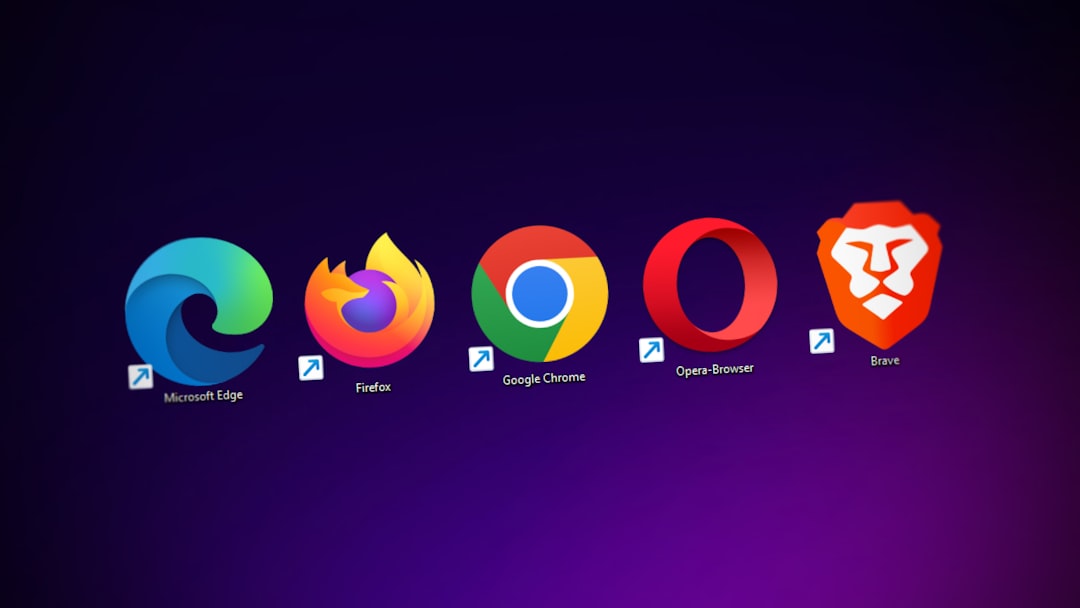
Tip: Chrome, Edge, or Firefox are your best browser choices for using Google Messages effectively.
6. Disable Battery Optimization for Google Messages
Some Android devices limit background activities of apps to conserve battery, which can affect syncing on Google Messages for Web.
To prevent this:
- Go to Settings on your phone.
- Navigate to Battery or Battery Optimization.
- Find the Messages app and set it to Not Optimized.
7. Check App Permissions
Make sure the Google Messages app has the correct permissions granted on your phone.
- Go to Settings → Apps → Messages.
- Tap Permissions.
- Ensure access to Photos and Media, Storage, and Network are enabled.
Advanced Troubleshooting
Try a Different Browser
If Google Chrome is giving you trouble, try switching to Mozilla Firefox, Microsoft Edge, or even Safari to isolate the problem. Image loading issues may be due to browser-specific bugs or extensions interfering with web content.
Disable Extensions and Ad Blockers
In some cases, browser extensions — particularly ad blockers and privacy tools — may block image URLs unintentionally.
- Temporarily disable all browser extensions and refresh the Google Messages Web window.
- If the images start loading, re-enable extensions one by one to determine the culprit.
Use Incognito Mode
Opening Google Messages for Web in an incognito window disables all extensions automatically by default. This is a quick way to check if plugins might be at fault.
Reinstall the Messages App
If nothing else works, uninstall and reinstall the Google Messages app on your smartphone. This can fix deep-rooted sync issues related to cached data or corrupted configurations.
Preventive Tips
- Keep both browser and app versions updated regularly.
- Avoid aggressive data-saving settings or third-party network optimizers.
- Restrict use of multiple user profiles or browser sessions for Google Messages.
Conclusion
While it’s frustrating when Google Messages doesn’t load images on desktop, most cases are easily resolved with basic troubleshooting steps. From ensuring a stable connection to adjusting permissions and browser settings, users can resolve the issue without needing technical expertise. Following the steps above not only resolves the image display problem but can also improve overall sync reliability of the Google Messages platform.
Frequently Asked Questions (FAQs)
Why are images not showing up on Google Messages Web?
This is usually due to sync issues between your phone and desktop, poor internet connection, or browser permissions blocking media content.
Can outdated browsers cause this issue?
Yes, using an outdated browser may prevent Google Messages from displaying content correctly. Always use the latest version of a supported browser.
What kind of image file formats does Google Messages support?
Google Messages supports common image formats such as JPG, PNG, and GIFs. If the image is unsupported, it might not display.
How do I know if it’s a sync issue?
If messages or photos load inconsistently between desktop and mobile, chances are high it’s a syncing issue. Try disabling battery saver modes and re-pairing your device.
Is there a desktop app for Google Messages?
No. Google Messages is a web-based service on desktop. You need a browser and a paired Android phone to access it.
