


If you use Bazzite as your gaming system, you may wonder how to download Star Citizen on it. The game is not native to Linux and it does not appear on Steam. That can make things feel unclear at first. Still, many players run Star Citizen on Bazzite using the right tools.
This guide shows how the download works, what you need, and how to start safely without shortcuts.
Can You Download Star Citizen on Bazzite?
 Yes, you can download and run Star Citizen on Bazzite, but not in a native way. Bazzite is based on Linux, while Star Citizen is built for Windows. To bridge that gap, you use compatibility tools that allow Windows software to run on Linux.
This setup is not officially supported by Cloud Imperium Games. That means updates or patches may sometimes break things. Still, many players use this method daily, and the download process itself is straightforward when done step by step.
What You Need Before Downloading?
Before you start, make sure a few basics are ready. Skipping these often leads to confusion later.
- Bazzite in desktop mode
- Stable internet connection
- Enough free storage space for the game
- A Star Citizen account
- Lutris installed
Once these are in place, you can move forward.
How to Download Star Citizen on Bazzite?
The cleanest way to download Star Citizen on Bazzite is through Lutris. Lutris manages Windows launchers using Wine or Proton. You do not need to add the game to Steam for this method.
Step 1: Switch to Desktop Mode
Bazzite installs games from desktop mode, not game mode. Here are the following steps which help you do this:
- Exit game mode
- Enter desktop mode
- Wait for the desktop to load fully
This gives access to system tools and installers.
Step 2: Install Lutris
Lutris is used to manage non-Steam games and launchers. Follow the steps below to easily install it:
- Open the software store or terminal
- Search for Lutris
- Install the application
- Launch Lutris once installation finishes
Make sure Lutris opens without errors.
Step 3: Download the RSI Launcher
Star Citizen downloads through its own launcher. You can perform the following steps to get it:
- Open a web browser
- Go to the official Star Citizen website
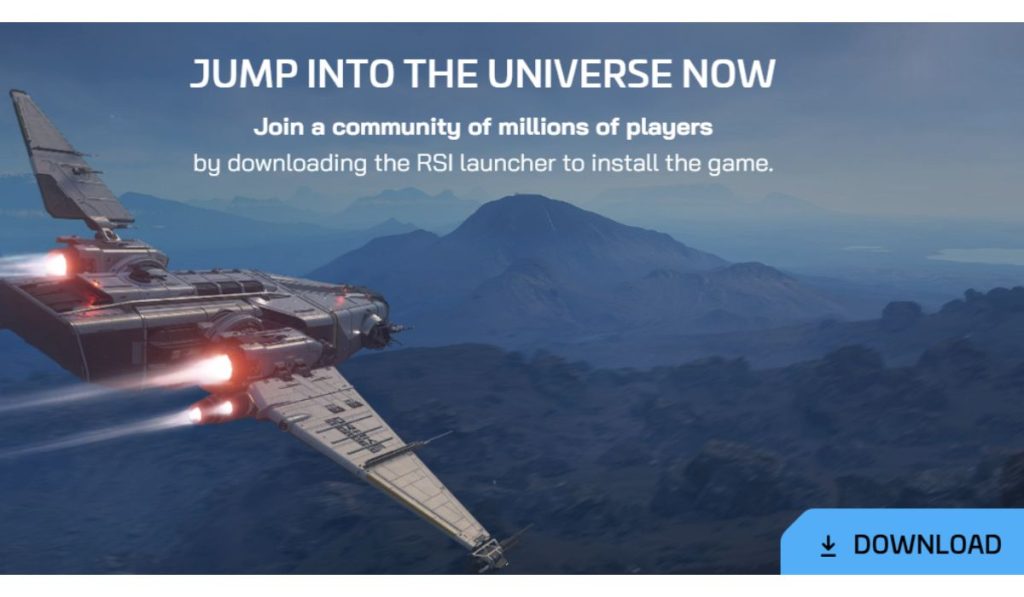
- Download the RSI Launcher installer
- Save the file to an easy location
Do not run it directly yet.
Step 4: Install the RSI Launcher Through Lutris
Lutris should manage the launcher, not the system directly. Below are the steps that will guide you:
- Open Lutris
- Choose to add a new game
- Select a Windows application
- Point Lutris to the RSI Launcher installer
- Complete the setup using default options
This creates a managed environment for the launcher.
Step 5: Download Star Citizen
Once the launcher is installed, the game download works like it does on Windows. Here’s how you can do it:
- Launch the RSI Launcher from Lutris
- Log in to your account
- Choose the install location
- Start downloading Star Citizen
- Wait for the download to finish
The download can take a long time. Let it complete without interruption.
First Launch and What to Expect
The first launch often takes longer than expected. The game may appear frozen while shaders compile. This is normal. Let it sit and do not close the launcher. Star Citizen builds cache files on first run, and that process can take several minutes.
You may also see minor crashes or restarts on the first launch. This does not always mean something is wrong. Avoid changing settings until the game reaches the main menu at least once.
Tips for a Smoother Experience
These tips help reduce issues after installation.
- Install the game on an SSD
- Close background apps before launching
- Let shader compilation finish fully
- Keep Lutris updated
- Avoid restarting the launcher during updates
- Use keyboard and mouse first
- Be patient after game patches
Small habits make a big difference here.
Conclusion
Downloading Star Citizen on Bazzite is possible with the right setup. You use desktop mode, Lutris, and the RSI Launcher to handle the download safely. The process takes time, especially on first launch, but it works when done step by step.
If this guide helped you get started, share it with others using Bazzite and leave a comment about how your setup went.
