



Streaming your favorite shows and movies through a VPN should feel seamless, yet many users experience the dreaded buffering wheel at the worst possible moment. While VPNs are excellent for enhancing privacy and unlocking geo-restricted content, they can sometimes slow down your internet speed if not configured properly. The good news? With the right adjustments, you can enjoy smooth, high-quality streaming without interruptions.
TLDR: Buffering while streaming on a VPN is usually caused by slow servers, long connection distances, or outdated protocols. To optimize speed, choose a nearby high-performance server, switch to faster VPN protocols, use a wired connection, and ensure your base internet speed is sufficient for HD or 4K streaming. Adjusting encryption settings and avoiding peak-hour congestion can also dramatically improve performance. With a few tweaks, you can stream smoothly without sacrificing security.
Why VPNs Sometimes Slow Down Streaming
Before diving into optimization tips, it helps to understand why VPNs can reduce speed in the first place. A VPN routes your internet traffic through an encrypted tunnel and a remote server. While this enhances privacy and anonymity, it adds extra steps to your data’s journey.
- Encryption overhead: Strong encryption requires processing power.
- Server distance: The farther the server, the longer data takes to travel.
- Server congestion: Too many users on one server can cause slowdowns.
- Protocol inefficiency: Some VPN protocols prioritize security over speed.
Understanding these factors is key to making meaningful adjustments that improve performance without compromising security.
1. Choose the Right Server Location
Distance matters. If you’re connecting to a VPN server halfway around the globe, you’re likely adding unnecessary latency. For the best balance between access and speed:
- Connect to the closest possible server to your physical location.
- If accessing geo-blocked content, choose a server closest to the content’s origin.
- Look for servers labeled “optimized for streaming”.
Many premium VPN providers display server load percentages. Always aim for a server with lower user load to avoid congestion-related buffering.

2. Switch to a Faster VPN Protocol
Not all VPN protocols are created equal. Some are built for maximum encryption strength, while others prioritize speed.
Common protocols include:
- WireGuard: Modern, lightweight, and extremely fast.
- OpenVPN UDP: Faster than TCP and great for streaming.
- IKEv2: Stable and quick, especially on mobile devices.
- OpenVPN TCP: More reliable but generally slower.
For streaming purposes, WireGuard or OpenVPN UDP is usually your best bet. If your VPN defaults to TCP, consider switching to UDP in the settings.
3. Check Your Base Internet Speed
Your VPN can’t magically increase your internet speed. If your base connection is slow, streaming performance will suffer regardless of optimizations.
As a reference:
- HD streaming (1080p): At least 5–8 Mbps
- Full HD: 10 Mbps recommended
- 4K streaming: 25 Mbps or higher
Run a speed test without the VPN, then test again with it enabled. If there’s a dramatic drop (over 30%), try changing servers or protocols.
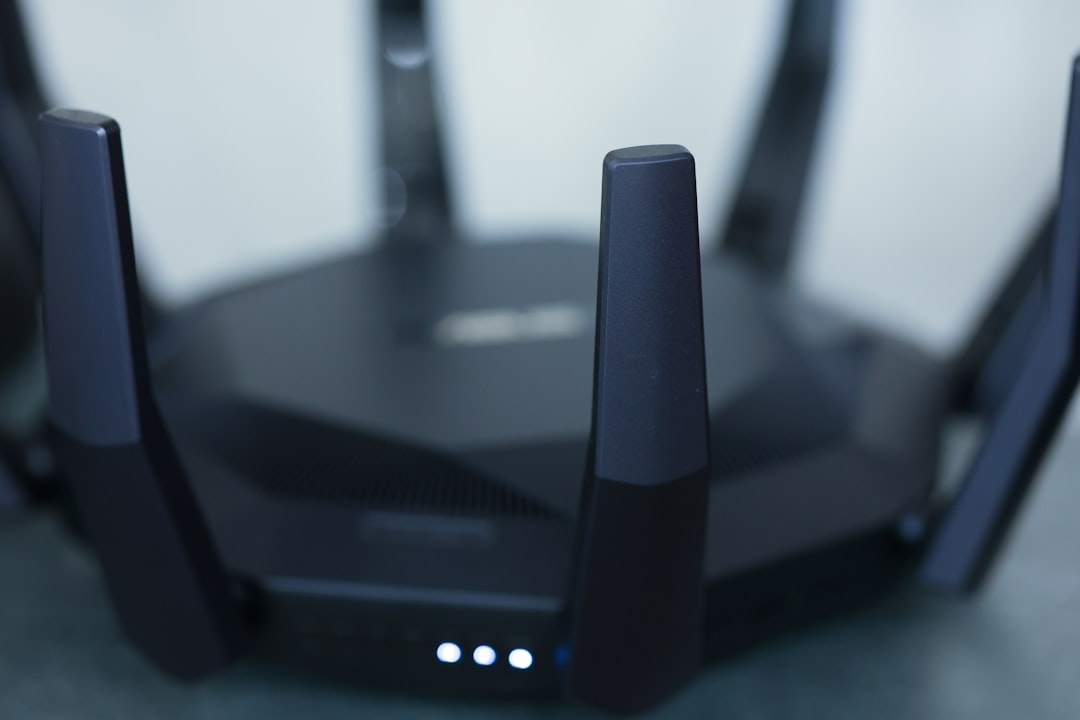
4. Use a Wired Connection Instead of Wi-Fi
Wi-Fi interference is one of the most overlooked causes of buffering. Walls, other devices, and even neighboring networks can weaken your signal.
For optimal streaming:
- Use an Ethernet cable whenever possible.
- If Wi-Fi is necessary, switch to the 5 GHz band instead of 2.4 GHz.
- Keep your router centrally located and free from obstructions.
Even with the best VPN configuration, a weak Wi-Fi signal can sabotage your streaming experience.
5. Close Background Applications
Streaming requires consistent bandwidth. If other applications are quietly consuming data in the background, your video quality may drop.
Common bandwidth hogs include:
- Cloud backups
- Software updates
- Online gaming
- File-sharing applications
Check your task manager or activity monitor to identify apps using excessive bandwidth. Closing unnecessary programs can make an immediate difference.
6. Enable Split Tunneling
Some VPNs offer a feature called split tunneling, which allows you to route only specific apps through the VPN.
For example:
- Stream through the VPN
- Let other apps use your regular connection
This reduces the total encrypted traffic passing through the VPN, potentially increasing speed for streaming services.
7. Upgrade Your VPN Plan
Free VPNs often come with speed limitations, data caps, and overcrowded servers. While tempting, they’re rarely ideal for high-quality streaming.
Premium VPN services typically offer:
- Dedicated streaming servers
- Higher bandwidth capacity
- Better infrastructure
- Improved server distribution globally
If buffering is persistent, investing in a reputable provider may be the most effective solution.
8. Optimize VPN Encryption Settings
Higher encryption levels demand more processing power. While AES-256 encryption is considered extremely secure, some providers allow you to select lighter encryption for speed.
If streaming is your main priority and you’re not handling sensitive data, slightly lowering encryption (if available) can provide a speed boost.
Note: Avoid compromising security too drastically. Balance is key.
9. Restart Your Router and Device
It sounds simple, but restarting your devices can resolve hidden performance issues.
A restart can:
- Clear cached network errors
- Reset unstable connections
- Improve routing efficiency
This quick fix is often enough to eliminate unexpected buffering.
10. Avoid Peak Streaming Hours
Internet speeds can dip during peak usage hours, typically evenings and weekends. VPN servers also experience heavier traffic during these times.
To counteract congestion:
- Switch to less crowded servers
- Try streaming earlier or later in the day
- Choose servers in slightly different regions within the same country
This can make a noticeable difference in stability and resolution quality.

11. Update Your VPN App and Devices
Outdated software can lead to inefficiencies and compatibility issues with streaming platforms.
Make sure to:
- Update your VPN to the latest version
- Install system updates for your device
- Update your streaming apps
Modern updates often include performance improvements and optimized protocols.
12. Consider Router-Level VPN Setup Carefully
Installing a VPN directly on your router protects all connected devices, but it can reduce speed if your router lacks processing power.
If you experience slowdowns:
- Upgrade to a router designed for VPN use
- Use a dedicated device for streaming with the VPN app installed directly
Router-based VPN setups are convenient but require capable hardware.
Balancing Speed and Security
Optimizing VPN speed for streaming isn’t about disabling security features entirely. Instead, it’s about making thoughtful adjustments:
- Select the right server
- Use modern, fast protocols
- Maintain a stable base connection
- Minimize local network interference
When properly configured, a high-quality VPN should reduce your speed only slightly—often by less than 10–20%. In many cases, smart server switching alone eliminates buffering entirely.
Final Thoughts
Streaming without buffering while using a VPN is absolutely achievable. Most performance issues stem from simple factors like server distance, outdated protocols, or local network problems. By making a few targeted changes—such as switching to WireGuard, using a wired connection, or selecting a low-load server—you can enjoy smooth HD or 4K streaming with minimal interruptions.
Think of your VPN as a customizable tool rather than a fixed setting. With the right tweaks, you won’t have to choose between privacy and performance. You really can have both.
