



There’s nothing more frustrating than opening your media player, pressing play on your favorite playlist, and being greeted by blank tracks labeled “Unknown Artist” or “Track 01.” Whether you’re using a desktop application, a smartphone app, or an in-car entertainment system, missing song names can make organizing and enjoying your music feel unnecessarily complicated. Fortunately, this issue is usually easy to diagnose and fix once you understand what’s causing it.
TLDR: If your media player is not showing song names, the problem is typically caused by missing metadata, corrupted files, outdated software, or syncing issues. Start by checking and editing track metadata, refreshing your media library, or updating your app. In some cases, converting files or re-downloading them will solve the issue. Most fixes take just a few minutes and restore your music library to normal.
Why Media Players Sometimes Don’t Show Song Names
Before jumping into solutions, it helps to understand the root cause. Media players rely on embedded metadata within audio files to display details like:
- Song title
- Artist name
- Album title
- Genre
- Track number
- Album artwork
If this metadata is missing, corrupted, or formatted incorrectly, your media player has nothing to display. Instead, it may show generic file names or “Unknown” fields.

The issue can arise due to:
- Files downloaded from unofficial sources
- Improper CD ripping
- File format incompatibility
- Corrupted storage devices
- Software glitches or outdated apps
1. Check the File Name vs. Metadata
Many users assume the file name (for example, mysong.mp3) determines what the media player displays. In reality, most players prioritize embedded metadata over the file name itself.
How to check metadata:
- Right-click the audio file on your computer
- Select Properties
- Go to the Details tab (Windows) or Get Info (Mac)
- Verify if the title, artist, and album fields are filled in
If these fields are blank, that’s your problem. Simply fill them in manually and save the changes.
2. Refresh or Rebuild the Media Library
Sometimes, the metadata exists, but your media player hasn’t updated its library properly. This is especially common after transferring files from another device.
To fix this:
- Rescan your music folder
- Use the “Refresh Library” or “Update Database” option
- Remove affected tracks and re-add them
- Restart the media player
In mobile apps, try clearing the cache (not the data unless necessary) and relaunching the app.
3. Update Your Media Player
Older versions of media players may struggle with newer file formats or updated metadata standards. If you haven’t updated your app in a while, now is a good time.
Outdated software can cause:
- Incorrect tag reading
- Blank metadata fields
- Album art display errors
- Sync failures
Visit your app store or the official website of your media player and install the latest version.
4. Use a Metadata Editor Tool
If multiple tracks are missing song names, manually editing each one can be time-consuming. Metadata editor tools can scan your music library and automatically fetch correct track information.

Popular Metadata Editors
| Tool | Platform | Automatic Tagging | Ease of Use |
|---|---|---|---|
| MusicBrainz Picard | Windows, Mac, Linux | Yes | Moderate |
| MP3Tag | Windows, Mac | Yes | Easy |
| Kid3 | Windows, Mac, Linux | Yes | Moderate |
| iTunes or Apple Music | Mac, Windows | Partial | Very Easy |
These tools connect to online music databases to automatically identify tracks and fill in missing information.
5. Check File Format Compatibility
Not all media players handle every audio format equally. While MP3 files are widely supported, formats like FLAC, WAV, or OGG may not display metadata correctly in certain players.
Common supported formats:
- MP3
- AAC
- WAV
- FLAC
- WMA
If your player is struggling, try converting problematic files into MP3 or AAC format using an audio converter. Be sure to enable the option that preserves metadata during conversion.
6. Fix Corrupted Files
Sometimes the issue lies within the file itself. Corruption can occur due to:
- Interrupted downloads
- Faulty USB transfers
- Failing hard drives
- Virus infections
If a file repeatedly refuses to display metadata, try deleting it and re-downloading from a reliable source. You can also run a disk check or antivirus scan to ensure your storage device is healthy.
7. Sync Issues Between Devices
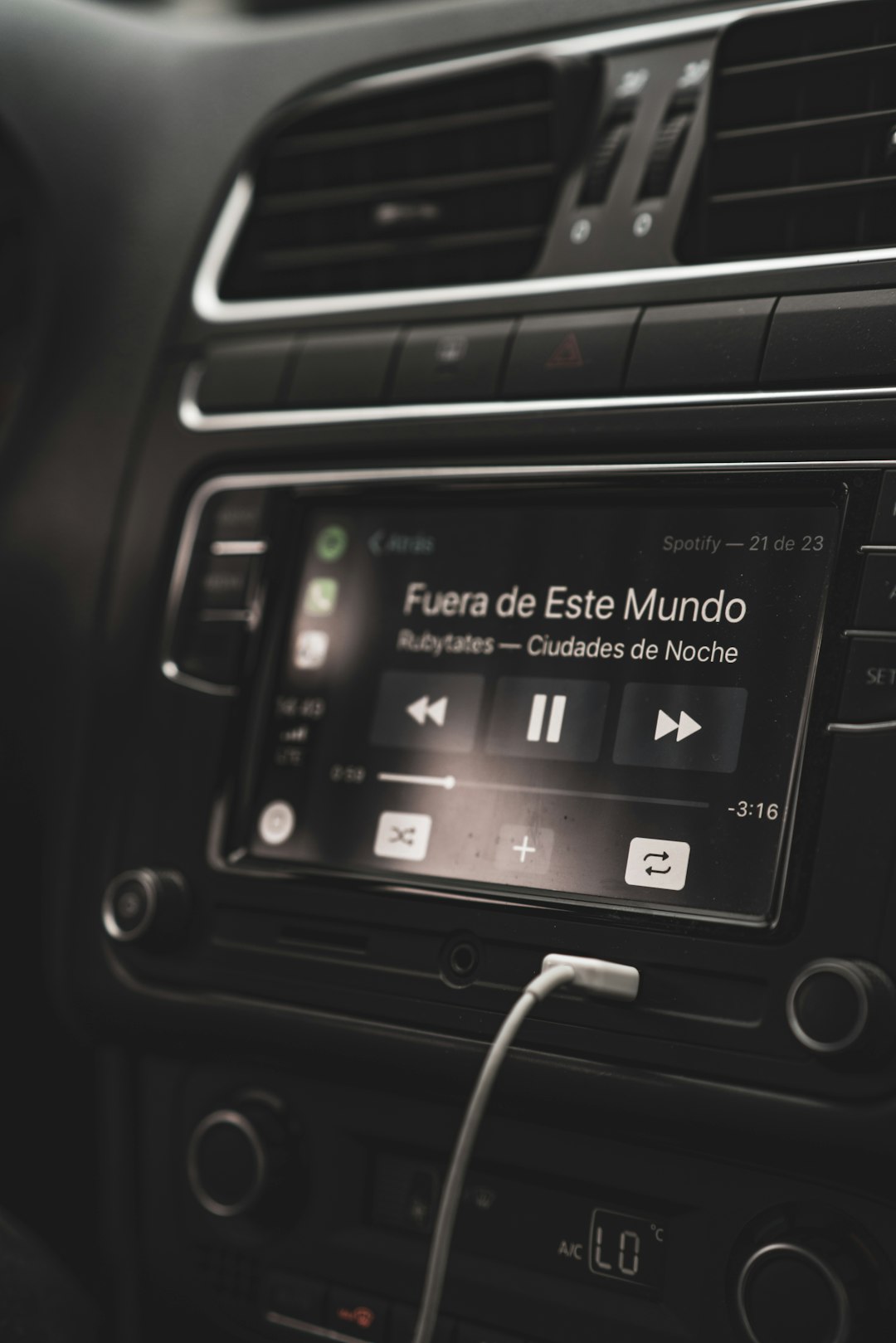
Media syncing between phones, computers, and cars can introduce display problems. For example, your phone might show song titles correctly, but your car stereo displays “Unknown Track.”
Common sync fixes:
- Reconnect Bluetooth
- Delete and re-pair devices
- Use a wired connection instead
- Re-sync your library
- Update your car’s firmware
Car systems are particularly sensitive to metadata formatting, so re-saving tags in ID3v2.3 format often helps.
8. Clear App Cache (Mobile Users)
If you’re using an Android or iOS media player, the issue may stem from a corrupted app cache.
On Android:
- Go to Settings
- Select Apps
- Choose your media player
- Tap “Clear Cache”
On iPhone, you may need to offload and reinstall the app if the issue persists.
9. Re-Rip CDs Properly
If you transferred music from CDs and song names aren’t appearing, the ripping software may not have retrieved metadata from online databases during the process.
When re-ripping:
- Use reliable software
- Ensure internet access during ripping
- Enable automatic metadata lookup
- Select a compatible file format
This ensures titles and album information are embedded correctly from the start.
10. Reset the Media Database
As a last resort, resetting your media player’s database can clear corrupted indexing data.
This process usually involves:
- Backing up your music
- Deleting the media library database file
- Restarting the player
- Allowing it to rebuild the library
While it may take time for large collections, this often resolves stubborn display problems.
Preventing Song Title Issues in the Future
Once you’ve fixed the problem, take a few proactive steps to prevent it from happening again:
- Download music from reliable sources
- Edit metadata immediately after adding new tracks
- Keep your apps updated
- Back up your music library regularly
- Use consistent file formats
Good library management ensures your music remains organized and enjoyable across all devices.
When It Might Be a Hardware Problem
In rare cases, repeated metadata errors could signal a failing storage device. If multiple files become unreadable or lose data over time, consider:
- Testing your hard drive health
- Replacing aging USB drives
- Switching from cheap memory cards
Backing up your collection to cloud storage or an external drive can save you from permanent data loss.
Final Thoughts
When your media player stops showing song names, it might seem like a major technical failure—but in reality, it’s usually a simple metadata issue. By checking file tags, refreshing your library, using metadata editors, and updating your software, you can restore order to your music collection quickly.
Your music library should be easy to navigate and enjoyable to browse. With the right fixes and a little ongoing maintenance, you can keep every song properly labeled and ready to play—no more “Unknown Artist” surprises interrupting your groove.
