


There’s nothing more frustrating than gearing up for a night of binge-watching your favorite shows, only to be interrupted by a stubborn error code on your screen. Roku, a widely popular streaming device, is known for its user-friendliness—but like any tech product, it has its pain points. One common issue that many users encounter is Error 014.30. If you’ve seen this code pop up, you’re not alone. Let’s break down what this error means, why it occurs, and, most importantly, how to fix it.
TL;DR (Too Long; Didn’t Read)
Error 014.30 on Roku devices typically signals a Wi-Fi connectivity issue, often caused by weak signals, wrong passwords, or router configuration errors. The issue can usually be fixed by restarting the Roku device, checking Wi-Fi credentials, moving the router closer, or updating your router settings. In rare cases, a firmware update or factory reset may be necessary. This guide will walk you through each solution in clear steps.
What Is Roku Error 014.30?
Roku Error 014.30 is a Wi-Fi authentication or connectivity error that occurs when your Roku device attempts to connect—or fails to maintain a connection—to a wireless network. Unlike other error codes that may point to server issues or app malfunctions, 014.30 nearly always has its roots in your local network setup.
When this error appears, it prevents your Roku from accessing content online, effectively rendering your device useless until the issue is resolved.
Common Causes of Error 014.30
There are several reasons why your Roku might be experiencing this issue. Knowing the cause can significantly ease the troubleshooting process.
- Incorrect Wi-Fi Password: A simple typo can trigger this error. Roku will fail to authenticate and connect if the password is wrong.
- Weak Signal Strength: If your Roku is too far from the router or obstructed by walls/furniture, the signal may be too weak.
- Router Configuration Issues: Misconfigured DNS, IP settings, or channel frequency settings on your router could interfere with Roku’s ability to connect.
- Firmware Bugs: Outdated software on either the Roku or the router can trigger connectivity issues.
- Network Congestion: Too many devices connected to the same network could degrade the available bandwidth.
How to Fix Roku Error 014.30
Below are step-by-step solutions starting from the easiest and moving toward more advanced troubleshooting techniques.
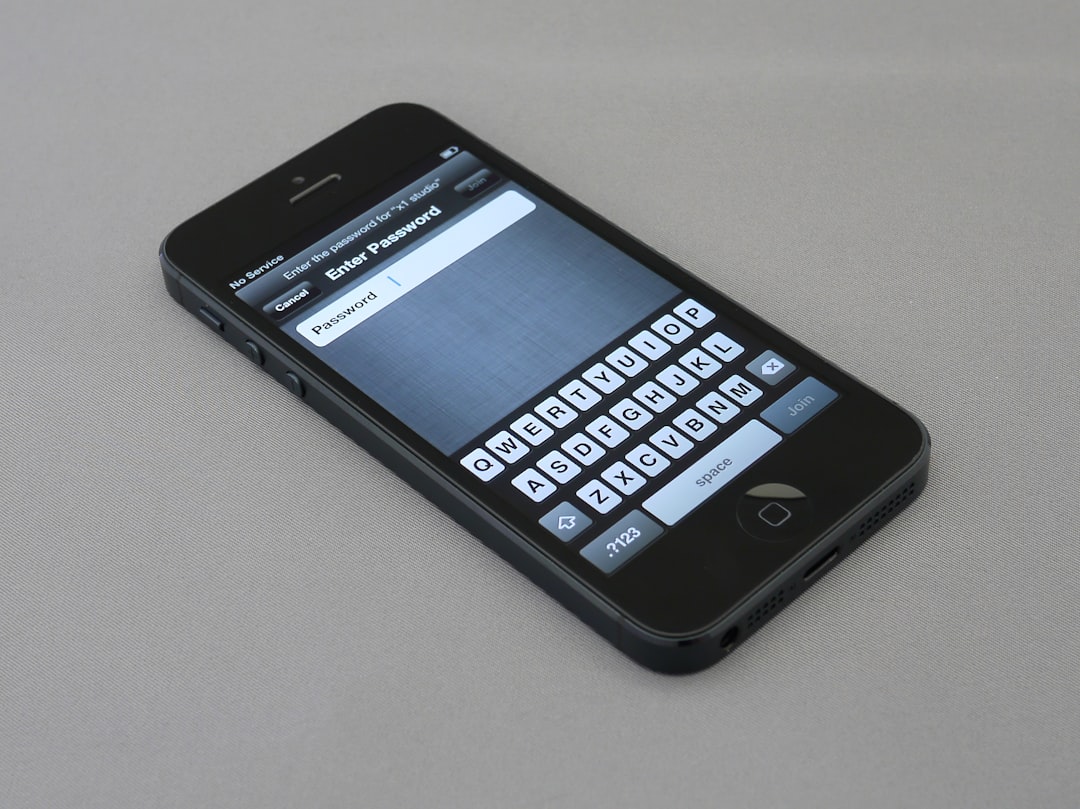
1. Check Your Wi-Fi Password
This might sound obvious, but a surprising number of users get tripped up by incorrect passwords. When connecting your Roku to the network:
- Re-type your password slowly and carefully.
- Remember that passwords are case-sensitive.
- Ensure the router doesn’t have security restrictions like MAC address filtering that could prevent the Roku from connecting.
2. Restart Your Devices
Turning it off and on again actually works more often than not. Perform these steps:
- Unplug your Roku device and your router/modem from power.
- Wait for at least 30 seconds.
- Plug the modem/router back in and wait 2–3 minutes for it to fully power up.
- Plug your Roku back in and try connecting again.
3. Improve the Wi-Fi Signal
Sometimes, the problem lies in the distance between your device and the router. Try the following:
- Move the Roku device closer to your router.
- Eliminate physical barriers such as thick walls or metal furniture.
- Switch your router’s frequency from 5GHz to 2.4GHz if supported—2.4GHz travels farther but is slightly slower.
4. Manually Configure Network Settings
If you’re more tech-savvy, it’s worth digging into your router settings:
- Log into the router via a web browser (you’ll need the IP address, usually something like 192.168.1.1).
- Ensure DHCP is enabled so the Roku can acquire an IP address automatically.
- Check for DNS conflicts or try using a public DNS server like Google DNS (8.8.8.8 and 8.8.4.4).
- Update your router’s firmware to the latest version available.
5. Check for Roku System Updates
It’s possible that outdated Roku software is causing compatibility issues with your network.
- Navigate to Settings > System > System Update.
- Select Check Now to see if an update is available.
- If one is available, allow it to install and reboot the device.
6. Try Connecting to a Different Network
This is a good way to isolate whether the issue is with the Roku or your home network. Use your smartphone’s mobile hotspot:
- Enable your phone’s hotspot feature.
- Try connecting the Roku device to this temporary network.
- If it connects without any issues, the problem is most likely with your original Wi-Fi network setup.
7. Factory Reset Your Roku
As a last resort, performing a factory reset can clear up persistent errors. Here’s how you do it:
- Go to Settings > System > Advanced System Settings > Factory Reset.
- Follow the on-screen prompts to complete the reset.
Note: This will erase all your settings and app downloads, so you’ll need to set up your Roku again from scratch.
When to Seek Professional Help
If all else fails and you’re still seeing Error 014.30, it might be time to reach out for help. Some options include:
- Contacting Roku Support: They may offer more targeted solutions based on your device model and error log.
- Checking with Your Internet Provider: Sometimes, ISPs apply router-level blocking or rate limits that affect devices like Roku.
Preventing Future Occurrences
Now that you’ve managed to fix the issue, here are some tips to prevent it from happening again:
- Keep your Roku’s system software up to date.
- Regularly reboot your router and modem to clear network cache.
- Use WPA2 encryption on your Wi-Fi and avoid overly complex router settings unless you know what you’re doing.
- Limit the number of connected devices during high-demand usage like streaming.
Final Thoughts
Roku Error 014.30 can be a significant roadblock in your streaming experience, but it’s usually solvable with a bit of patience and the right steps. By understanding the root causes—ranging from incorrect passwords to router misconfigurations—you can better equip yourself to handle this issue if it shows up again in the future.
So the next time Error 014.30 appears, you won’t need to panic. Just follow these troubleshooting steps, and you’ll be back to watching your favorite shows in no time.
