



USB technology has dramatically evolved over the years, offering better performance, faster transfer rates, and increased versatility with each new generation. Yet, despite these advancements, the USB naming conventions have caused confusion among both consumers and professionals. Terms like “USB 3.1 Gen 1” and “USB 3.2 Gen 2” can be easily misunderstood or misinterpreted, leading to missed expectations or poor buying decisions.
TL;DR
USB 3.1 and USB 3.2 refer to versions of the USB specification, but naming changes over the years have caused confusion. Essentially, USB 3.1 Gen 1 is the same as USB 3.0 and offers speeds up to 5 Gbps, while USB 3.1 Gen 2 bumps that to 10 Gbps. When shifted under the USB 3.2 umbrella, those same versions are rebranded as USB 3.2 Gen 1 and USB 3.2 Gen 2, respectively. The key difference lies in bandwidth and capabilities, not just the name.
Understanding the USB Evolution
Before diving into Gen 1 and Gen 2 differences, it’s helpful to understand the broader evolution of the USB specification. The USB Implementers Forum (USB-IF), the organization responsible for USB standards, has a habit of renaming previous versions when releasing new ones. This has led to a complex web of terminologies that can confuse even tech-savvy users.
- USB 3.0: Originally introduced in 2008, offering up to 5 Gbps bandwidth.
- USB 3.1 Gen 1: Renaming of USB 3.0 in 2013, still offering 5 Gbps.
- USB 3.1 Gen 2: Introduced alongside USB 3.1 Gen 1, doubling the speed to 10 Gbps.
- USB 3.2 Gen 1: Another rebranding of USB 3.1 Gen 1 (and thus USB 3.0).
- USB 3.2 Gen 2: Formerly USB 3.1 Gen 2, offering 10 Gbps.
- USB 3.2 Gen 2×2: An evolution offering up to 20 Gbps using two lanes of 10 Gbps.
As you can see, the same physical architecture has been rebranded multiple times. This complicates the buying process, especially when trying to match peripheral capabilities with host devices.
USB 3.1 Gen 1 vs Gen 2: Key Differences
The terms “Gen 1” and “Gen 2” primarily refer to data transfer speeds. While it may appear superficial, the jump from 5 Gbps to 10 Gbps is significant—especially for high-resolution media streaming, data backups, and video editing workflows.
| Specification | USB 3.1 Gen 1 | USB 3.1 Gen 2 |
|---|---|---|
| Also Known As | USB 3.0 / USB 3.2 Gen 1 | USB 3.2 Gen 2 |
| Max Speed | 5 Gbps | 10 Gbps |
| Cable Requirement | Standard USB 3.x cable | Certified USB 3.1 cable for full speed |
| Typical Use Case | General peripherals, flash drives | External SSDs, video capture, docking stations |
Where USB 3.2 Fits In
With the release of USB 3.2 in 2017, the USB-IF puzzled consumers even more by renaming existing technologies under the USB 3.2 umbrella:
- USB 3.2 Gen 1: Formerly USB 3.0 / USB 3.1 Gen 1 (5 Gbps)
- USB 3.2 Gen 2: Formerly USB 3.1 Gen 2 (10 Gbps)
- USB 3.2 Gen 2×2: New designation offering 20 Gbps over USB-C
Unfortunately, this means that two USB-C devices labeled as “USB 3.2” may have entirely different speeds depending on whether they are Gen 1, Gen 2, or Gen 2×2. Users must check detailed specs rather than just relying on version numbers.

Physical Connectors vs. Protocols
One of the common misconceptions is assuming that the USB generation is directly tied to the connector type. For example, people often think that a USB-C connector always means faster speeds—but that’s not the case.
Connector types:
- USB-A: Traditional rectangular connector. Available in USB 2.0 up to USB 3.2 Gen 2.
- USB-C: Newer, reversible connector. Supports everything from USB 2.0 to USB4.
So, you could have a USB-C device that only operates at 5 Gbps if it’s using USB 3.2 Gen 1. The connector shape doesn’t guarantee performance—the protocol behind it does.
Cable Matters: Reach and Capability
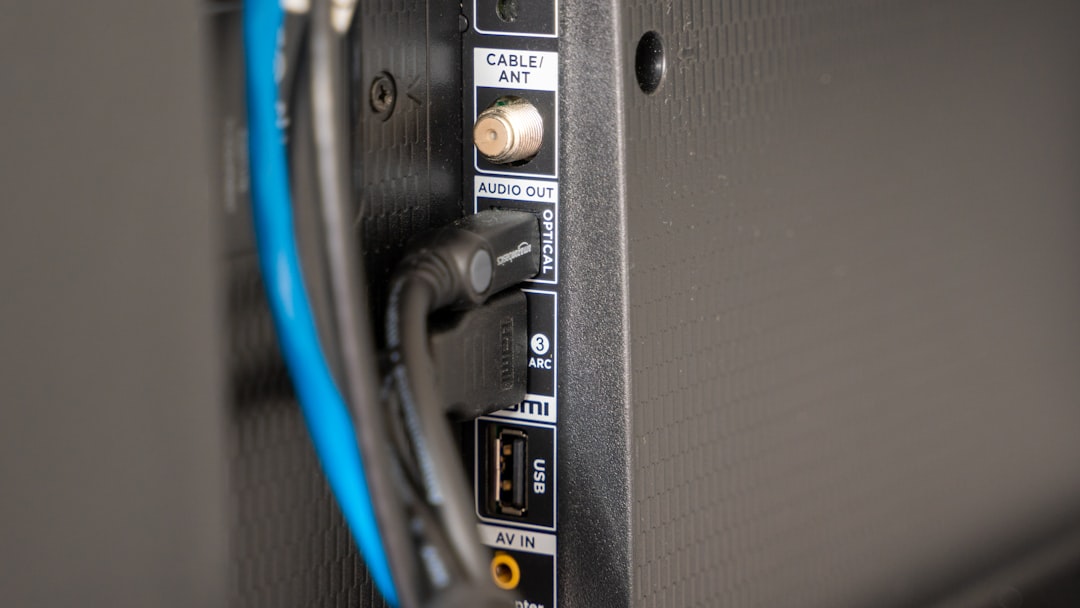
The quality and certification of your USB cable can greatly impact performance. For instance, while USB 3.1 Gen 2 supports 10 Gbps, not every cable can handle that speed. Using a cable that’s not certified for USB 3.1 Gen 2 can limit your connection speed or even cause data transmission errors.
- Always look for certified cables from reputable vendors.
- Avoid using USB 2.0 cables with even backward-compatible ports.
- If in doubt, assume a cable only supports Gen 1 speeds unless specified otherwise.
Backward Compatibility: A Strength of USB
One of the most useful features of USB is its backward compatibility. A USB 3.2 Gen 2 port will still work with USB 2.0 and USB 3.0 devices. However, you will only get the maximum speed that the slower device or cable can support.
For example:
- Plugging a USB 3.1 Gen 1 flash drive into a USB 3.2 Gen 2 port will result in 5 Gbps speeds.
- Using a Gen 2×2 SSD with a Gen 1 port will limit it to 5 Gbps, even though the SSD can go up to 20 Gbps.
While this compatibility is excellent for maintaining functionality, it can lead to performance bottlenecks if users aren’t aware of these limits.
Labeling Still a Headache
Although USB-IF encourages manufacturers to communicate not just the generation but also the speeds on packaging (such as “Up to 10 Gbps”), many still simply say “USB 3.1” or “USB 3.2”, leaving out the generation and thus the speed detail.
When evaluating a product, look beyond the headline number and into the actual specifications provided. You’ll often find the information buried in product listings or data sheets.
Recommendations and Best Practices
To avoid confusion and ensure optimal performance, follow these practical steps:
- Read the specs carefully: Don’t rely on branding alone—look for actual transfer rates.
- Match the weakest link: Ensure that your cable and device both support the target speed.
- Use trusted brands: Especially for USB-C devices, low-quality cables can cause overheating, data errors, or even device damage.
- Keep legacy gear in mind: If compatibility with older devices is important, favor USB-A ports or multi-purpose USB hubs that include various connectors.
