


If you’re a fan of Uma Musume: Pretty Derby and you’ve been playing it on your phone or using the DMM platform on PC, you might be excited to know that you can now enjoy your favorite game on Steam. Whether you’re aiming for smoother performance, better controls, or just the convenience of using Steam, linking your existing account to the Steam version ensures a seamless transition without losing progress, characters, or in-game items. But how exactly do you link your Uma Musume account to your Steam version? Let’s dive into the step-by-step guide to help you unlock the full potential of your gameplay on Steam.
TL;DR
Linking your Uma Musume account to Steam involves transferring your data from your phone or DMM version to the Steam version. You’ll need to use your Cygames account for data linking. Make sure your account is already linked to Cygames before proceeding. After that, simply log in using your account details upon launching Uma Musume on Steam.
Why Link to Steam?
There are several compelling reasons to connect your existing Uma Musume account to Steam:
- Improved Performance: Steam allows for smoother graphics and faster processing on most PCs.
- Convenient Gameplay: Easier to multitask and manage your game while on a desktop or laptop.
- Wider Compatibility: Use a larger screen, gamepad support, and possibly mods (if available and allowed).
By linking accounts, you avoid starting over and continue your character’s development seamlessly. So let’s make sure you’re set up correctly!
Step 1: Check Your Current Uma Musume Account
Before you can connect to Steam, confirm which version of Uma Musume you are currently using:
- Mobile (iOS or Android)
- DMM (PC platform by DMM Games)
For both mobile and DMM players, the key is whether your progress is already linked to a Cygames account. If it isn’t, this needs to be done first. Without a linked Cygames account, you won’t be able to move your save data to the Steam version.
How to Confirm Your Cygames Account Link
Follow these steps to ensure your Uma Musume account is properly linked on mobile or DMM first:
- Launch Uma Musume on your current platform.
- Tap on the Menu icon in the upper right corner.
- Go to Data Link (データ連携).
- Select Cygames Account.
- If you’ve previously linked, it’ll show your registered email or account status.
If you haven’t linked yet, you’ll be guided through a simple registration process that requires a valid email and password to create your Cygames account. Follow the instruction prompts carefully.
Step 2: Install Uma Musume on Steam
Now that your account is ready for transfer, go ahead and install Uma Musume from the Steam platform:
- Open the Steam app on your PC and search for Uma Musume: Pretty Derby.
- Make sure it’s the official version from Cygames.
- Click Install and wait for the game to download.
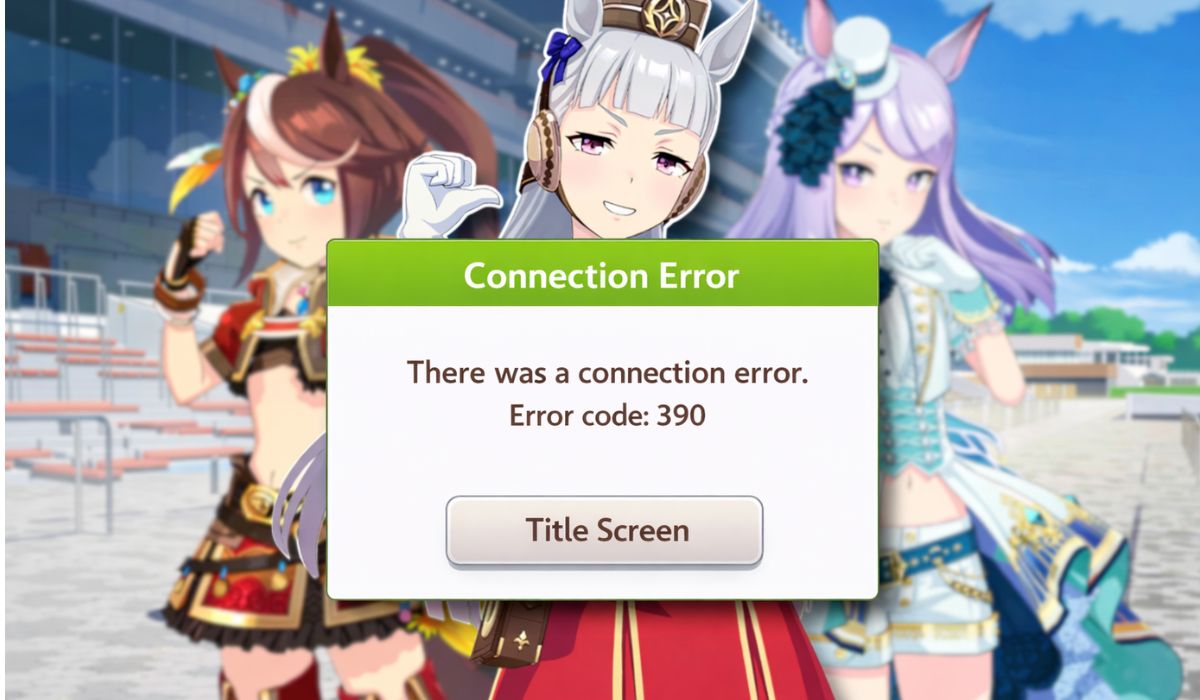
Once installation is complete, launch the game from your library. This is where the account linking procedure happens.
Step 3: Log in with Your Cygames Account on Steam
When you start Uma Musume on Steam for the first time, you will be prompted to either start a new game or link existing data. Follow these steps:
- Select Data Transfer or データ連携 instead of beginning a new game.
- Choose Cygames Account log-in option.
- Enter the email and password associated with your Cygames account and confirm.
After a brief loading screen, your existing account data will be imported into the Steam version! All your characters, support cards, G1 victories, and training progress will be instantly available.
Tips for a Smooth Transition
Although the process is fairly straightforward, here are a few tips to help avoid snags:
- Double-check your login info: Make sure the email and password for your Cygames account are correct.
- Exit the game on mobile/DMM: Before logging into Steam, close your current session to prevent data conflicts.
- Avoid multiple logins at once: Uma Musume doesn’t support concurrent sessions on multiple devices.
- Screenshot your settings: Keybinds and layout settings might be different on Steam, so document your preferred customizations in case you need to redo them.
Can You Switch Between Devices?
Yes, once your data is synced through your Cygames account, you can freely switch devices. You can alternate between mobile, DMM, and Steam versions by simply logging in using the same linked account. However, keep in mind:
- You can only be logged in on one device at a time.
- Make sure to quit the game properly each time before switching platforms to prevent issues.
This flexibility is great for users who like the convenience of mobile on the go, but prefer the immersive experience of desktop gaming at home.
What If Something Goes Wrong?
Occasionally, the data transfer process may not be successful. Here are a few scenarios and how to handle them:
- Incorrect Credentials: Double-check that you’re entering the correct email and password for your Cygames account.
- Forgotten Password: Use the “Forgot Password” feature on the Cygames login page to reset it before trying again.
- No Previous Link: If you never linked your mobile or DMM account to Cygames before, unfortunately you won’t be able to bring that data to Steam.
Still stuck? Visit the official Uma Musume support page or reach out to their customer support. They often respond faster through direct in-game help requests or emails via the official site.
Benefits of Using Steam Cloud
One of the (often overlooked) upsides of using Steam is its built-in cloud saving capability. While Uma Musume relies mainly on Cygames’s account infrastructure for data, Steam’s own cloud storage provides an extra layer of safety for:
- Settings and preferences
- Keybindings
- Launcher and language configurations
To ensure cloud saves are enabled:
- Right-click Uma Musume in your Steam library.
- Select Properties.
- Go to the General section and make sure Keep games saves in the Steam Cloud is checked.
Frequently Asked Questions (FAQ)
- Q: Can I link multiple accounts to Steam?
A: No. Each Steam account can only be linked to one Cygames account at a time. - Q: Does linking affect my in-game purchases?
A: Purchases made on different platforms may vary. Some paid currency may not transfer across platforms, but character and item data usually will. - Q: Is English support available on Steam?
A: As of now, the game is still in Japanese only. However, fan patches and translation mods may be available. Use with caution, as unofficial mods can breach terms of service.
Conclusion
Linking your Uma Musume account to Steam is a smart move for any player looking to elevate their gaming experience. Whether it’s enhanced visuals, more screen space, or simply having all your games in one launcher, Steam offers incredible benefits. Just remember—account security, proper data linking through Cygames, and careful transition planning will make the process smooth and rewarding. Now go out there and let your horse girls shine on the racetrack—Steam-powered style!
