


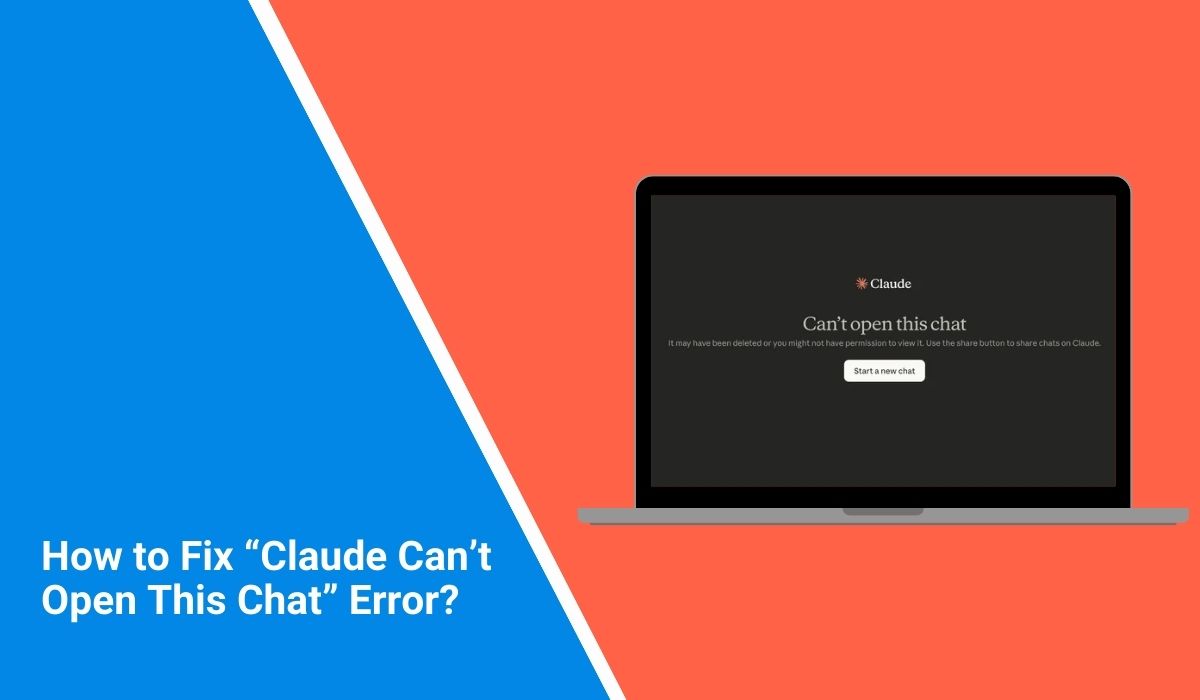
You open Claude AI, click on one of your previous conversations, and instead of the chat loading, a message appears saying “can’t open this chat.” It can be confusing, especially if you need information from that conversation.
This problem usually happens when the Claude web interface, the browser session, or the connection to Anthropic servers fails to load the chat data. The issue is often temporary and can be fixed with a few simple steps. This guide explains what the message means, why it appears, how to fix it, and how to prevent similar chat loading problems in the future.
What Does “Claude Can’t Open This Chat” Mean?
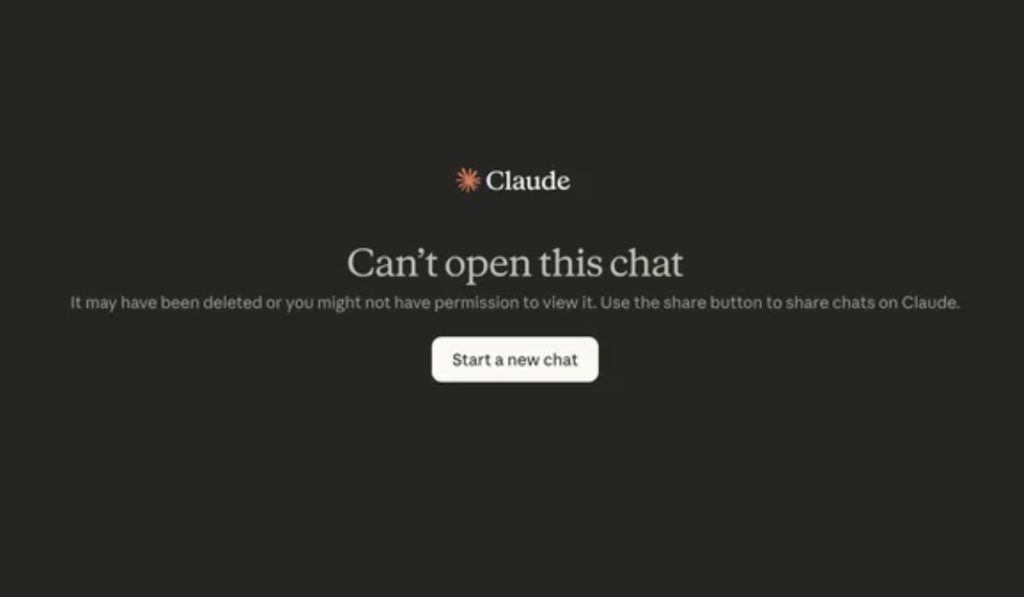 The message “Claude can’t open this chat” appears when the Claude AI platform cannot retrieve a stored conversation from its cloud system. When you use Claude, your conversations are stored on Anthropic cloud servers, which allows you to reopen the chat later from your conversation history. Each chat is linked to your account session and browser connection.
If the platform cannot retrieve that stored conversation, the interface shows an error instead of loading the chat. This situation may happen when the browser session expires, when cached data becomes corrupted, or when the platform receives a delayed response from the server. Sometimes the issue appears when the browser fails to send the correct session authentication request to the Claude servers.
Users normally see the message inside the Claude web app when selecting an earlier conversation from the sidebar. It can also appear when refreshing a page that already contains an open chat.
Common Causes of the Claude Chat Loading Problem
Several technical factors can prevent Claude from loading a chat conversation. In many cases the issue comes from the browser rather than the AI platform itself. Temporary server interruptions can also affect chat access.
Common causes include:
- Corrupted browser cache or stored cookies
- Expired login session for the Claude account
- Temporary downtime or slow response from Anthropic servers
- Unstable internet connection during the chat request
- Browser compatibility problems with the Claude interface
- Too many open browser tabs consuming memory
- Temporary platform storage or API response delays
Understanding these causes helps determine whether the issue comes from the device, the browser, or the Claude platform.
How to Fix “Claude Can’t Open This Chat”?
Fixing this issue usually involves refreshing your browser session or clearing stored website data. These steps help the browser reconnect to the Claude conversation system and retrieve the chat again.
Below are several ways to restore access to your conversation.
Fix #1: Refresh the Claude Page
Sometimes the chat fails to load because the browser did not complete the request to the server. Reloading the page sends a new request to the Claude AI server system.
Press the refresh button in your browser or reload the Claude page. In many cases the conversation will open normally after the page reloads.
Fix #2: Log Out and Log Back In
Your login session might have expired. Logging out and signing back in refreshes the authentication token.
Follow these steps:
- Open the account menu in Claude.
- Click the log out option.
- Close the Claude browser tab.
- Reopen the Claude website.
- Sign in to your account again.
- Try opening the chat again.
A refreshed login session often restores access to conversation history.
Fix #3: Clear Browser Cache and Cookies
Browsers store temporary files to speed up website loading. Sometimes these stored files conflict with web applications such as Claude.
Follow these steps to clear browser data:
- Open your browser settings.
- Navigate to the privacy or browsing data section.
- Select the option to clear cache and cookies.
- Confirm the action.
- Restart the browser.
Once the browser reloads fresh data from the Claude platform, the chat usually becomes accessible again.
Fix #4: Try a Different Web Browser
Occasionally the problem comes from browser compatibility. Switching to another browser can help confirm whether the issue is browser-related.
Try opening Claude in browsers such as Google Chrome, Mozilla Firefox, Microsoft Edge, or Safari.
Fix #5: Check Your Internet Connection
A slow or unstable internet connection can interrupt the request that loads your conversation.
Follow these steps to check the connection:
- Restart your Wi-Fi router.
- Reconnect your device to the network.
- Open another website to confirm the internet works.
- Return to the Claude website and reload the chat.
Stable internet connectivity ensures the browser can communicate with Anthropic cloud servers.
Fix #6: Disable Browser Extensions
Some browser extensions interfere with web applications by blocking scripts or modifying page behavior.
Extensions related to ad blocking, privacy filtering, or script blocking may prevent Claude from loading chat content. Temporarily disable these extensions and reload the chat page.
Fix #7: Open the Chat in a New Tab
Opening the conversation link in a new tab forces the browser to send a fresh request to the server.
Right-click the chat in the sidebar and choose the option to open it in a new tab if available. This simple action sometimes reloads the conversation successfully.
Fix #8: Wait for Server Recovery
If the issue comes from the platform itself, the problem may affect multiple users at the same time. When Anthropic servers experience temporary overload or maintenance, chat loading may fail briefly.
In this situation the best solution is to wait until the service returns to normal.
Prevention Tips to Avoid Claude Chat Errors
Although this issue is often temporary, a few simple habits can reduce the chance of encountering chat loading problems again. Maintaining a stable browsing environment helps cloud-based platforms operate smoothly.
Here are useful prevention tips:
- Keep your web browser updated to the latest version
- Clear browser cache occasionally
- Avoid running too many browser extensions
- Maintain a stable internet connection
- Refresh your login session periodically
- Avoid opening too many browser tabs at once
- Check platform status announcements during outages
These habits improve compatibility with web-based AI platforms such as Claude.
Conclusion
The message “Claude can’t open this chat” usually appears when the Claude platform cannot retrieve a stored conversation from its cloud servers. This can happen because of browser cache issues, expired login sessions, network problems, or temporary server delays.
Most users can solve the issue quickly by refreshing the page, clearing browser cache, logging back into their account, or trying a different browser. If the problem comes from the platform itself, waiting for server recovery typically resolves the issue.
Have you experienced this problem while using Claude AI? Share your experience in the comments and let others know which solution worked for you. If this guide helped you fix the issue, consider sharing it with others who use Claude for their work or studies.
