


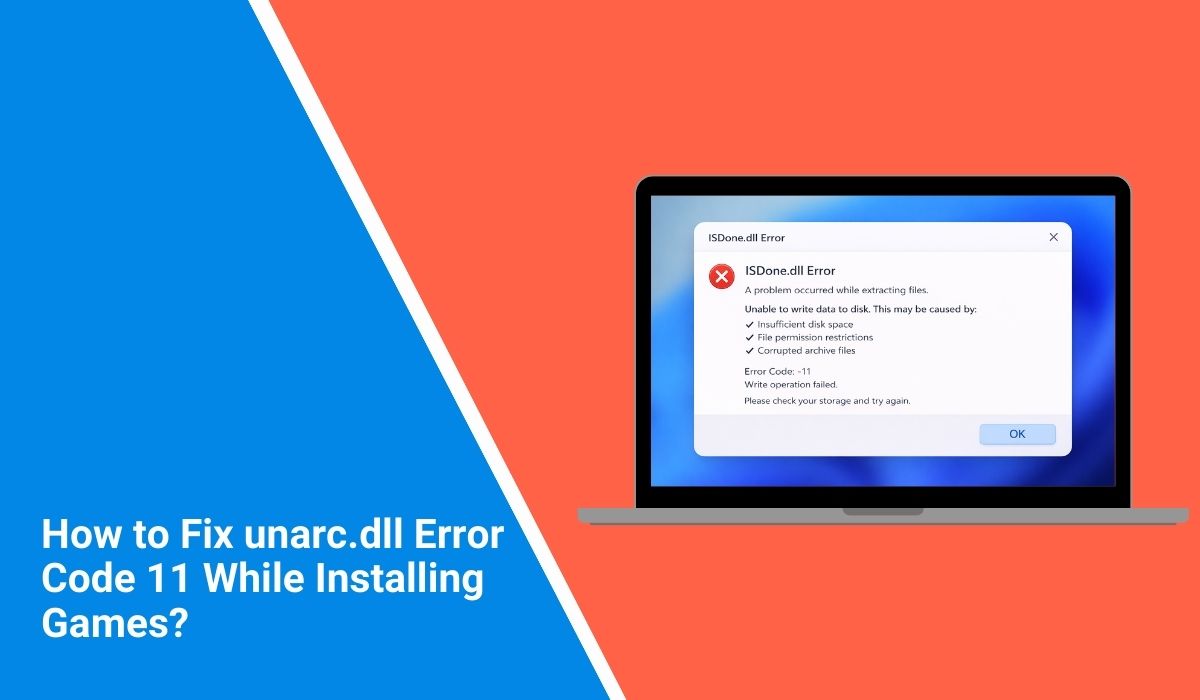
Seeing unarc.dll error code 11 while installing a game or extracting files can feel annoying. The setup stops, and you’re left wondering what went wrong.
In this guide, you’ll learn what this error means, why it happens, how to fix it step by step, and how to avoid it next time.
What Is unarc.dll Error Code 11?
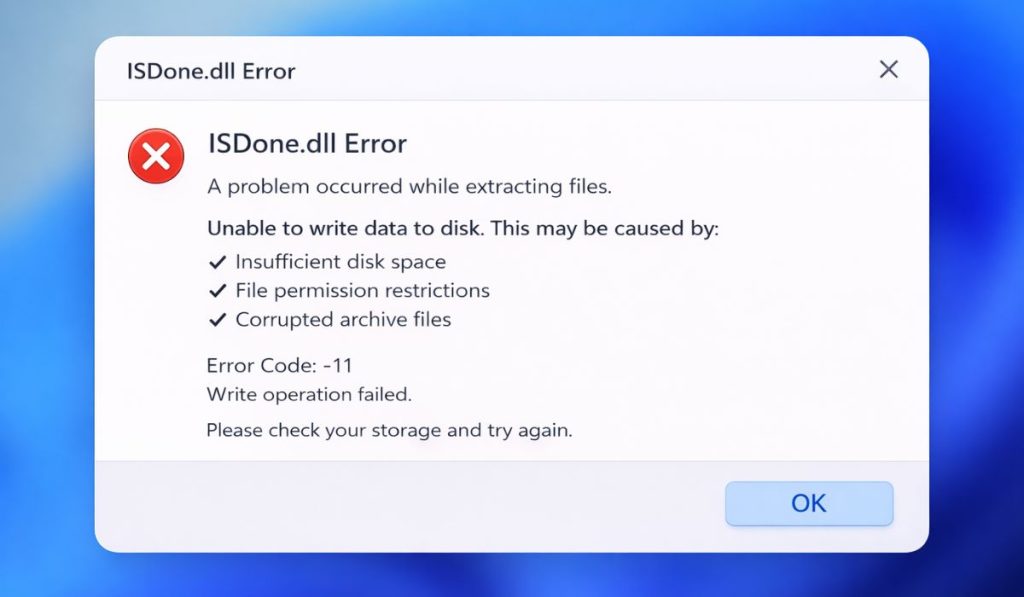 unarc.dll error code 11 is an installation or extraction error that appears when the system fails to unpack compressed files. This usually happens when the installer cannot read or process the archive correctly. The error often links to corrupted files, CRC errors, or problems with system memory.
When the setup tries to extract data from a compressed archive, it checks file integrity and system resources. If something fails during this process, the system stops and shows this error.
It may also happen due to disk space issues or missing system support for the extraction process.
You will usually see this error during game installation, while extracting archive files, or when running a setup installer on Windows. It often appears in tools like WinRAR or during installation screens.
Common Causes of unarc.dll Error Code 11
This error can happen for several reasons related to your system, files, or installation process. Below are the most common causes.
- Corrupted or incomplete downloaded archive files
- Not enough disk space for extraction or installation
- Faulty or insufficient RAM memory
- Antivirus blocking setup or DLL file
- Damaged compressed archive causing CRC error
- Incorrect extraction path or folder issue
- Outdated Windows system or drivers
How to Fix unarc.dll Error Code 11?
In most cases, you can fix this error by checking your files, system resources, and installation setup. Sometimes one simple fix works, so try each solution step by step.
Fix #1: Re-download the File
This error often appears when downloaded files are corrupted. A fresh download ensures that all archive data is complete and usable.
Follow the steps below to easily re-download the file.
- Delete the current setup files
- Go to the original download source
- Download the file again
- Avoid pausing the download
- Try installation again
Fix #2: Check Disk Space
If your system does not have enough storage, the extraction process fails. The installer needs space to unpack files properly.
Try these simple steps to quickly check disk space.
- Open This PC
- Check available storage
- Free up space if needed
- Delete unnecessary files
- Restart installation
Fix #3: Run Setup as Administrator
Permission issues can block installation processes. Running setup as administrator gives full access to system resources.
The following steps will show you how to run setup properly.
- Right-click on setup file
- Select Run as administrator
- Confirm the prompt
- Start installation
- Check if error is resolved
Fix #4: Disable Antivirus Temporarily
Sometimes antivirus software blocks DLL files or setup processes. This can stop extraction and trigger the error.
Temporarily disable your antivirus, install the file, and then enable protection again after installation.
Fix #5: Check RAM and Memory Usage
Low or faulty RAM can cause extraction failure. The system needs enough memory to unpack files correctly.
Follow these easy instructions to check memory usage without any confusion.
- Open Task Manager
- Check memory usage
- Close unnecessary programs
- Restart your system
- Try installation again
Fix #6: Extract Files to a Different Folder
Sometimes the file path or folder causes issues. Extracting files to a new location can solve this problem.
Here’s how you can extract files in just a few seconds.
- Right-click archive file
- Select extract option
- Choose a new folder
- Start extraction
- Run setup again
Fix #7: Update Windows and Drivers
Outdated system files may not support installation properly. Updates fix compatibility and improve system performance.
These are the exact steps you need to follow to update your system successfully.
- Open Settings
- Go to Windows Update
- Check for updates
- Install latest updates
- Restart your system
Fix #8: Verify Archive Integrity
If the archive has errors, extraction will fail. Checking file integrity helps confirm if files are valid.
Use tools like WinRAR to test the archive. If errors appear, download the file again from a trusted source.
Prevention Tips to Avoid unarc.dll Error Code 11
Fixing the error is helpful, but preventing it saves time and effort. When you manage your system and downloads properly, installation errors happen less often. Keeping your files clean and system updated makes a big difference.
- Download files from trusted sources only
- Ensure enough disk space before installation
- Avoid interrupting downloads
- Keep antivirus updated but not overly strict
- Maintain system memory health
- Update Windows regularly
- Check file integrity before extracting
Conclusion
In short, unarc.dll error code 11 happens when your system cannot extract or install files due to corrupted data, memory issues, or disk problems. It may also occur because of antivirus interference or outdated system settings. Once you understand the cause, fixing it becomes easier.
Try each solution step by step and see what works for you. If the issue still continues, seek technical support or use a different file source. And if this guide helped you, share it with others or leave a comment about your experience.
