


In an increasingly digital workplace, the ability to capture and annotate screens quickly has become essential for communication, collaboration, and documentation. Whether used for technical support, remote learning, product development, or content creation, screen annotation tools like Nimbus Screenshot provide users with practical ways to visually explain ideas and workflows. Instead of relying solely on written instructions, individuals and teams can highlight, mark up, and share visual feedback instantly, reducing misunderstandings and saving valuable time.
TLDR: Screen annotation tools such as Nimbus Screenshot allow users to capture, edit, and share screenshots quickly and efficiently. They help improve communication by enabling clear visual feedback with arrows, text, highlights, and shapes. These tools are widely used in business, education, and creative industries for collaboration and documentation. By simplifying visual explanation, they reduce errors and boost productivity.
Modern work environments demand clarity. Written descriptions alone can often be confusing, especially when explaining technical processes or visual designs. Screen annotation tools bridge that gap by allowing users to capture exactly what appears on their screen and visually emphasize the most important elements. This practice transforms abstract explanations into precise visual instructions.
What Are Screen Annotation Tools?
Screen annotation tools are software applications or browser extensions designed to capture images or recordings of a computer or mobile screen. After capture, users can edit the image directly by adding annotations such as:
- Text boxes for explanations
- Arrows and pointers to direct attention
- Highlight or blur tools for emphasis or privacy
- Shapes and lines to mark specific areas
- Stickers and icons for quick visual cues
Tools like Nimbus Screenshot integrate these features into a seamless interface, making it possible to capture an entire webpage, a selected area, or a scrolling window. The added benefit of cloud storage and sharing options enhances workflow efficiency across teams.
Core Features of Tools Like Nimbus Screenshot
While screen annotation software varies, leading tools typically include several key features that make them indispensable.
1. Flexible Capture Modes
Users can choose to capture:
- The entire screen
- A specific application window
- A selected rectangular area
- A scrolling webpage
This flexibility ensures that unnecessary information is excluded, focusing only on the relevant content.
2. Advanced Editing Capabilities
After capturing the screen, editing tools allow immediate customization. This includes blurring sensitive data such as email addresses, highlighting important text, or drawing shapes around critical features.
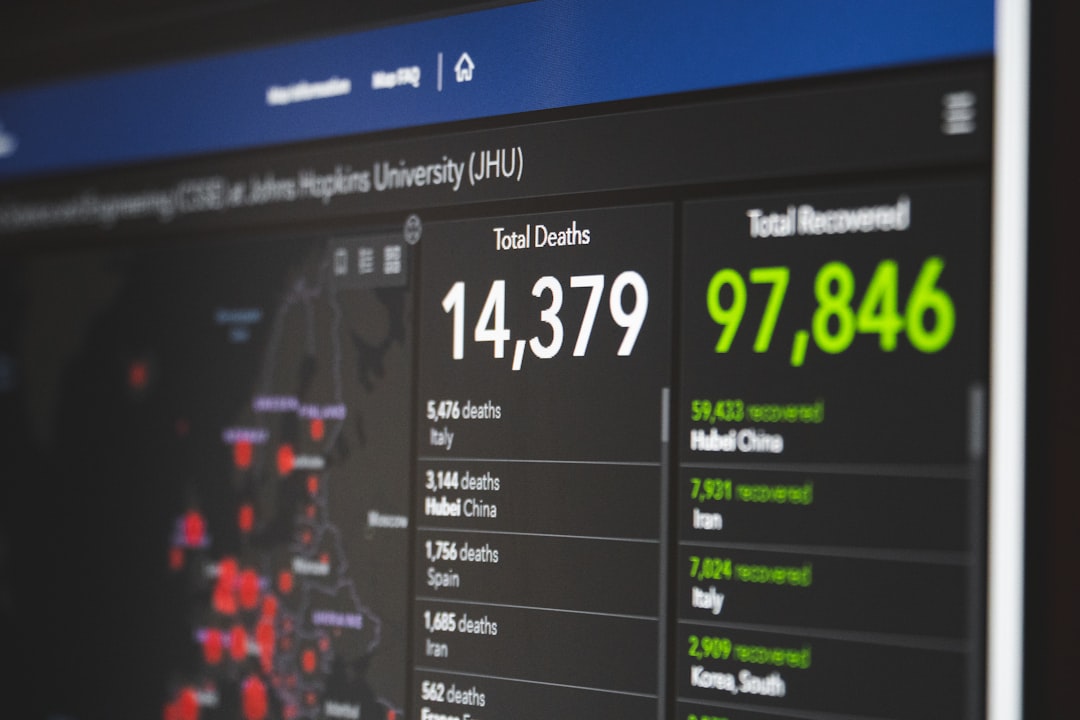
These visual elements speed up comprehension, making instructions clearer and more actionable.
3. Cloud Storage and Sharing
Many annotation tools offer direct integration with cloud services. Instead of downloading and attaching files repeatedly, users can generate shareable links. This simplifies collaboration in remote teams where speed and accessibility are vital.
4. Screen Recording Options
Some solutions extend beyond static screenshots by offering video capture with real-time annotations. This is especially useful for tutorials, walkthroughs, and asynchronous communication.
Benefits of Using Screen Annotation Tools
The popularity of tools like Nimbus Screenshot reflects their practical advantages across industries.
Enhanced Communication
Visual communication reduces ambiguity. For example, instead of writing a lengthy explanation about a button’s location, a user can simply circle it and add a short note. This makes instructions faster to understand and act upon.
Improved Productivity
By eliminating lengthy back-and-forth clarification emails, teams can resolve issues quickly. Designers can share marked-up drafts, developers can point out bugs visually, and educators can provide annotated feedback on assignments.
Better Documentation
Creating standard operating procedures becomes significantly easier when supported by annotated screenshots. Step-by-step visual guides are easier to follow than text-heavy manuals.
Support for Remote Work
As remote work continues to grow, screen annotation tools serve as virtual whiteboards. They allow distributed teams to share ideas clearly without needing live meetings.

Common Use Cases
1. Technical Support
Support teams frequently use screen capture tools to identify software errors. Customers can send annotated screenshots to show exactly where a problem occurred, reducing diagnostic time.
2. Software Development and QA Testing
During testing phases, QA professionals capture bugs and annotate them with detailed notes. Developers can then quickly see the affected areas, streamlining the fixing process.
3. Education and Training
Educators use screen annotations to explain online platforms, review assignments, and prepare step-by-step tutorials. Students benefit from clear visual instructions that reinforce written guidance.
4. Marketing and Content Creation
Content creators rely on annotated screenshots for blog posts, guides, and presentations. Marketers use them to demonstrate software features or highlight campaign results.
Key Factors to Consider When Choosing a Tool
Although many options are available, selecting the right tool depends on individual or organizational needs.
- Ease of Use: The interface should be intuitive and require minimal training.
- Editing Variety: A wide range of annotation options ensures flexibility.
- Sharing Options: Quick export and cloud integration streamline workflows.
- Privacy Features: Blurring or redaction tools protect sensitive information.
- Integration: Compatibility with project management systems enhances collaboration.
Evaluating these elements helps teams choose a solution that aligns with their operational goals.
Security and Privacy Considerations
When capturing screen content, sensitive information may be displayed. Therefore, secure storage and encrypted sharing are crucial. Organizations should assess whether the tool complies with internal data policies.
Features such as automatic link expiration, password-protected sharing, and local storage options add extra layers of protection. Users should also be mindful of what appears on screen before capturing.
Best Practices for Effective Screen Annotation
Using annotation tools effectively requires more than simply adding arrows everywhere. Clear communication depends on thoughtful design.
- Keep annotations concise to avoid clutter.
- Use consistent color coding for clarity.
- Blur sensitive data before sharing.
- Focus attention on one issue per screenshot whenever possible.
- Combine short text explanations with visual markers.
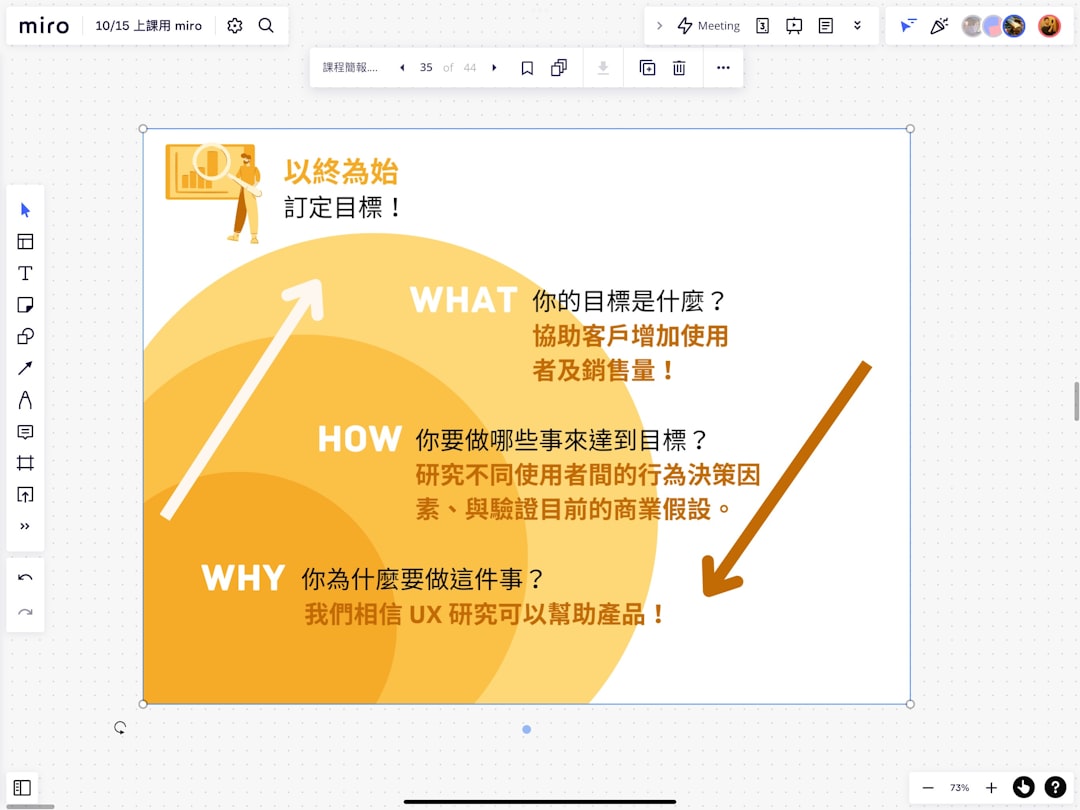
A clean and organized screenshot ensures that the viewer immediately understands the intended message.
The Future of Screen Annotation Tools
Advancements in artificial intelligence and automation are shaping the next generation of screen capture tools. Automated annotation suggestions, smart object detection, and integrated transcription for video recordings are increasingly becoming standard features.
In addition, collaboration tools are integrating annotation functionality directly into project management systems, reducing the need for separate applications. As hybrid work environments expand, the demand for intuitive and powerful annotation capabilities will likely continue to grow.
Conclusion
Screen annotation tools like Nimbus Screenshot have transformed how individuals and organizations communicate visually. By combining easy capture options with robust editing and sharing features, these tools simplify complex explanations and enhance collaboration. From technical support to education and marketing, their applications are wide-ranging and highly practical.
As digital communication continues to dominate professional environments, visual clarity will remain essential. Screen annotation tools provide an accessible and efficient solution, empowering users to communicate clearly, reduce errors, and improve overall productivity.
FAQ
1. What is a screen annotation tool?
A screen annotation tool is software that allows users to capture screenshots or recordings and add visual elements such as text, shapes, arrows, and highlights for explanation or emphasis.
2. How is Nimbus Screenshot typically used?
Nimbus Screenshot is commonly used to capture selected areas of a screen or entire webpages and annotate them with notes, making it useful for collaboration, tutorials, and technical support.
3. Are screen annotation tools only for businesses?
No. While businesses use them extensively, educators, students, freelancers, and content creators also benefit from annotated visual communication.
4. Can sensitive information be protected in screenshots?
Yes. Most tools include blur or redaction features to hide confidential data before sharing screenshots.
5. Do screen annotation tools support video recording?
Many modern tools include screen recording features, allowing users to annotate or narrate recordings for detailed walkthroughs and tutorials.
6. Why are annotated screenshots more effective than text instructions?
Annotated screenshots reduce ambiguity by visually pointing to specific elements. They help viewers understand instructions faster and with fewer misunderstandings.
